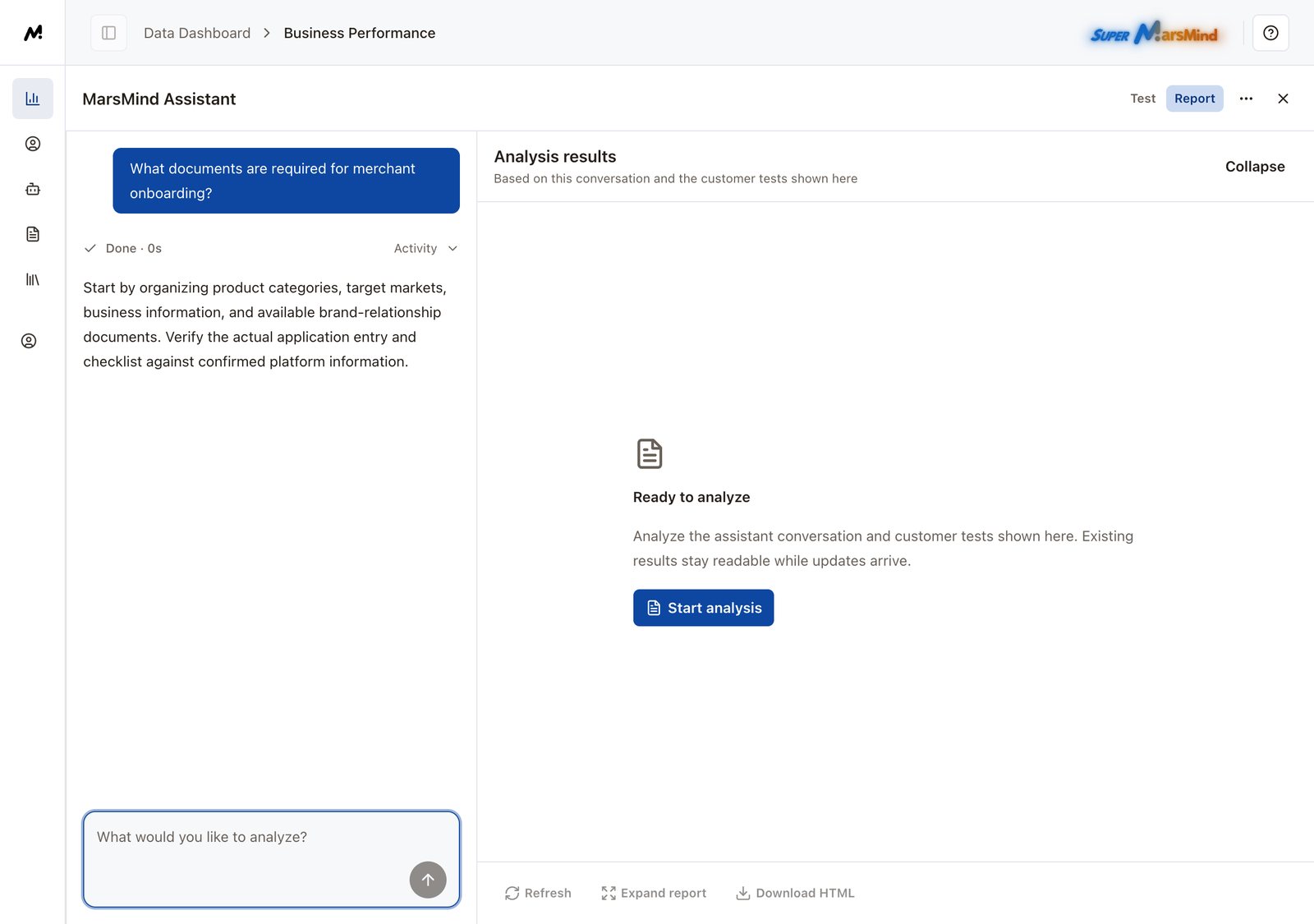

Open and send a test
- Click Super MarsMind in the admin header, then Test beside the conversation title.
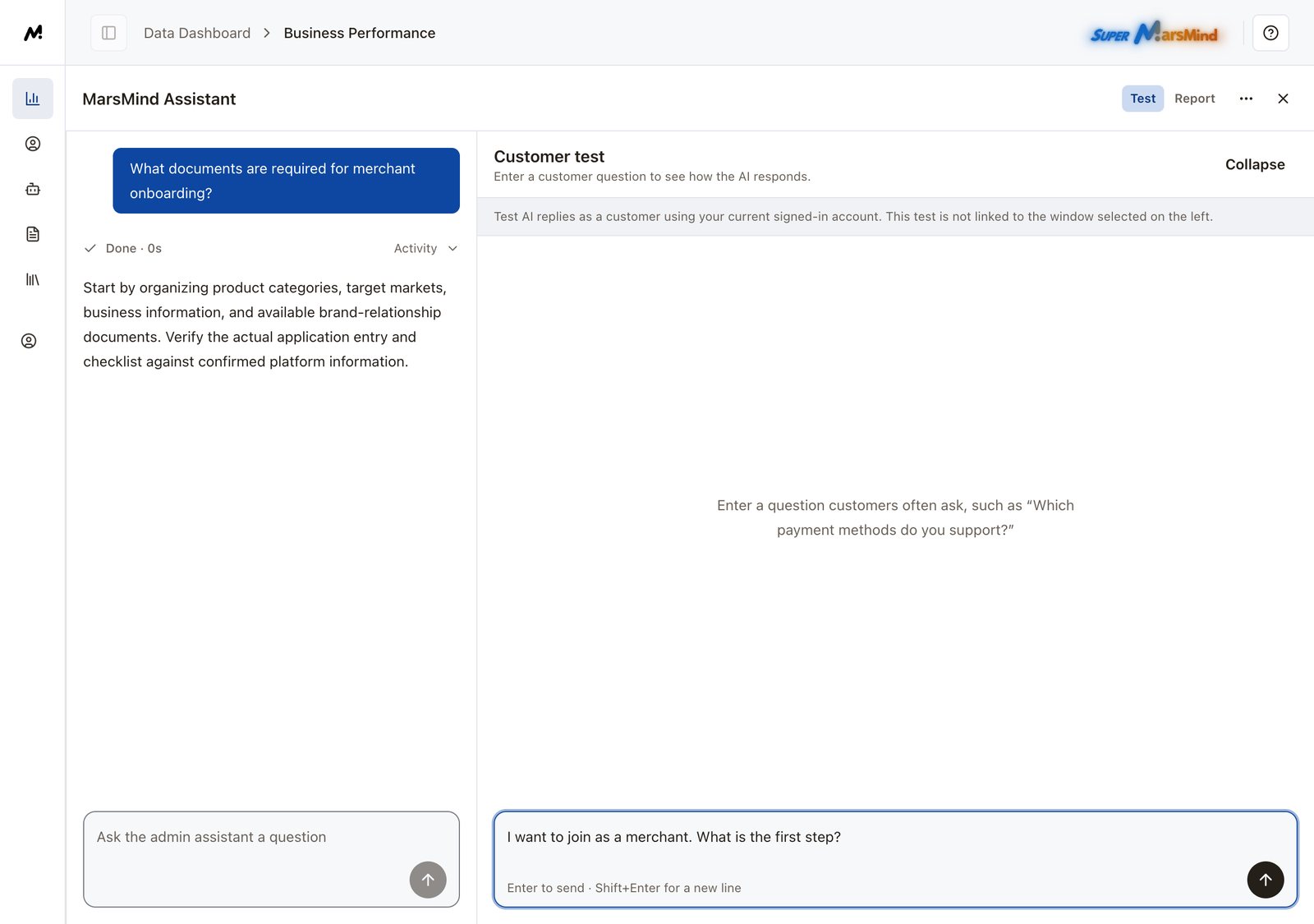
- Enter a specific customer question, such as: “I have chosen a product category but not a target market. What should I prepare next?”
- Click the send arrow and inspect the actual reply and state for that message. Desktop Enter sends and Shift+Enter inserts a line break; on mobile, tap the arrow.
- Follow up to check a multi-turn exchange. Click Test again to collapse it; on mobile, switch through the panel tabs.
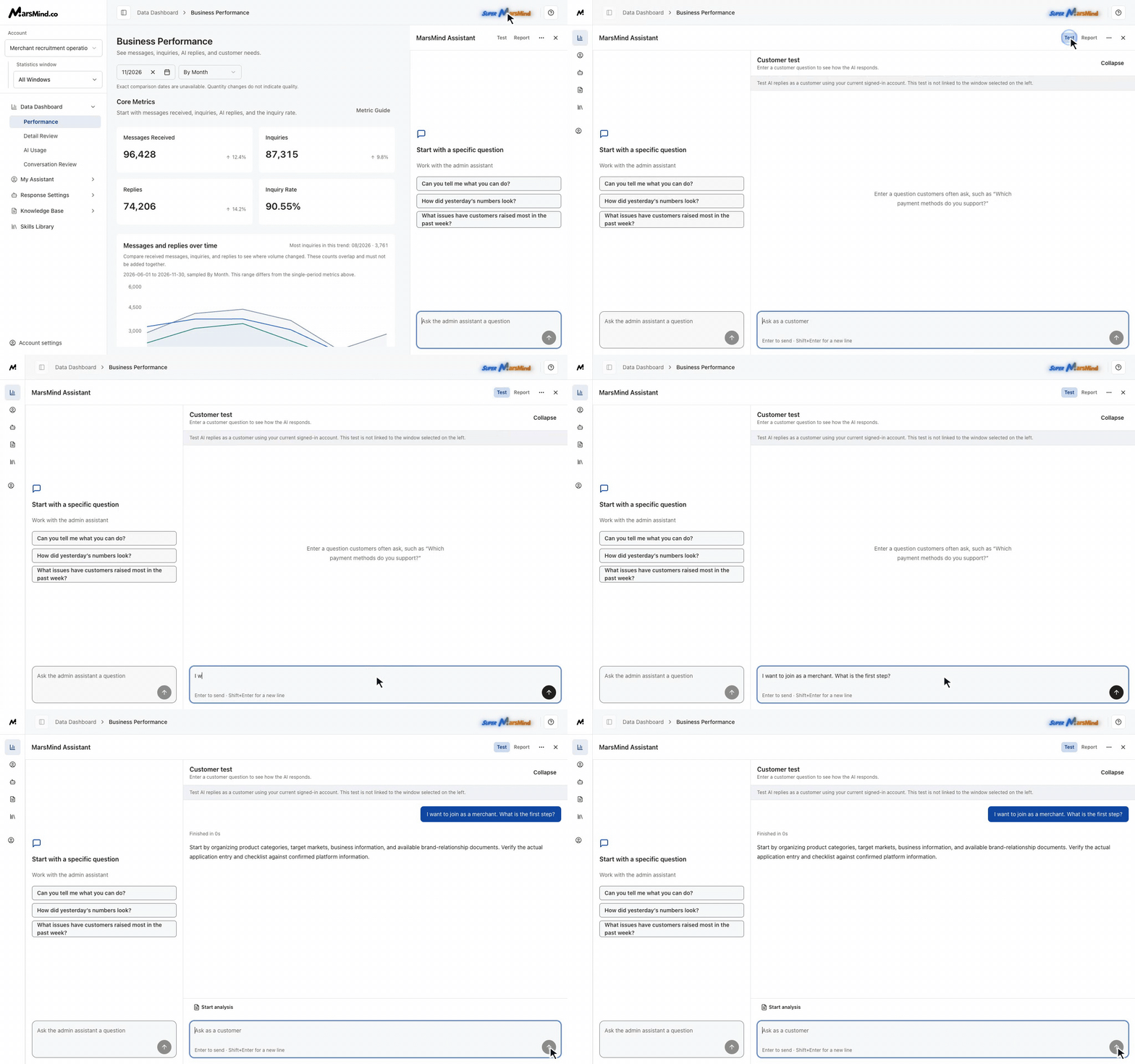
Screen recording (demo data)
Send a question in the separate customer-test composer, then inspect the demonstration reply for that turn. The test uses the signed-in account and is not bound to the selected sidebar window.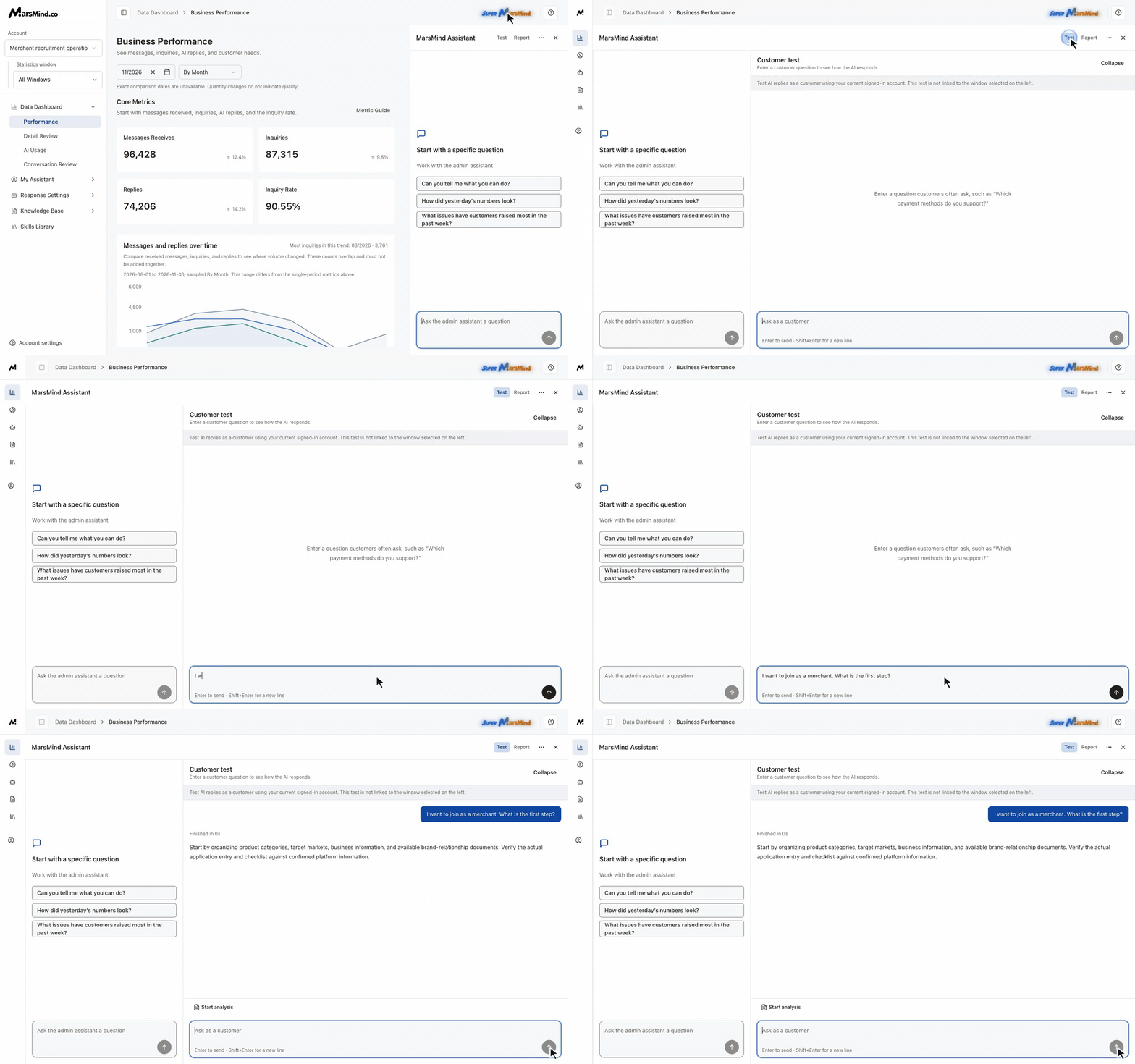
Accounts, questions, replies and reports in the recording are demonstration data. Use the still images below for step-by-step reference.
Evaluate the result
- Check whether the reply answers the question, grounds its factual claims and identifies missing information.
- A processing status indicates progress for that turn. It does not prove a message was delivered to a customer.
- If the request fails, use Edit and retry, adjust the question and resend. Stop receiving only stops this page’s reception; the server may already have processed the message.
- If no details were returned, the panel says No processing details were returned for this reply. Do not treat main-conversation activity as customer-test evidence.
Analyze the test
After a customer reply arrives, the test panel’s Start analysis analyzes the current assistant conversation and customer tests already shown on this page. You can also open Report and write a specific analysis request in the main composer.