

Safety Guardrails is the last check before an AI reply is sent: a reply that matches a rule is blocked or replaced with content you wrote in advance, and the system can notify the Leader (supervisor) at the same time. Rules are saved per “Selected window” and apply only to the selected window.

When you’ll need this

  • The AI occasionally tells customers things that are not true, such as “I’ve added you to the group” or “I’ve already checked” — you want to stop those replies.
  • For sensitive topics such as complaints, refunds, and legal matters, you want the AI to say less or hand off to a human: block the reply and notify the Leader.
  • In some scenarios you do not want the AI to improvise; when a rule matches, send your own fixed wording instead.
  • A new window just went online, and you want a line of defense for high-risk scenarios first.

How to get there

Left menu → Response Settings → Safety Guardrails. Once you are in, check the “Selected window” at the top of the left sidebar (below the logo) first: guardrail rules are saved per window, so switching windows shows a different set of rules. When no window is selected, the page shows “No communication window is available”, “Log in and bring a non-admin communication window online before continuing.”, and a “Go to channel login” button — connect a window through Channel Login first.
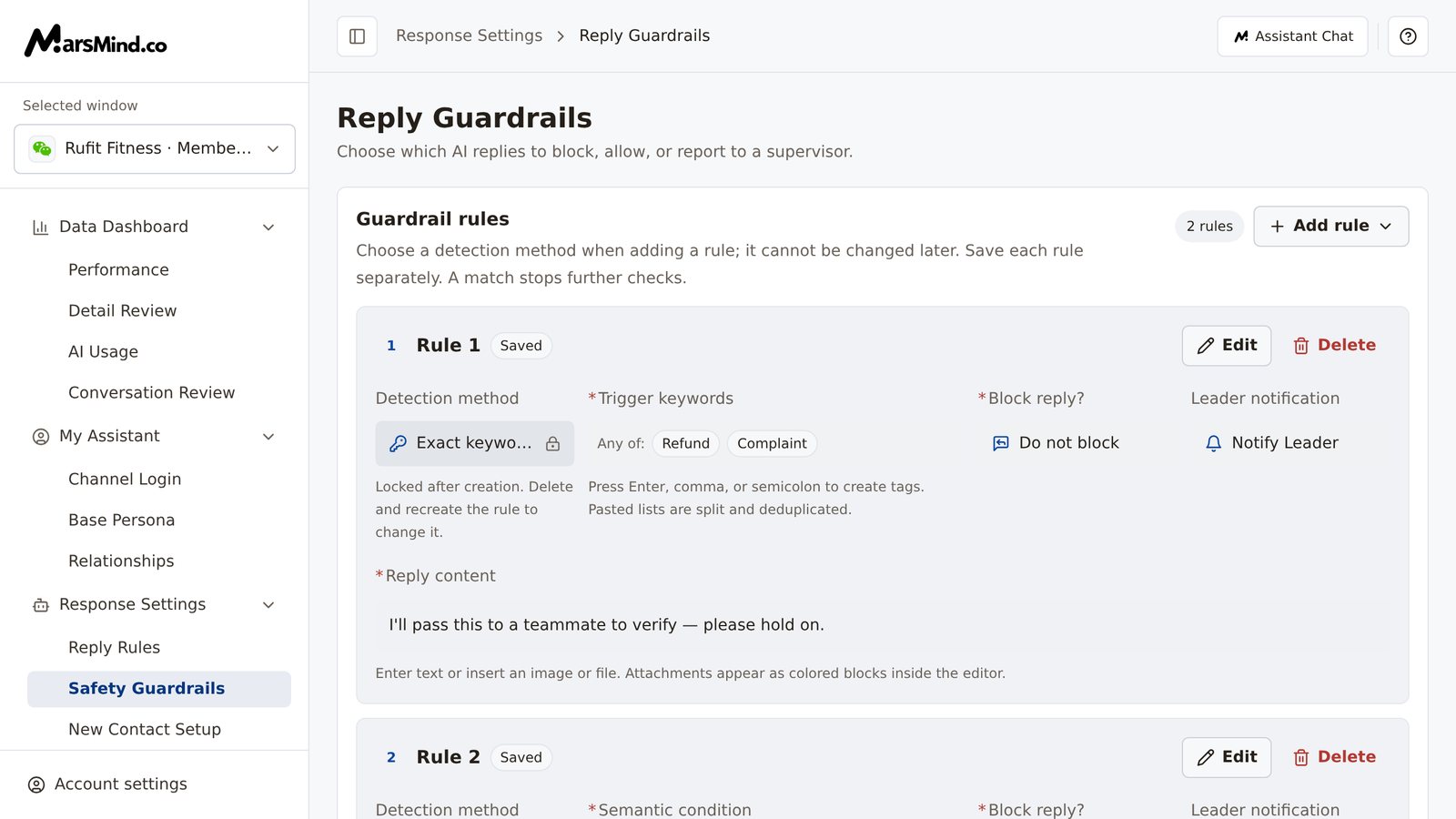
Safety Guardrails page: the “Guardrail rules” card at the top carries a rule-count badge and an “Add rule” button; below it, rules are listed by number with their detection method, match condition, whether the reply is blocked, and the Leader notification

Steps

1

Confirm the Selected window

Rules take effect only in the window they belong to. Before you start adding rules, confirm that the “Selected window” at the top of the left sidebar (below the logo) is the one you want to configure.How to tell it worked: the window name matches the one you intend to configure.
2

Select “Add rule” and choose a detection method

Select “Add rule” in the top-right corner of the page (when the rule list is empty, the button sits in the empty state in the middle). Choose one of two detection methods:
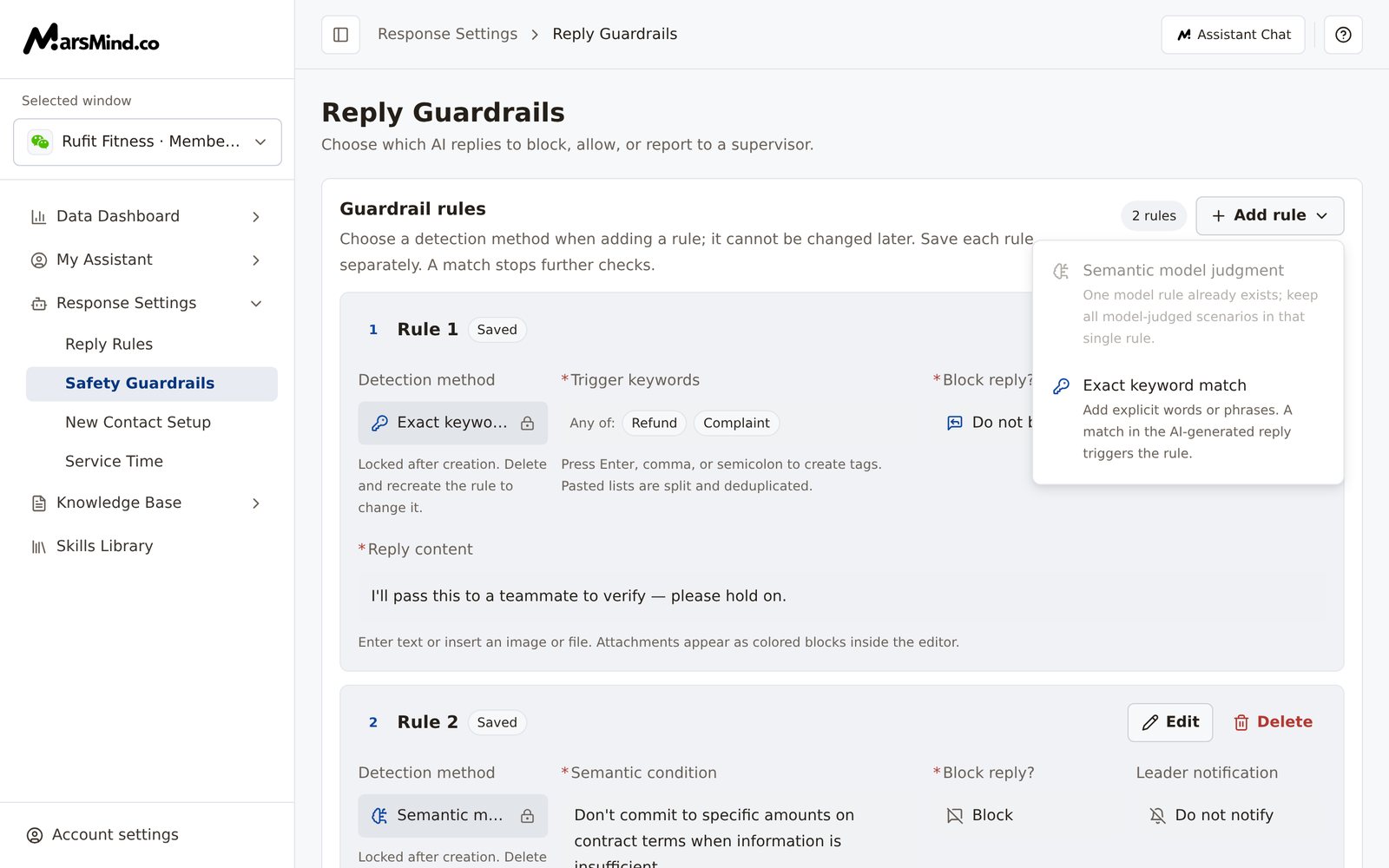
  • Semantic model judgment: describe the scenario in natural language and let the model judge whether the AI-generated reply matches.
  • Exact keyword match: enter explicit words or phrases; the rule triggers when the AI-generated reply matches any tag.
After you choose, a “Rule N” card appears in the list, with an “Unsaved” badge to the right of the title, and the card enters edit mode.
The dropdown after selecting “Add rule”, showing the two options “Semantic model judgment” and “Exact keyword match” with their descriptions
Note: the detection method cannot be changed after creation — the page shows “Locked after creation. Delete and recreate the rule to change it.” Each window allows only one semantic model rule; once a model rule exists, that option is unavailable and the dropdown shows “One model rule already exists; keep all model-judged scenarios in that single rule.”
3

Fill in the match condition

Exact keyword match: type words into the “Trigger keywords” field, then press Enter, comma, or semicolon to create a tag; pasted lists are split automatically and deduplicated. Then choose the “Match” mode (default “Any keyword”): “Any keyword” triggers when any one keyword matches; “All keywords” requires every keyword to appear.Semantic model judgment: in “Semantic condition”, describe the intent, scenario, or boundary clearly instead of piling up keywords. For example: “the AI-generated reply promises compensation or makes a legal judgment”.How to tell it worked: keywords appear as tags in the field, or the semantic condition has been filled in.
4

Choose “Block reply?”

“Block reply?” decides what happens to the reply when a rule matches:
  • Block: the AI reply is not sent.
  • Do not block: your “Reply content” is sent instead. You can enter text; select “Insert file” to upload an image or file, and attachments appear as colored attachment blocks inside the editor.
After you choose “Do not block”, the “Reply content” editor appears below: it needs at least text or an attachment.How to tell it worked: “Block reply?” has a selection; if you chose “Do not block”, “Reply content” is not empty.Note: changing “Block reply?” from “Do not block” back to “Block” clears the reply content you filled in; switching back to “Do not block” means you must enter it again.
5

Choose “Leader notification” and save

For “Leader notification”, choose “Notify Leader” or “Do not notify”, then select “Save” in the top-right corner of the card.How to tell it worked: a “This guardrail rule was saved” message appears and the badge changes to “Saved”.Note: if required fields are incomplete, selecting “Save” shows “Complete the required fields in this rule”; selecting “Cancel” discards this round of changes — a saved rule reverts to its last saved content, and a new rule that was never saved is removed.

Checkpoints

  • The “Selected window” on the left is the window you want to configure.
  • No card in the rule list shows “Unsaved” or “Editing” — every change is saved.
  • For rules where “Block reply?” is “Do not block”, “Reply content” contains text or an attachment.
  • Send a message that matches the condition in a real conversation on that window: with “Block”, the AI does not send the reply; with “Do not block”, the customer receives the content you configured; with “Notify Leader”, confirm on the supervisor’s side that the notification arrives.

Important notes

Deleting a rule cannot be undone. When you delete a saved rule, selecting “Delete” opens the “Delete this guardrail rule?” confirmation; after you select “Delete rule”, the rule is removed from the current window immediately and cannot be restored. A new rule that has not been saved is removed directly when you select “Delete”, with no confirmation dialog.
With an unsaved rule on the page, you cannot leave directly: switching menus, switching windows, or going back opens the “Discard unsaved changes?” confirmation — choose “Keep editing” to return and finish, or select “Save” or “Cancel” on the card before you leave. Refreshing or closing the tab triggers the browser’s leave confirmation, which blocks you the same way.
Once a rule matches, the rules after it are not checked.
Each rule is submitted separately when you select “Save”, but the backend writes the whole rule list as one unit. That is why the page disables editing and saving when “Failed to load guardrail rules” appears — to avoid overwriting the existing configuration. When several people edit the same window’s rules at the same time, whoever saves later overwrites what was saved earlier.
Two common combinations: to keep serving the customer with different wording, use “Do not block” + “Reply content”; to stop the reply from going out at all, use “Block”. When in doubt, start with “Block” and turn on “Notify Leader”, watch what matches, and then decide whether to allow it through.
To check why a reply was blocked, open the corresponding inquiry in Detail Review and select “Message Processing Chain”: the “Safety Guardrail” step is shown under “Execution Steps”. The fallback replies used when the AI cannot answer are configured in Reply Rules.

Frequently asked questions

The rule is created, but replies are not blocked. What should I check first?

Check four things in order: whether the “Selected window” on the left is the window with the problem — rules are saved per window, so it is easy to configure the wrong one; whether the rule badge shows “Saved” — “Unsaved” and “Editing” changes do not take effect; whether the keywords in a keyword rule have become tags (type the text, then press Enter, comma, or semicolon, or click outside the field, and the tag is created automatically), and whether “Match” is set to “All keywords”, which makes the condition too strict; and finally, remember the match target is the AI-generated reply, not the message the customer sent — to block replies such as “I’ve added you to the group”, the keywords must be words the AI would say, not the customer’s question.

Why can’t I select “Semantic model judgment”?

Each window allows only one semantic model rule. After one is created, that option in the Add rule menu is unavailable and shows “One model rule already exists; keep all model-judged scenarios in that single rule.” Add the new scenario to that rule’s “Semantic condition”, or switch to exact keyword matching.

I chose the wrong detection method. Can I change it directly?

No. The detection method cannot be changed after creation — delete the rule and create a new one with “Add rule”. Deletion cannot be undone, so note the original condition content before deleting.

After I change “Block reply?” from “Do not block” to “Block”, why is the reply content gone?

Switching to “Block” clears the reply content you filled in; switching back to “Do not block” means you must enter it again, and it is written only after you select “Save”.

The page says “Failed to load guardrail rules”. Can I still edit?

No. To avoid overwriting the existing configuration, the page cannot be edited or saved until loading succeeds; select “Reload” to retry, and make your changes after the rule list loads.