

When you’ll need this
- A customer says a reply was wrong: find that message and check which knowledge the AI referenced and how far it got in the process.
- Spot-check service quality: filter a batch of records by user, group, or intent category, and read each user inquiry and AI response one by one.
- Delivery and archiving: export the communication details for a period to xlsx and send it to a colleague or keep it locally.
- Review conversations that involve human agents: switch to Human–AI session data to see messages sent and received by agents as well.
How to get there
Left menu → Data Dashboard → Detail Review; the top bar shows the breadcrumb Data Dashboard → Message Details. Once you are in, confirm the Statistics window on the left first (department admins also see an Account dropdown above it). The page body has two tabs: Chat Data Details (the default; AI–customer conversations only) and Human–AI session data (which also includes messages from human agents).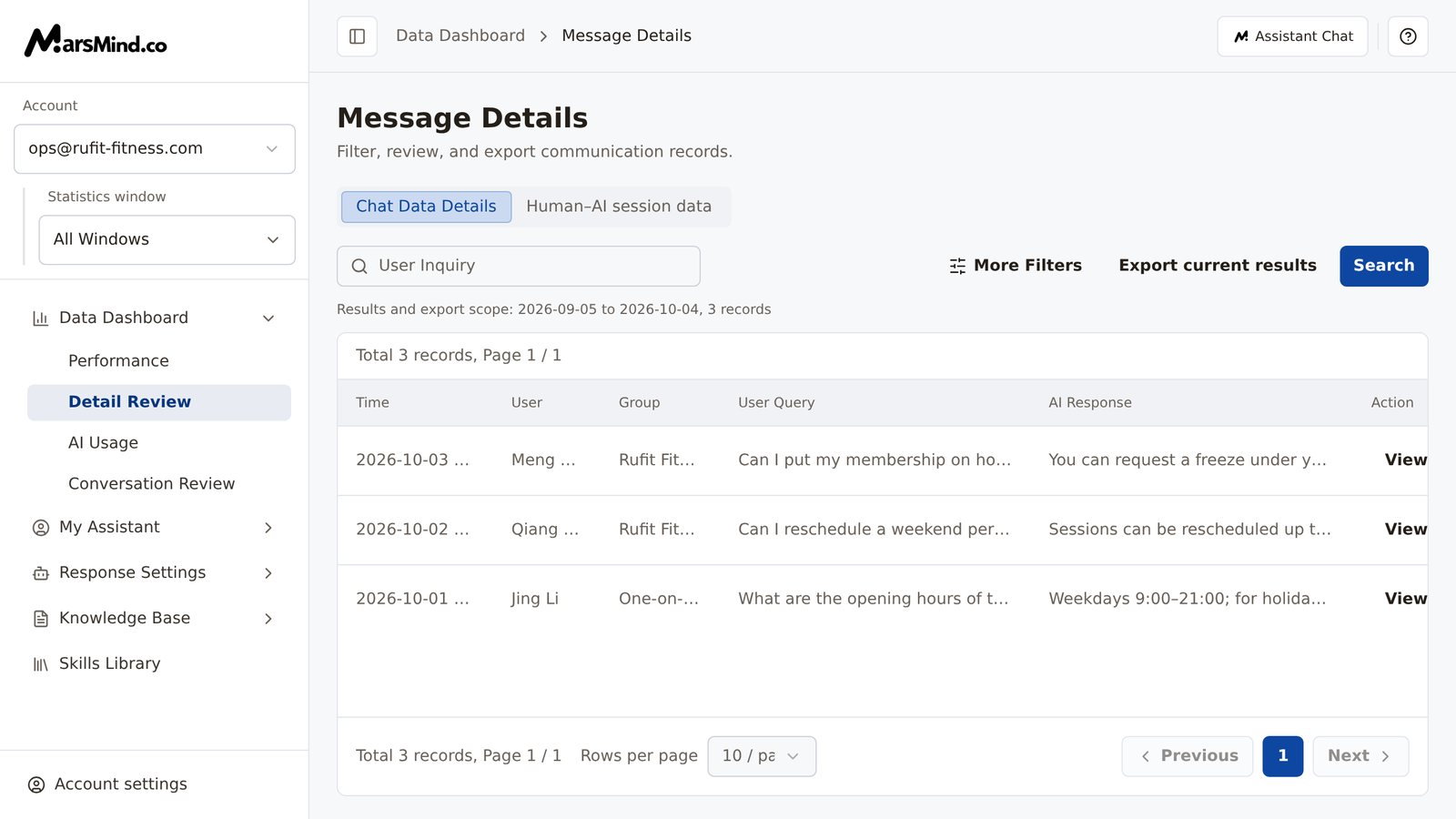
Steps
1
Confirm the Statistics window and query time
On the left, select the channel you want to query in Statistics window (or All Windows). The page runs a query automatically when it opens using the default conditions (Date set to Last 30 Days); after that, switching the Statistics window or Account also triggers a fresh query.Set the time under Date in More Filters: Today, Last 3 Days, Last 7 Days, Last 30 Days, or Custom. With Custom, also pick the start and end dates in the calendar below; the range is limited to 2–31 days. If you click Search with only the start date selected, you just get “Select Date Range” and the results do not update.How to tell it worked: the scope line above the table gives the start and end dates and the record count for this query (in the form “Results and export scope: start date to end date, N records”).Note: if you pick the wrong Statistics window, you are querying another channel’s records.
2
Add filters as needed
The search box on the left of the toolbar searches User Inquiry content; the other conditions are collected under More Filters:
- Username, Group Name: locate one person’s or one group’s records;
- AI Response: filter by the text of the AI reply;
- AI Response (dropdown): choose Has AI Response or No AI Response to see only whether the AI replied;
- Intent Category: choose Level 1 Category or Level 2 Category first, then enter the full category name. If the level stays at Any level or the category name is empty, this condition does not apply.
3
Click Search and confirm the results scope
Change the conditions and click Search (pressing Enter in any input box does the same). The scope line above the table updates to “Results and export scope: start date to end date, N records”; Rows per page (10/20/50) and paging at the bottom only affect the display, not the export.How to tell it worked: the dates and record count in the scope line match what you want to review; the filter bar label goes back to Applied Filters; the yellow notice is gone.If the query fails, a red notice bar appears (“Search failed. No results are available yet. Please retry.” or “Search failed. The last successful results remain visible. Retry before exporting.”). Click Retry search to try again, and do not export while it is in a failed state.
4
To review conversations with human agents, switch to Human–AI session data
Click the second tab. The filter bar becomes Date, Session ID, and Message Type (All Types, User, AI Assistant, Human); the search box becomes Message Content; the table columns are Created At, Session ID, Message Content, Message Type, and Sender.Use it the same way as Chat Data Details: after you change filters, click Search again. The two tabs’ filters, query results, and exports do not affect each other.How to tell it worked: switching tabs changes the table headers and the filter bar together; in the Message Type column you can see all three message types — User, AI Assistant, and Human.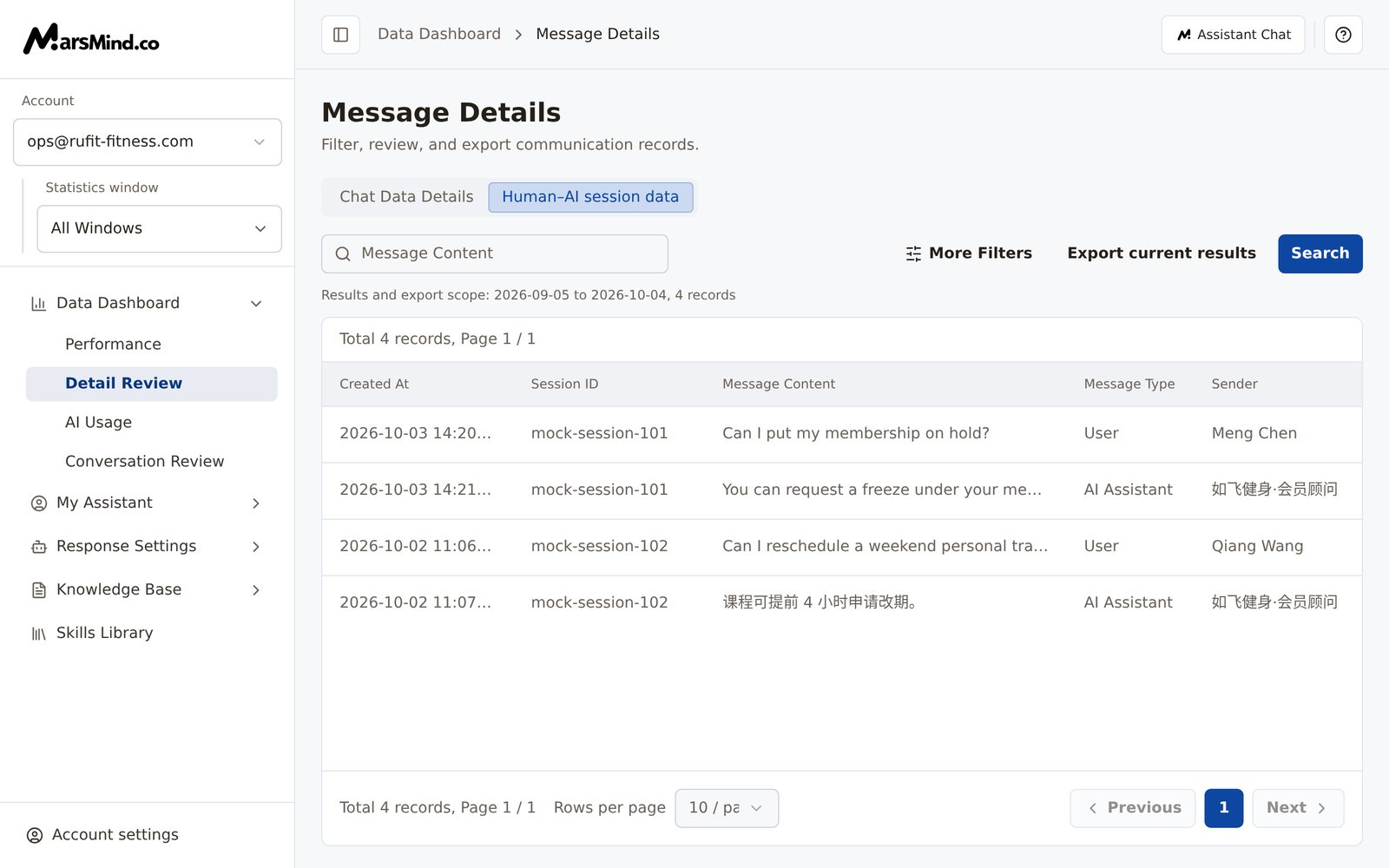
5
Drill into a message to see how it was processed
In Chat Data Details, click the User Query cell of a row (the tooltip says “Click to view this message’s execution steps and reference knowledge”) to open the Message Processing Chain panel over the whole table. Click Back at the top left to close it.From top to bottom, the panel shows: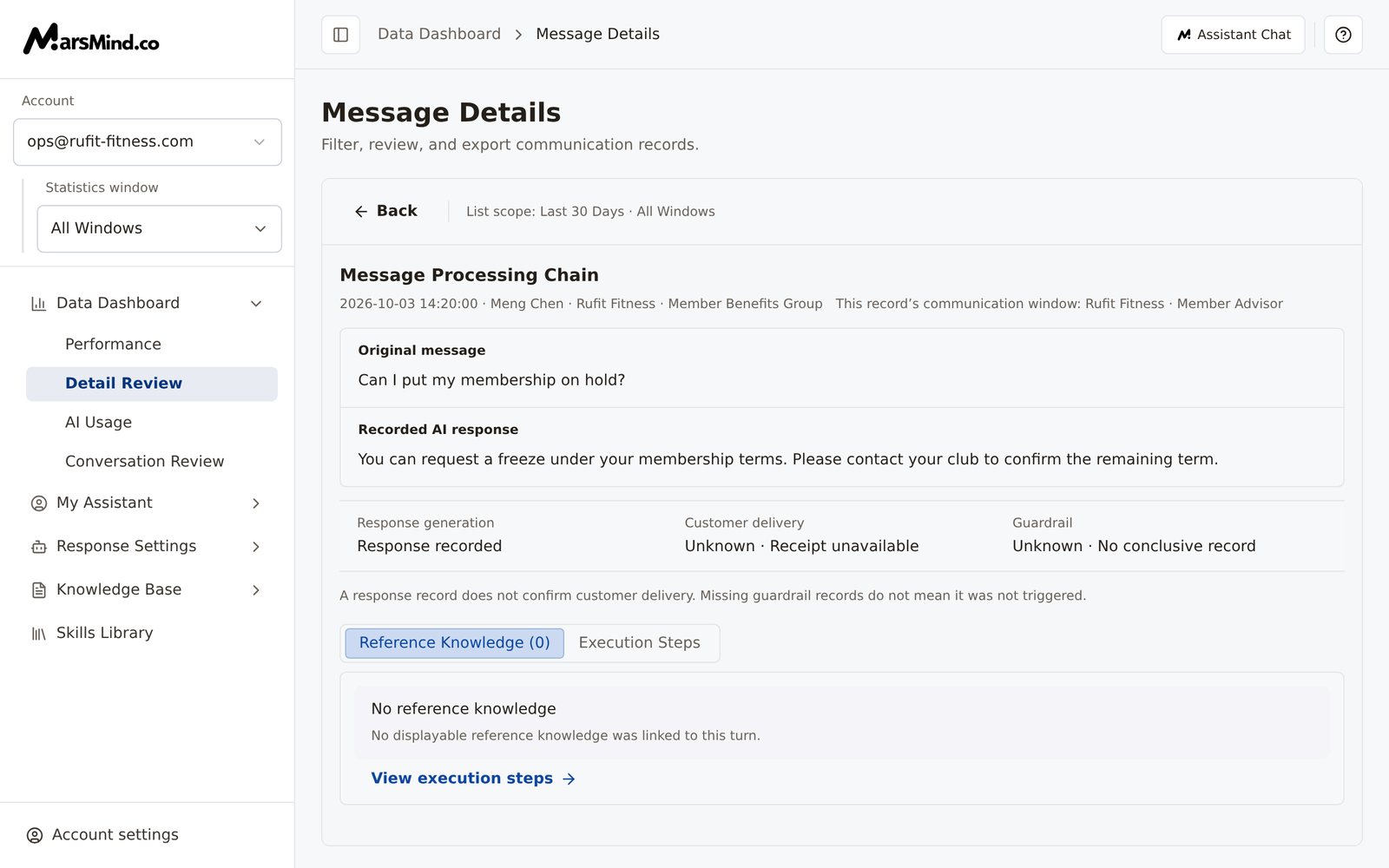
- The Original message and the Recorded AI response for this turn;
- Three independent pieces of evidence: Response generation, Customer delivery, and Guardrail. When no record is available, the card shows a note starting with “Unknown · …” (the panel notes below: “A response record does not confirm customer delivery. Missing guardrail records do not mean it was not triggered.”);
- Two tabs: Reference Knowledge (N) opens by default and lists the knowledge retrieved for this message at the time along with its Match Score; click Edit in the Operation column to change that knowledge (the system recalculates retrieval after you save). A few historical items can only be viewed, not edited, when they cannot be located in the knowledge base. Execution Steps lists the stages row by row — Conversation Context at That Time → Group Handling → Reply Decision → Skill Invocation → Knowledge Generation → Safety Guardrail. The conversation context row expands to show the conversation before this turn (including this turn).
6
Export the current query results
Once the filters are set and the query has finished, click Export current results to download the xlsx: Chat Data Details exports “Chat Data Export.xlsx”, Human–AI session data exports “Online Session Data.xlsx”, and a successful export shows “Export successful”.Rules:
- The export contains every record the query matched, not just the current page;
- It only uses the query result currently shown in the table: while filters have been changed but not yet searched, while the page is loading, or after a failed query, the button is disabled — click Search or Retry search first;
- Fields with missing values show ”-” in both the table and the file.
Checkpoints
- The Statistics window on the left (and the Account dropdown for department admins) is the scope you want to review; the table re-queries when you switch.
- The filter bar label is Applied Filters, with no yellow “Filters have changed” notice.
- The scope line gives explicit start and end dates and a record count; paging does not change it.
- Export current results is clickable and downloads the xlsx for the current tab.
- Opening an inquiry shows that turn’s reference knowledge or execution steps in Message Processing Chain.
The two tabs use different scopes: Chat Data Details covers only AI–customer conversations; Human–AI session data also includes messages from human agents. It is normal for the two counts to differ over the same period — do not combine or compare them.