

Ask the assistant
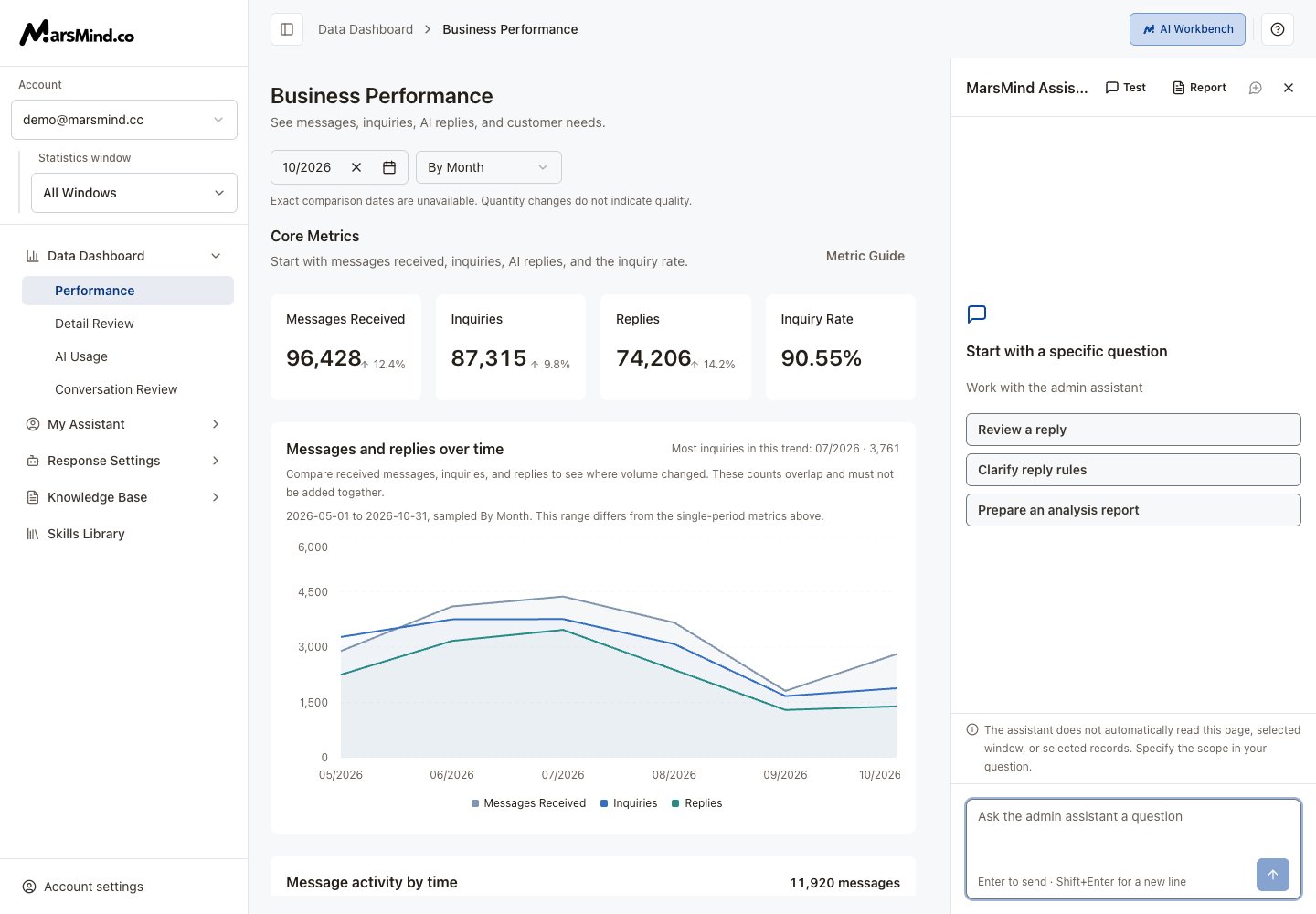
- Click AI Workbench on the admin top bar.
- Write a specific question and state the required account, window, dates or record contents. Suggested questions fill an editable draft; send it after reviewing.
- Click the send arrow. On desktop, Enter sends and Shift+Enter adds a line. On mobile, Enter adds a line; use the arrow to send.
- Read the reply and its processing activity. If the assistant asks for more information, answer in the input to continue.
Screenshots use demo accounts and demo data. Controls and labels match the current interface.
Test from a customer perspective
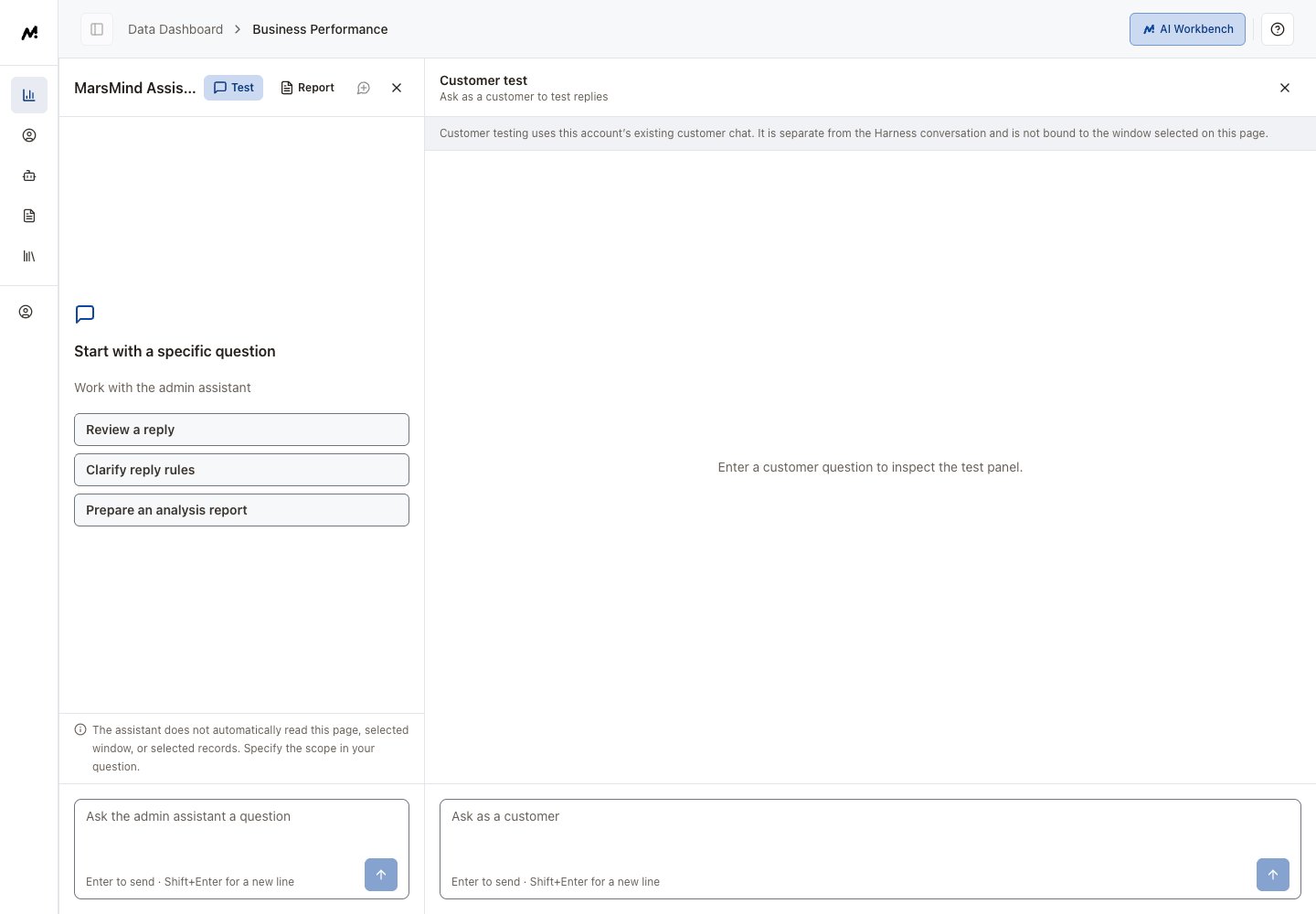
- Select Test beside the assistant title.
- Enter and send a customer question in the test input. Review this message’s reply, status and elapsed time.
- If the request fails, choose Edit and retry, revise the question and resend.
Generate and download a report
- Supply analysis material in the assistant conversation or complete customer tests.
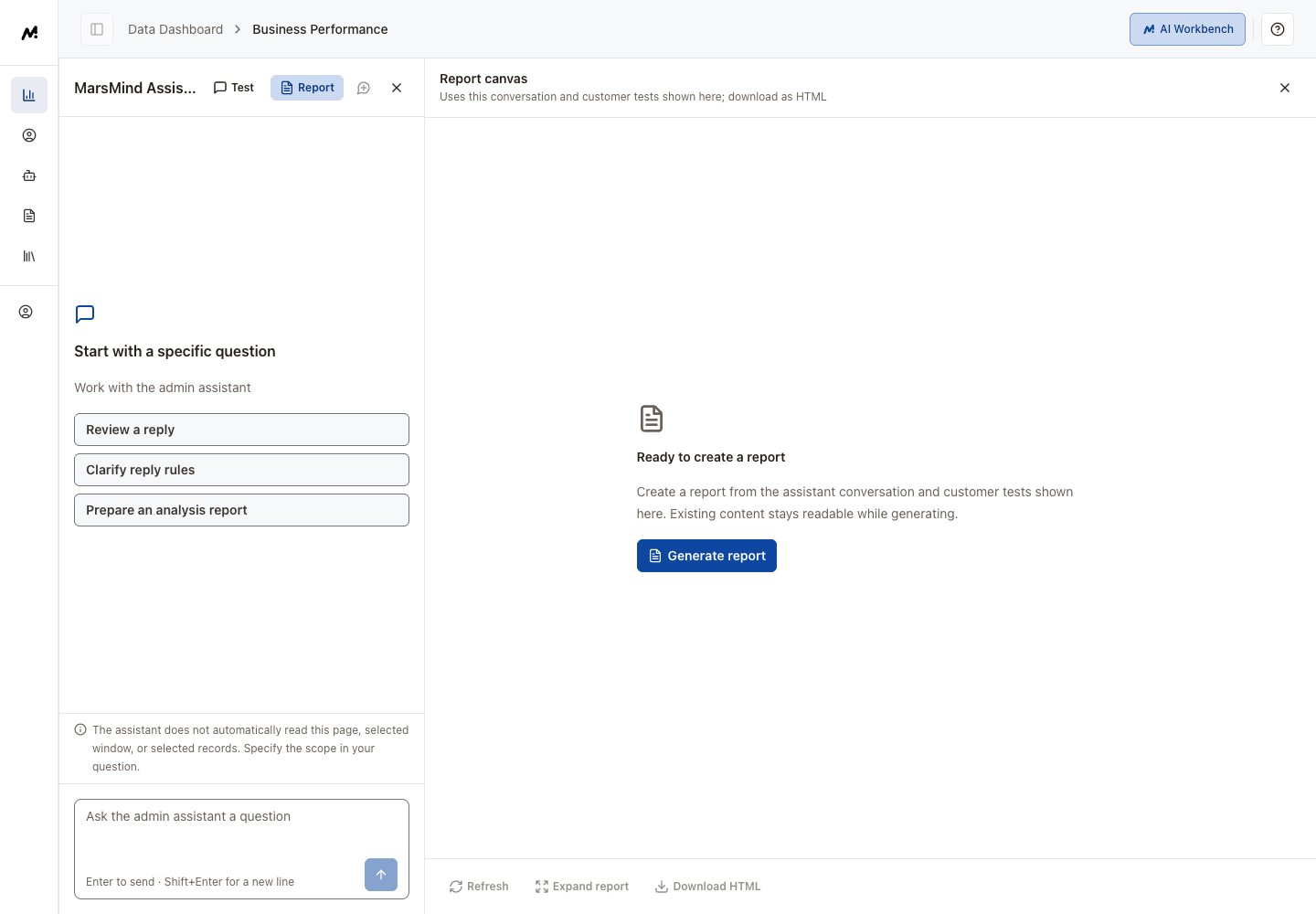
- Open Report, then click Generate report. The report uses the assistant conversation and customer tests displayed on this page.
- Wait for real report content before using Expand report or Download HTML.
- Select Regenerate to produce another version. Existing content stays readable until new content arrives.
Interruptions and clearing
- Interrupted connection: use Resume updates to receive the existing task’s results. For failed questions, use Edit and retry.
- Pause updates pauses only this page’s reception; server tasks may still run.
- Clear session asks for confirmation and clears this page’s conversation, tests, report and drafts. It does not delete server customer-chat history or guarantee that server tasks stop.