

When you’ll need this
- You just connected a communication window and are about to let the AI serve customers: set who is who first, so it does not mistake one person for another or give the wrong answer.
- You want to direct the AI yourself: start or pause its work, turn group chat replies on or off, organize records, or generate reports.
- The AI forwarded a question it could not answer: understand why it is asking, how to respond, and what happens if you never reply.
- Troubleshooting: when the AI answers a colleague as if they were a customer, or speaks in a group where it should stay quiet, go back to the role settings first.
The four roles the AI sees
How the AI handles a conversation depends on who the other side is in its eyes. These roles are maintained in Relationships; the four roles mean:
Your own identity is bound by an authorization code: generate a Supervisor Authorization Code or a Colleague Authorization Code in AI identity access and send it to the AI account from your own phone. For the same AI account, the last code received wins — supervisor and colleague overwrite each other.
Relationships supports only logged-in WeChat and WeCom accounts; Website link, Mini Program, and Official Account windows do not have this contact and group list.
How to get there
This page spans several entry points that work together:- Chat with the AI and give commands: top bar, right side → “Assistant Chat”.
- Set roles for contacts and groups: left menu → My Assistant → Relationships.
- Bind your own identity: bottom-left “Account settings” → “AI identity access”.
Steps
1
Check who is who in Relationships
Entry: left menu → My Assistant → Relationships. First select the window you want to check under “Selected window” in the sidebar.In the contact and group list, check the “Relationship” column row by row. To correct a row, click “Change role” at the end of it and pick one of “Customer”, “Colleague”, “Muted”, or “Supervisor” in the “Change contact relationship” dialog, then click “Save relationship”. To change several at once, select them and click “Set as Customer”, “Set as Colleague”, “Mute”, or “Set as Supervisor” on the action bar.How to tell it worked: the “Relationship” column shows the result you wanted — pay special attention to “Supervisor”, which is the recipient for questions the AI forwards and reports it sends proactively.Note: batch buttons take effect immediately, with no confirmation step. If a newly added friend or group is missing from the list, click “Sync contacts” at the top first (one sync per day at most). If no window is available yet, the page shows “No communication window is available”; click “Go to channel login” to connect one first.
2
Make the AI recognize you with an authorization code (Supervisor / Colleague)
Bottom-left “Account settings” → “AI identity access”. Copy the Supervisor Authorization Code or the Colleague Authorization Code: the Supervisor code copies in the send-ready format with the
# prefix (for example, #A1b2C3), while the Colleague code copies as the 6-character code itself. Open the chat with this AI account on your phone and send the copied content as-is.How to tell it worked: “Supervisor Authorization Code copied” appears (the colleague code shows “Colleague Authorization Code copied”); after you send it, the AI recognizes that phone account as a supervisor or a colleague.Note: for the same AI account, the last code received wins, and supervisor and colleague overwrite each other — to switch back to Supervisor, just send the Supervisor Authorization Code again. “Generate and save a new code” replaces the old code immediately, with no confirmation step; the old code stops working, so you must send the new one.3
Chat and give commands in Assistant Chat
Click “Assistant Chat” on the right of the top bar to open the “Admin assistant chat” drawer, then type your message in the input box and send it to start chatting.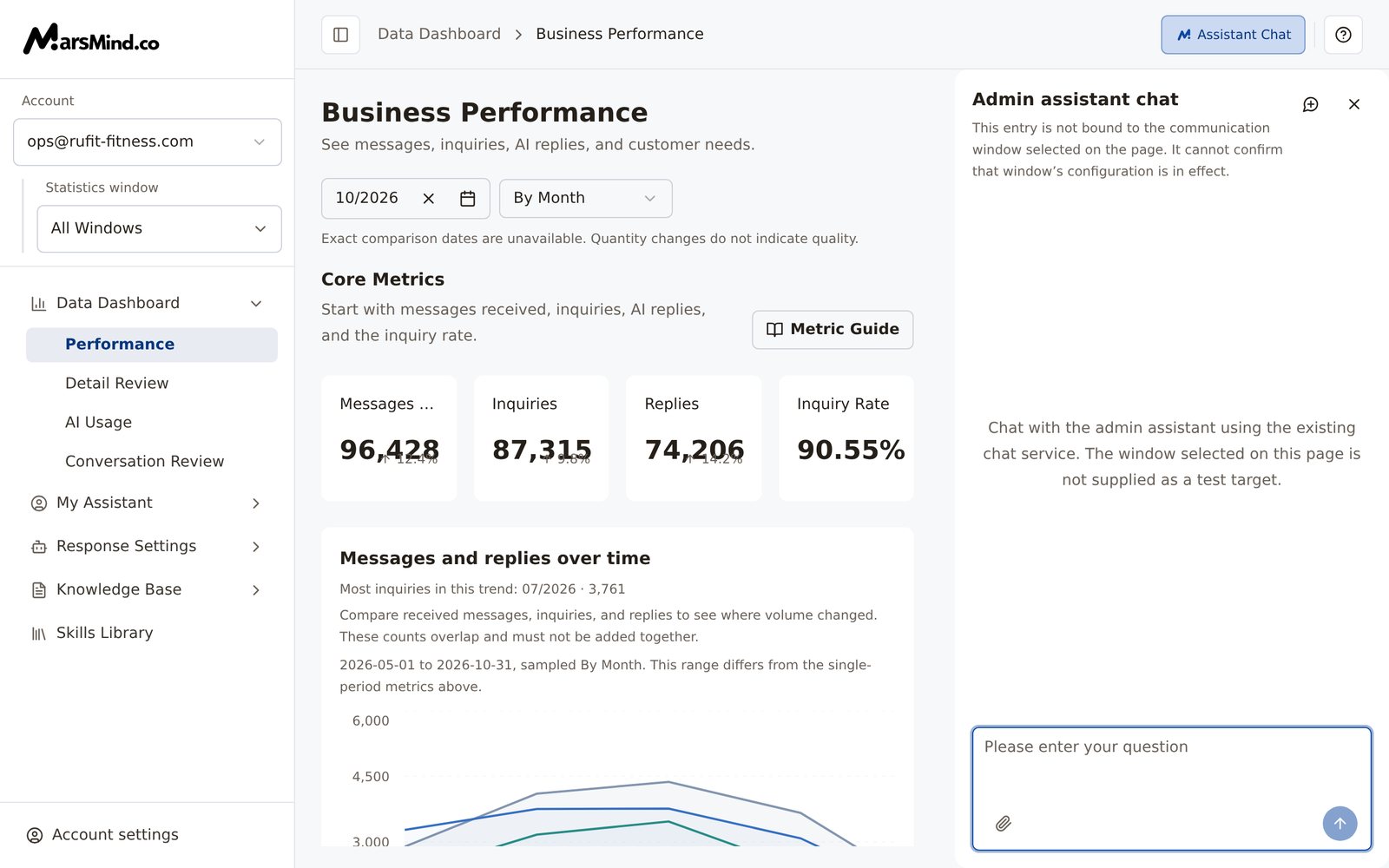
- Type ”/”: natural-language suggestions appear, such as “Please help me organize today’s conversation records” and “Generate this week’s work report” — pick one or write your own.
- Type ”#”: forced commands appear, such as
#work(start work),#stop(pause work), and#help(view all commands) — if you cannot remember the commands, send#helpfirst.
4
Answer when the AI comes to you for help
The AI proactively comes to you in three situations:
- It cannot answer: when the AI cannot answer a customer’s question, it forwards a question summary to the supervisor — the “Suggestions” metric under Performance counts these forwards.
- Key events: when a situation you wrote under Reply Rules → “Key Event Active Reporting” occurs, it reports proactively.
- Guardrail hit: when a rule in Safety Guardrails has “Leader notification” set to “Notify Leader” and the rule is triggered, it sends a notification.
5
Review the collaboration in reports and decide what to teach next
Left menu → Data Dashboard → Performance: watch how “Suggestions” (the number of question summaries the AI forwarded to supervisors) and “Learned Items” (the knowledge it learned automatically from conversations) change, and judge whether it is resolving things on its own or asking frequently — questions it asks about often are what to add to the knowledge base next.To understand why a reply was given the way it was, go to left menu → Data Dashboard → Detail Review and open an inquiry to check its “Reference Knowledge” and “Execution Steps”.How to tell it worked: “Suggestions” and “Learned Items” show data; in the records you spot-check, replies map to reference knowledge or execution steps.Note: Messages Received, Inquiries, and Replies overlap and cannot be added together; for the definition of any other metric, click “Metric Guide” at any time.
Checkpoints
- The “Relationship” column in Relationships matches your intent, and the “Supervisor” recipients are clear.
- The Supervisor or Colleague Authorization Code has been sent to the corresponding AI account, and it is the one currently in effect (after generating a new code, send it again).
- Assistant Chat can send and receive messages; typing ”#” and ”/” shows the command and suggestion lists.
- Questions the AI forwarded have been answered; any you did not get to have answers filled in under Knowledge Optimization → Needs answer.
- Suggestions and Learned Items show data in Performance.
Important notes
Authorization codes tell the AI “who you are”; Relationships show “who your contacts and groups are” — together they decide how the AI treats each conversation partner.
Assistant Chat is not bound to the communication window selected on the page, so it cannot confirm that a window’s configuration is in effect. To verify a configuration, send messages through a real channel, or drill into real conversations in Detail Review.