

When you’ll need this
- After connecting a new window, go through its contacts and groups first, so the AI does not mistake internal discussions for customer inquiries.
- A customer group or internal group should not be answered by the AI: set it to “Muted”.
- Designate the people who receive proactive reports on key events by setting them as “Supervisor”.
- A friend or group was added in the channel but does not show in the list: sync your contacts.
How to get there
Left menu → My Assistant → Relationships. First select the window you want to configure under “Selected window” in the sidebar. From top to bottom, the page shows the “Sync when you have new contacts” card, the search and filter area, and the contact and group list.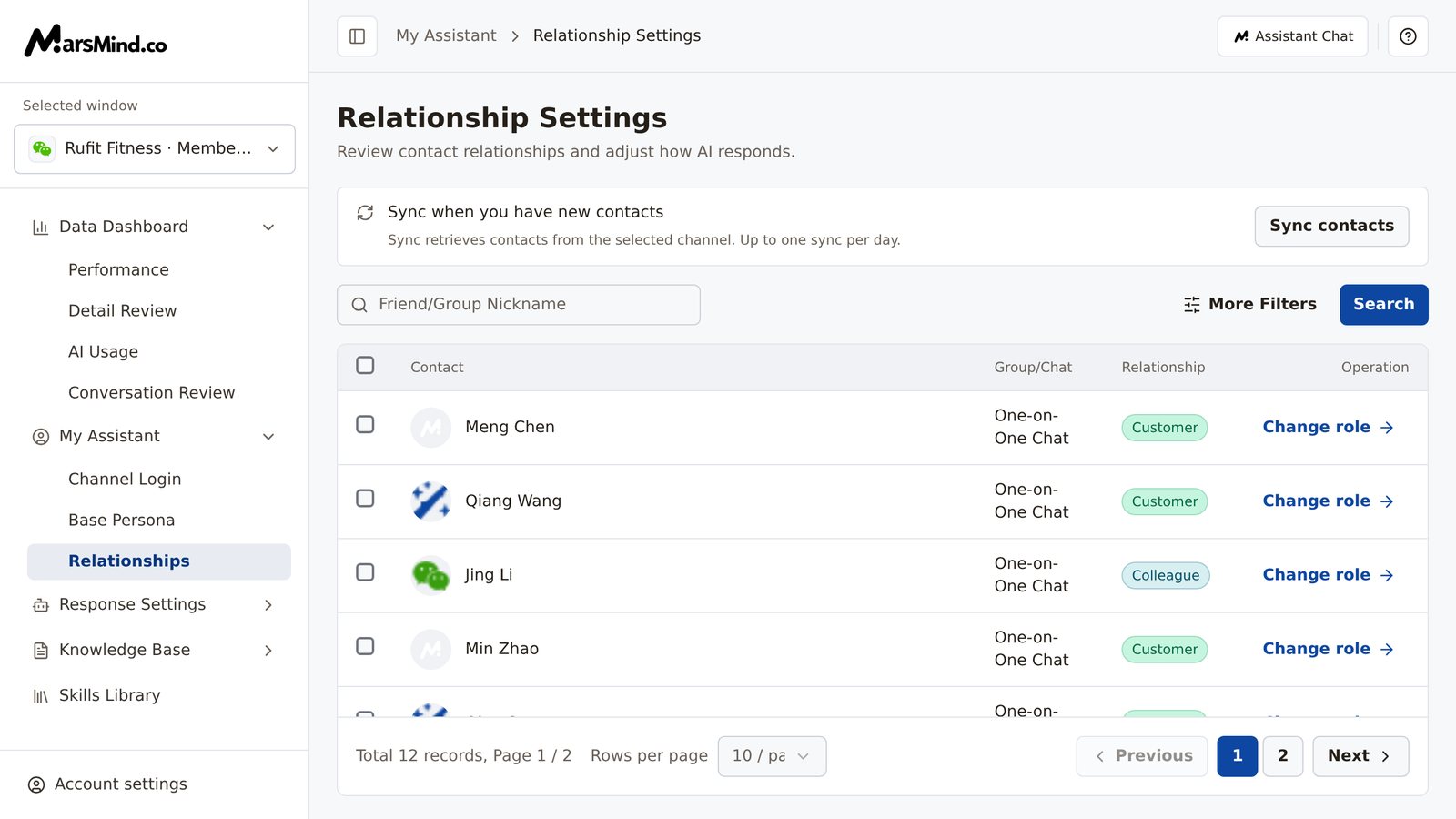
Steps
1
Confirm the current window supports relationship settings
Relationship settings apply only to the “Selected window”; when you switch windows, the list and the roles you have set switch to that window’s data as well.
- No window selected yet: the page shows “No communication window is available”. Click “Go to channel login” to connect a channel first.
- Unsupported window selected: only logged-in WeChat and WeCom accounts support relationship settings. Website link, Mini Program, and Official Account windows show “This window has no connected WeChat or WeCom account for relationship settings. Connect one in Login & Channels first.” Click “Connect a window” to resolve it.
2
Filter down to the people or groups you want to handle
The list shows all contacts and groups under the current window account by default. Narrow it down with filters first:
- WeChat account: search by “Friend/Group Nickname”; “More Filters” includes “Label”, “Relationship”, and “Type” (One-on-One and Group Chats / One-on-One Chat / Group Chat).
- WeCom account: search by “Contact Nickname”; “More Filters” includes “Contact Mobile”, “Relation Type” (Internal / External), “Relationship”, and “Contact Type”.
3
Change roles one by one
Click “Change role” at the end of a row to open the “Change contact relationship” dialog: choose one of four roles for the selected contact — “Customer”, “Colleague”, “Muted”, or “Supervisor”. Each role has a description below it: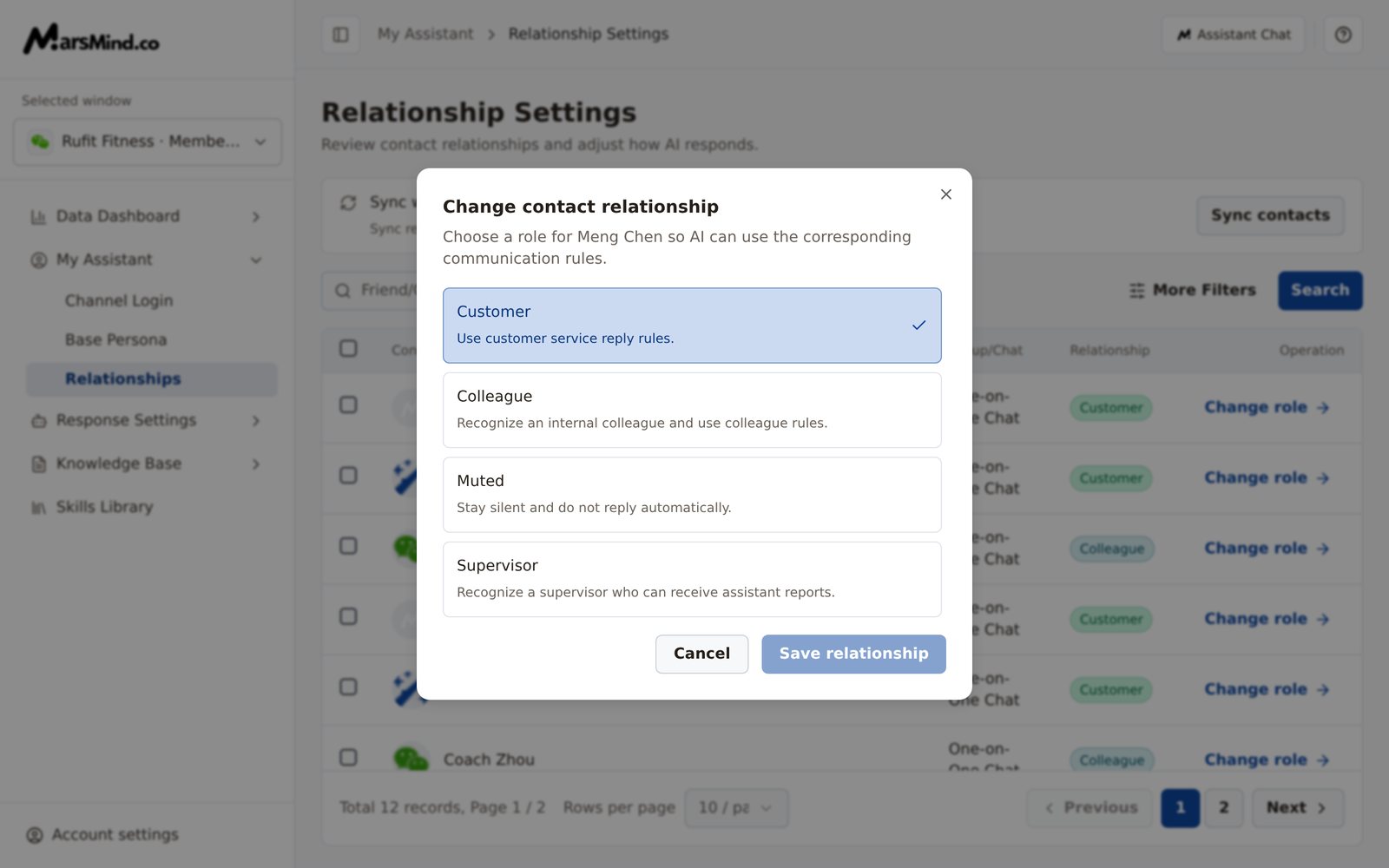
- Customer: the contact is handled as a customer, with customer service reply rules.
- Colleague: recognized as an internal colleague, with colleague rules.
- Muted: kept silent — no automatic replies.
- Supervisor: recognized as a supervisor who can receive assistant reports.
4
Set several contacts at once
Select the checkboxes on the left of multiple rows. The header checkbox is “Select all contacts on this page” and selects only the current page. Once anything is selected, a “N selected” action bar appears; click “Set as Customer”, “Set as Colleague”, “Mute”, or “Set as Supervisor” to submit.How to tell it worked: a “Set N contacts as …” message appears, the list refreshes automatically, and the selection is cleared. To drop the selection, click “Clear Selection” on the right of the action bar.Note: batch actions take effect immediately with no confirmation step, and changing pages clears the selected contacts.
5
Sync contacts when new ones are added
The list is based on the contacts last synced from the channel. When a newly added friend or group cannot be found in the list, click “Sync contacts” on the card at the top; the system fetches contacts from the current channel again. The card notes “Up to one sync per day.” — once you use it that day, the button is greyed out and becomes available again after 0:00 the next day.How to tell it worked: a “Refresh successful” message appears, the list reloads, and the new contact shows in the list.
Checkpoints
- The target contact or group shows the role you set in the “Relationship” column of the list.
- Every change shows a “Set N contacts as …” message and the list updates automatically; no manual page refresh is needed.
- Once roles are set, the AI treats customers, colleagues, and muted contacts exactly as the four role descriptions above say.
The four roles match the descriptions in the dialog: Customer — handled as a customer, with customer service reply rules; Colleague — recognized as an internal colleague, with colleague rules; Muted — kept silent, with no automatic replies; Supervisor — recognized as a supervisor who can receive assistant reports.
The “Supervisor” role is the delivery prerequisite for Key Event Active Reporting: only contacts set as “Supervisor” receive the content that “Key Event Active Reporting” in Reply Rules sends out.