

When you’ll need this
- The AI’s fallback reply for questions outside the knowledge base is not good enough, and you want a fixed line to cover those cases.
- The AI misses group messages it should answer and jumps into ones it should skip, so you need to spell out what to reply to and what to leave alone.
- When key events occur — a customer shows purchase intent, a complaint comes in — you want the AI to report to a supervisor proactively.
- High-frequency questions such as business hours and price lists should get an instant fixed reply instead of going through AI generation every time.
How to get there
Left menu → Response Settings → Reply Rules. When the page opens, check the Selected window on the left first: all four cards are saved per window, so after you switch windows you see another window’s settings. A persistent notice at the top of the page reads “Switches are submitted separately; edited content must be saved.”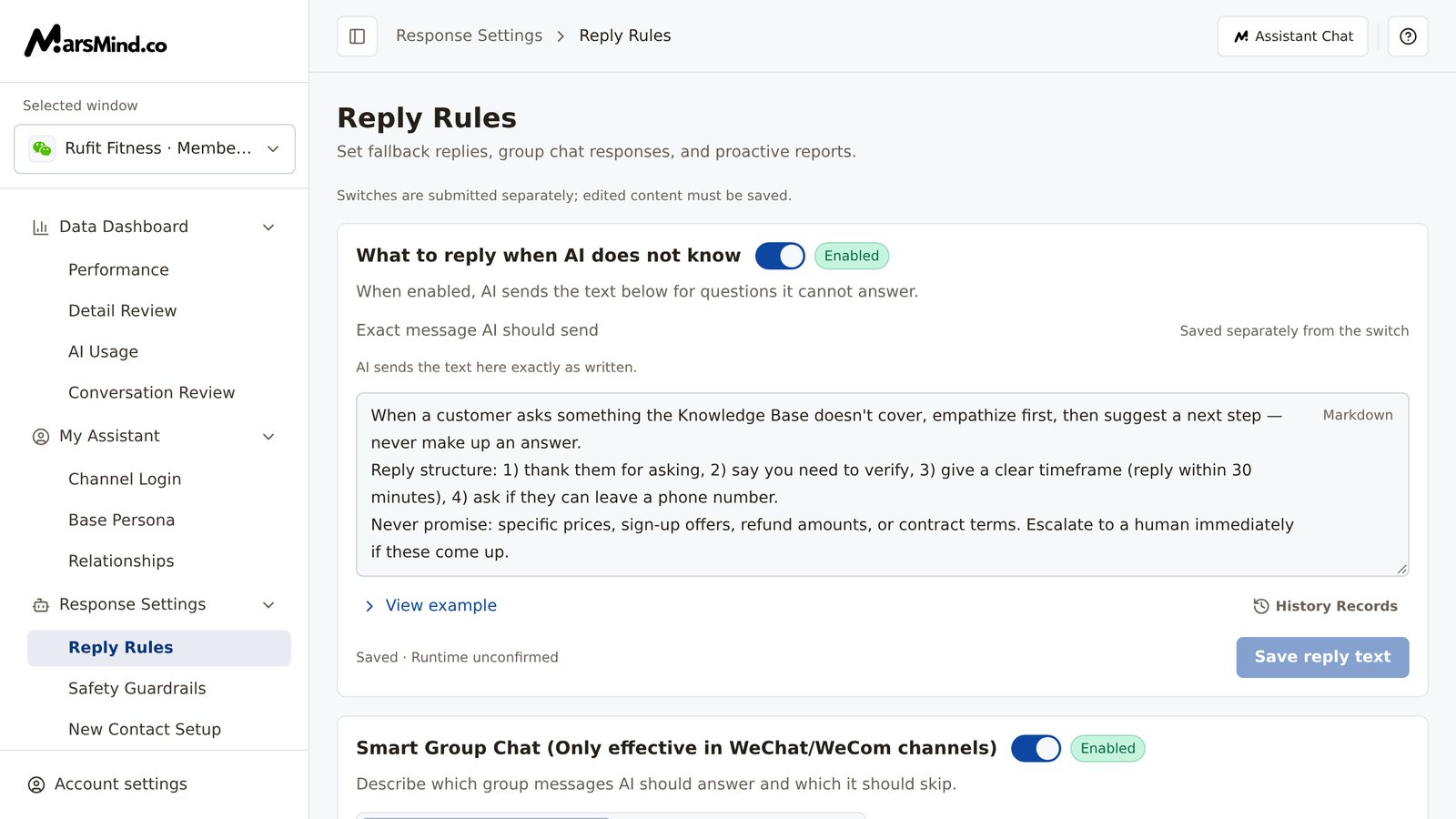
Steps
1
Confirm the Selected window
All four cards are saved per window. Before you start editing, confirm that the Selected window on the left is the window you want to configure.How to tell it worked: the dropdown shows the name of your target window.Note: with unsaved content, switching menus or windows first triggers the “Discard unsaved changes?” prompt; choose “Keep editing” to stay on the page. Refreshing or closing the tab is intercepted by the browser’s native dialog. While a save is in progress, the page shows “Wait for the current save or upload to finish before leaving.”
2
Configure "What to reply when AI does not know"
In the “Exact message AI should send” editor, write the text to send, click “Save reply text”, then turn on the switch to the right of the title. While the switch is off, the card description reads “AI currently does not reply when uncertain. You can edit and save the message before enabling it.”; once enabled, “AI sends the text here exactly as written.”How to tell it worked: the save status changes from “Unsaved” to “Saved” or “Saved · Runtime unconfirmed”, and the badge next to the switch shows “Enabled”.To use an earlier version, click “History Records” and pick a version (formatted like “10/4 16:25 Version”); in the comparison dialog, review “Current draft” against “Candidate text”, then click “Apply candidate” — it only places the content back in the editor, and you still need to click “Save reply text”.Note: a switch submits the moment you click it, with no confirmation dialog; if you edit the text without saving, the live conversation keeps using the old reply.
3
Configure "Smart Group Chat"
Turn on the “Smart Group Chat” switch first (the two tabs appear only after it is on), then write rules under the “Questions That Need Reply” and “Questions That Do Not Need Reply” tabs — describe them in as much detail as you like, or add examples. Both tabs are saved together by the same “Save Configuration” button.How to tell it worked: the save status becomes “Saved” or “Saved · Runtime unconfirmed”.Note: Smart Group Chat rules only take effect in WeChat and WeCom channels.
4
Configure "Key Event Active Reporting"
Turn on the “Key Event Active Reporting” switch, then write in the editor what situations should be reported proactively to your supervisor (the placeholder reads “Fill in: what situations require active reporting to supervisor”). Be as specific as possible about timing and format, for example “when a customer repeatedly shows purchase intent, makes a serious complaint or insult, or asks for a contract or quote”. Then click “Save Configuration”.How to tell it worked: the status is no longer “Unsaved”, and the switch shows “Enabled”.Note: for reports to reach a supervisor, first set the recipient to “Supervisor” in Relationships.
5
Configure "Keyword Direct Reply"
Turn on the switch, then manage rules in the card: click “Add Rule” to create one; rules are collapsed by default, so click a rule title to expand it for editing. The first time you turn the switch on with no rules yet, one empty rule appears automatically. When there are many rules, use “Search keywords or content” to filter — it only affects the current list view and does not change rule order.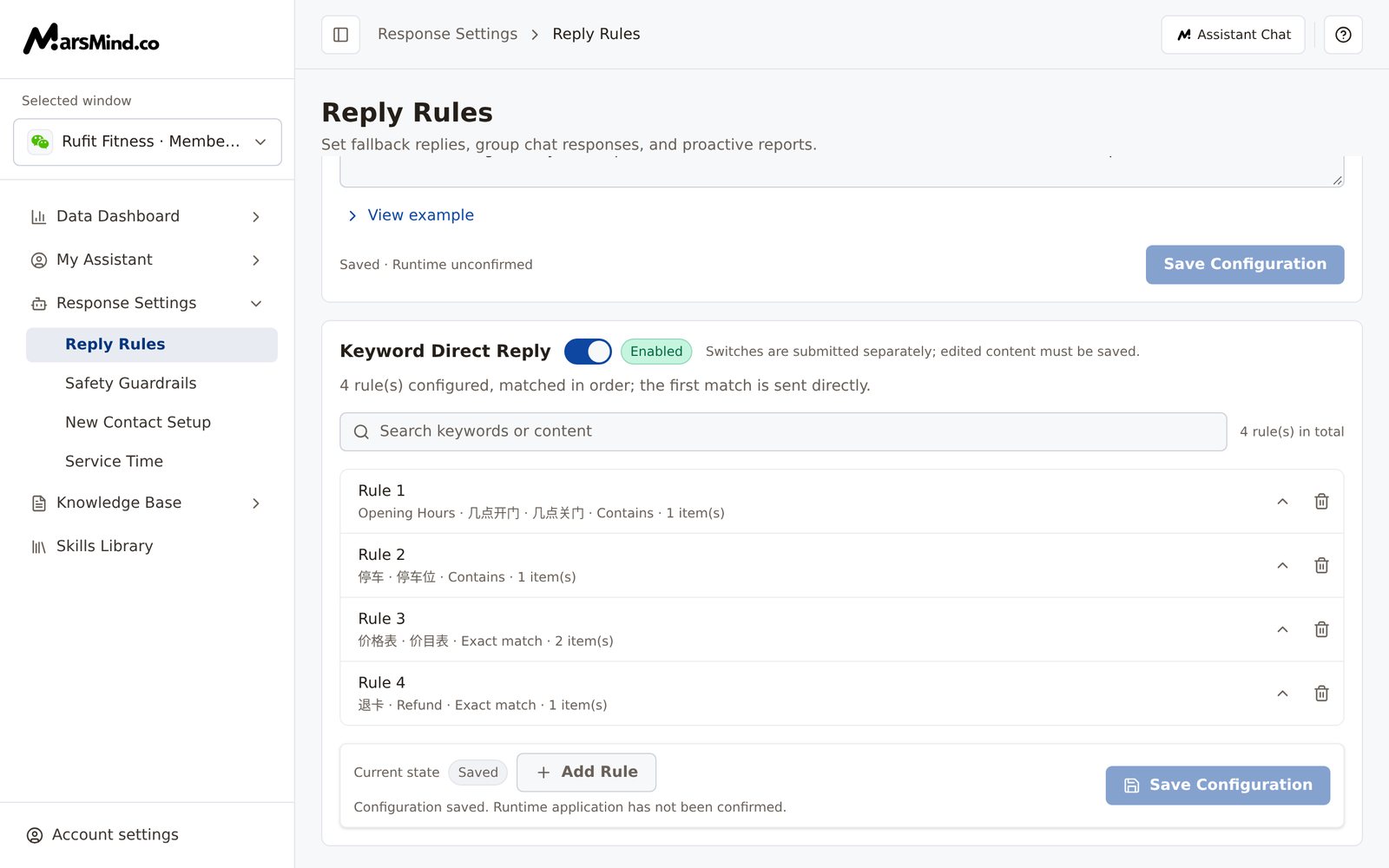
- “Trigger Keywords”: type a keyword and press Enter to add it; you can add several, and matching any one triggers the rule. Matching is case insensitive.
- “Match Type”: choose “Exact match” (triggers only when the whole query equals the keyword) or “Contains” (triggers when the query contains the keyword).
- “Content on Match”: enter what to send, item by item; click “Add Row” to add “Text”, “Image”, or “File”. Items are sent one by one in order, up to 6 items. After uploading an image or file, you can click “Replace” and add a line of text to send with it.
- Click “Save Configuration”.
- Rules are matched in list order; the first match is sent directly and skips AI generation. The list order is the match order, so put more specific rules first.
- Saving overwrites the whole configuration. When the message “Complete the keywords and content for every rule” appears, the rules missing content are expanded automatically.
- A single image or file cannot exceed 100MB; turning the switch off only disables the rules — saved rules are not deleted.
Checkpoints
- The Selected window on the left is the window you want to configure.
- The switches of all four cards are in the states you expect, and any card you edited no longer shows “Unsaved”.
- Test in the corresponding channel: ask a question that is not in the knowledge base and check whether the fallback reply is sent; post something covered (or not covered) by the rules in a group chat and check whether the AI replies or stays silent as expected; send a message that hits a keyword and check whether the fixed content arrives immediately.
Important notes
“Key Event Active Reporting” sends to contacts with the “Supervisor” relationship. If you have not set a supervisor in Relationships, reports have no recipient.
“Smart Group Chat” rules only take effect in WeChat and WeCom channels.