

When you’ll need this
- Connecting a channel for the first time: bring WeChat, WeCom, Mini Program, or Official Account accounts into MarsMind, or create a website link channel.
- An assistant shows “Offline”, or switching its status asks you to scan the QR code and sign in again.
- Pausing service temporarily: switch a window to “Suspended”, or take it fully offline with “Take offline”.
- You need the access link or iframe code for a website link channel, or want to delete a communication window you no longer use.
How to get there
Left menu → My Assistant → Channel Login (the top bar breadcrumb shows My Assistant → Channel Login). At the top of the page, the left side is the status filter “Online & Suspended / Show All”, and the right side is “Create New Communication Channel”.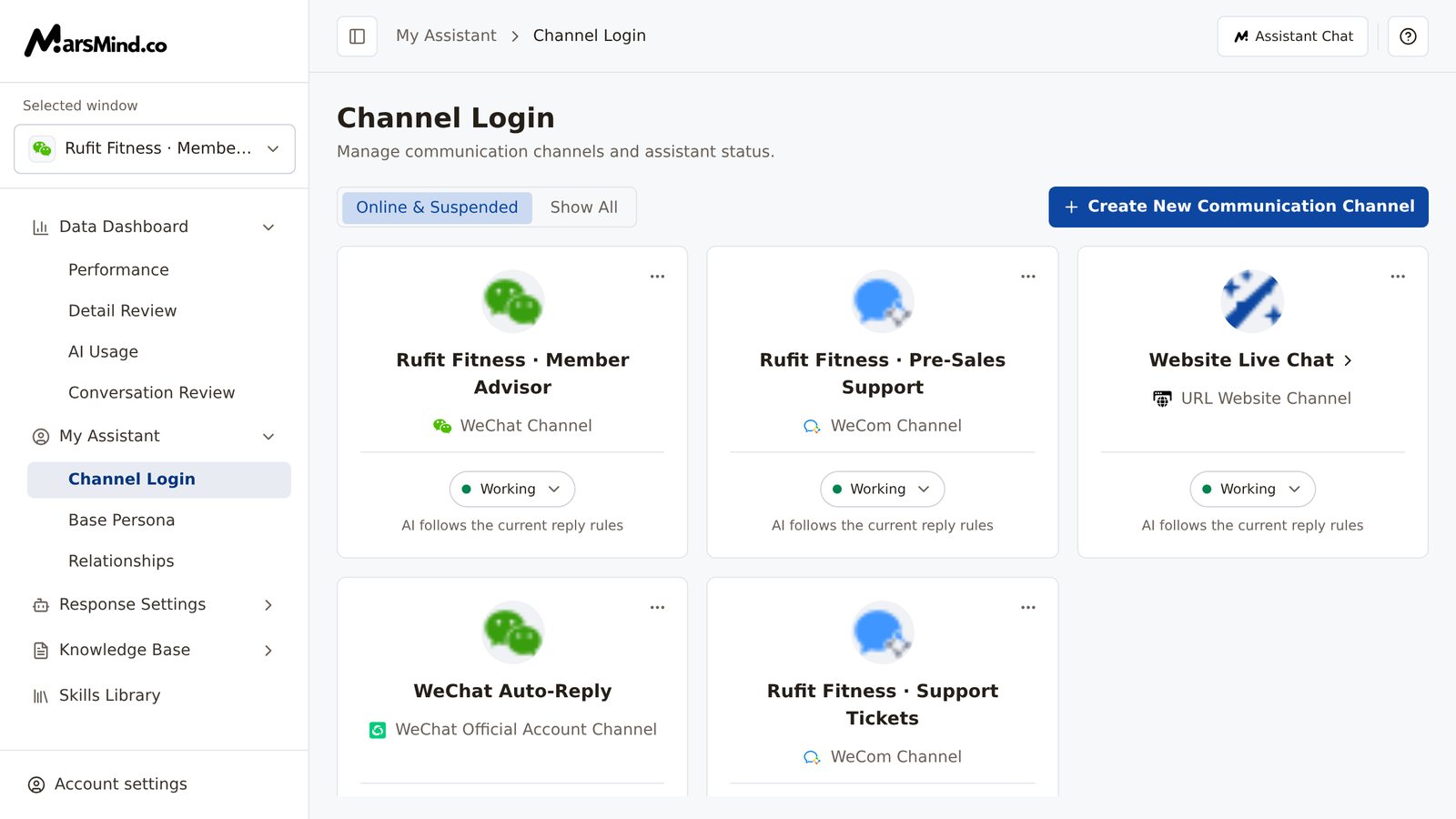
Steps
1
Open the create dialog and choose a channel
Click “Create New Communication Channel” in the top-right corner. In the dialog, choose a channel first, then complete account sign-in or authorization. Five channels are available: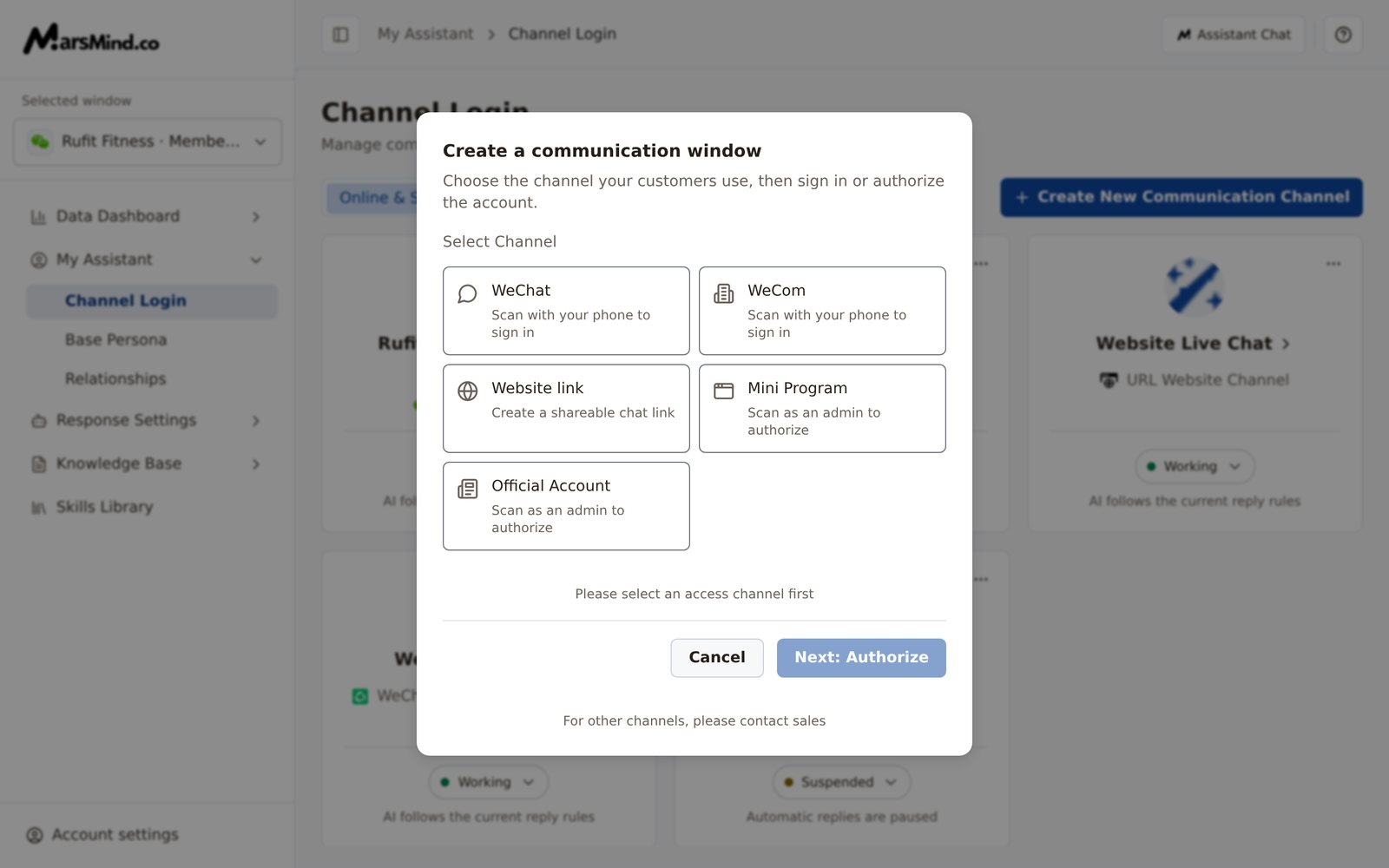
- WeChat: sign in by scanning the QR code with your phone.
- WeCom: sign in by scanning the QR code with your phone.
- Website link: generate a shareable chat link.
- Mini Program: an administrator scans the QR code to authorize.
- Official Account: an administrator scans the QR code to authorize.
2
WeChat / WeCom: choose the login region, then scan to sign in
After you choose “WeChat”, “Login city” appears — open it and pick a province, then a city. For “WeCom”, you only choose “Login province”. Once selected, click “Next: Scan to sign in”.The “Scan QR Code” dialog then shows the QR code. Scan it with your phone and complete the confirmation steps on the phone. The dialog shows “Waiting for scan”, then “Waiting for confirmation…” — keep it open; some logins take more than 30 seconds.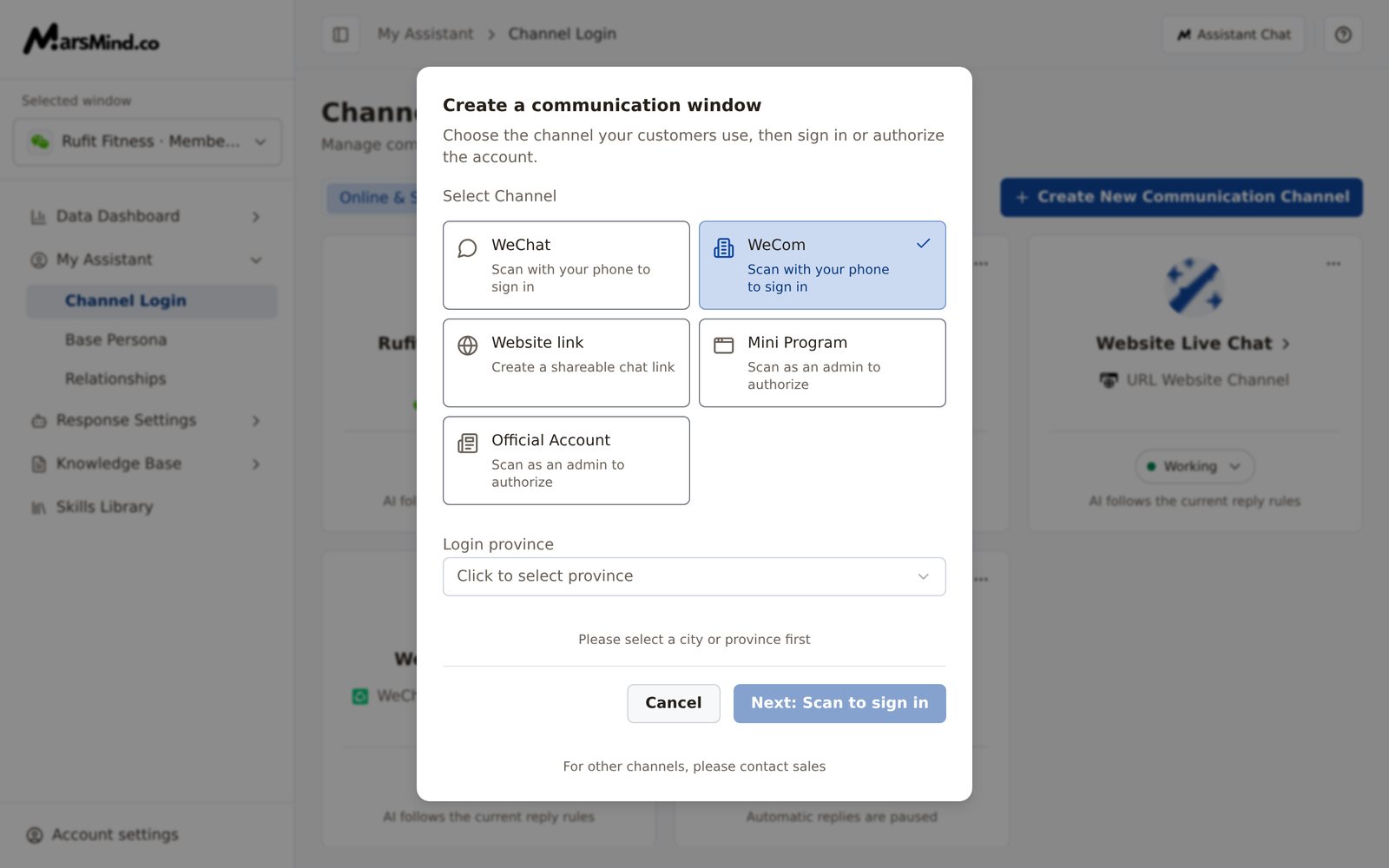
- WeCom occasionally shows “Logging in without scanning…”, or asks for a 6-digit verification code: enter it in the dialog and click “Confirm”.
- If login fails, the dialog shows “QR login is not complete”; click “Regenerate QR code” to retry, or “Cancel” to exit.
3
Complete the identity binding in "AI account logged in"
This step applies only to WeChat / WeCom: it binds the supervisor identity to the account you just logged in, so the AI can recognize who the supervisor is.The dialog shows an authorization code starting with #. Click “Copy authorization code” (the button then changes to “Copied — ready to send”) and ask the supervisor to send this exact message from their own phone to the AI account you just logged in. The interface labels the flow “Leader phone” → “Newly logged-in AI account”; once the message is sent, the AI recognizes that phone account as the Leader.
- You can also close the dialog with “Do this later”: the authorization code is always available on AI identity access.
- If “This account does not have a Leader authorization code yet” appears, click “Generate a code” to open Account settings (it lands on the “Profile” tab by default). Switch to the “AI identity access” tab, generate an authorization code, then send it as described above.
4
Mini Program / Official Account: scan to authorize
Choose “Mini Program” or “Official Account” and click “Next: Authorize”. An authorization QR code appears, titled “Mini Program Authorization” or “Official Account Authorization”, with a note to scan it using WeChat and a notice that the system checks the authorization status automatically. “Waiting for scan…” shows below the QR code.Scan the code with WeChat and complete the authorization.How to tell it worked: an “Authorization successful” message appears, followed by the “Logged In” dialog (confirming the channel login is complete). Click “Close” to return to the list.
5
Website link: name the link and create it
Choose “Website link” and fill in “Chat link name”:
- Only letters, numbers, and underscores are supported, 4-10 characters long; invalid characters are filtered out as you type.
- If the name does not meet the rules, the input turns red with “Invalid name format. Please enter 4-10 characters (letters, numbers, or underscores)”. When it is valid, “Name format is valid” appears along with “Link preview”, so you can confirm the final link before creating it.
6
Manage online status: Working / Suspended / Offline
Each card shows a status pill and a one-line status description below it. Two statuses can be switched at any time:
- Working: the AI follows the current reply rules.
- Suspended: automatic replies are paused.
7
Copy the access link and delete communication windows
- Website link channel: click the card name (it has an arrow to the right of the name), or ”⋯” → “Access URL”, to reopen the “Chat link created” dialog, where you can “Copy Link” or “Copy Code” as needed.
- Delete a window: click ”⋯” → “Delete communication channel”, then “Delete” in the confirmation dialog. The card is removed from the list and a “Communication channel deleted” message appears.
Checkpoints
- The new window appears in the list as a card, with its name, channel, and status pill showing correctly.
- A successful WeChat / WeCom scan shows “AI account logged in”; successful Mini Program / Official Account authorization shows “Logged In”; successful website link creation shows “Chat link created”.
- After a status change, the pill immediately shows the target status (the change takes effect on the server after about 10 seconds); after going offline, the card disappears from the default list and shows “Offline” under “Show All”.
- For a website link channel you can copy an access link starting with
https://chat.marsmind.cc/and its iframe code.
The four statuses match the descriptions below each card: Working — the AI follows the current reply rules; Suspended — automatic replies are paused; Offline — service resumes after you bring the window online again; Pending — waiting for login or authorization to finish. Pending cards have no switchable status pill.
Each communication window is configured independently. After creating one, select it under “Selected window” in the left sidebar first, then configure it on pages such as Base Persona, Relationships, and Reply Rules.