

When you’ll need this
- You are new to the admin console and want to check that the nickname and email are your own.
- You want to switch to an email address you check often, to receive AI online/offline notifications.
- The nickname or email was entered incorrectly and needs correcting.
How to get there
Account settings in the lower-left → Profile. When the page opens, the top shows three tabs — Profile / Login security / AI identity access — and it stays on Profile by default. The page description reads “Manage your display name and notification email.”. This page edits the admin account you signed in with; it does not change when you switch the “Selected window” on the left.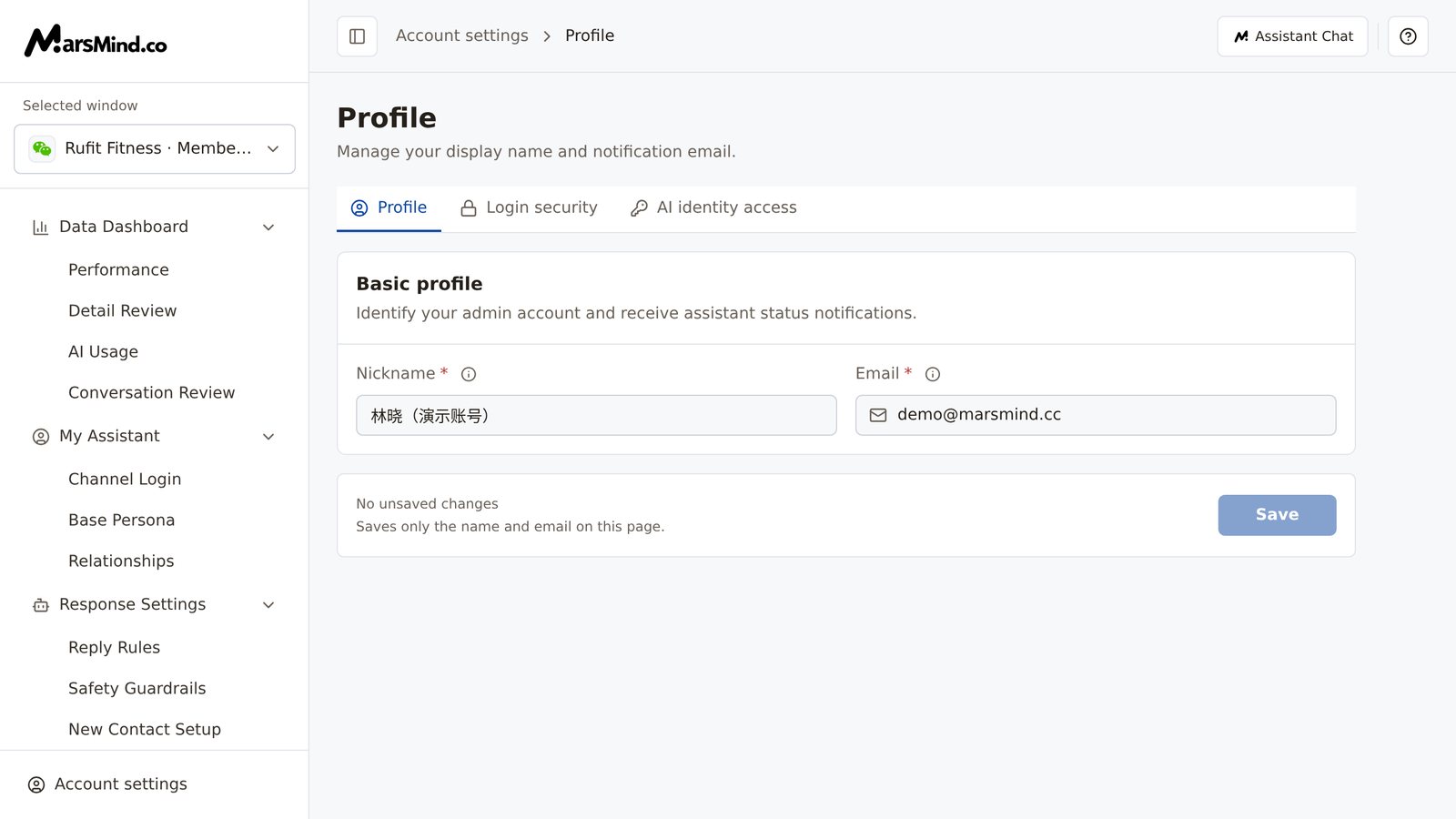
Steps
1
Edit the nickname
In the Basic profile card, type or edit the Nickname field. The field name has a required marker; click the ⓘ icon next to it to view the field details.What the nickname is for: it is only shown in the admin console (after you save, this is the name shown in the Account settings menu at the lower-left); it does not change the AI’s external identity or your other profile data.How to tell it worked: once you type, the status at the bottom of the page changes from “No unsaved changes” to “You have unsaved changes”, and the “Save” button on the right becomes clickable.Note: the fields cannot be edited while the page shows “Loading…”. If “Could not load your profile” appears, click “Retry” first and edit after the data loads.
2
Enter the email
In the Email field, enter the address that will receive notifications. Email is required and is used for AI online/offline notifications; the page recommends QQ Mail, which can also be received through WeChat sync.How to tell it worked: enter the email in a standard format (with
@ and a domain, such as name@example.com). If you click “Save” with the field empty, it prompts “Enter an email address.”; if the format is wrong, correct it as prompted (a missing @ or a space is caught by the browser’s own format hint; the app’s red text reads “Enter an email address.” or “Enter a valid email address.”). The prompt disappears once it is correct.3
Click “Save” to submit
Once the nickname and email are correct, click “Save” at the bottom of the page.How to tell it worked: a “Changes saved.” message appears, the bottom status returns to “No unsaved changes”, and the “Save” button becomes unavailable. Open the Account settings menu in the lower-left, and the new nickname is already shown at the top. While saving, the button reads “Saving…”.Note: a line of small text at the bottom describes the save scope — “Saves only the name and email on this page.” Saving your profile does not change the authorization codes under “AI identity access”. If you switch away mid-edit (clicking another tab or menu), the “Discard unsaved changes?” dialog appears (its description: “This page has unsaved changes. Leaving will discard them.”); choose “Keep editing” to return to the page, or “Discard changes” to drop the edits. Refreshing or closing the page brings up the browser’s own leave confirmation. You cannot leave while a save is in progress — the page tells you to “Wait for the current save or upload to finish before leaving.”.
Checkpoints
- The page loaded correctly: no “Could not load your profile” message, and both fields are editable.
- The nickname and email are what you intended, and the email is an address you check regularly and can receive mail at.
- You clicked “Save” and the “Changes saved.” message appeared, with the bottom status reading “No unsaved changes”.
- The Account settings menu in the lower-left shows the new nickname.
Important notes
Both the nickname and the email are required: an empty nickname prompts “Enter a nickname.”, and an empty or malformed email prompts “Enter an email address.” or “Enter a valid email address.”. The email is not saved automatically — it is saved to the server only after you click “Save” and see “Changes saved.”; AI online/offline notifications after that are sent to this address.
Frequently asked questions
Why is the “Save” button unavailable?
Three common reasons: (1) nothing has changed on the page — the bottom shows “No unsaved changes”, so the button is disabled by design; edit one field to enable it. (2) The page is still loading (“Loading…”) or failed to load (“Could not load your profile”) — click “Retry” first and edit after it loads. (3) A save is in progress — the button reads “Saving…”; wait for it to finish.Does changing the nickname or email affect how the AI identifies me?
No. The nickname is only shown in the admin console and the email is only used for notifications; neither plays a part in how the AI identifies you. Identity is decided by the authorization code generated on the “AI identity access” page — see AI identity access.The email shows “Enter a valid email address.” but I don’t see what’s wrong?
The required format is a standard email address: something before the@ and a domain with a dot after it (for example name@example.com). Common mistakes are a missing @, stray spaces, or Chinese characters; a missing @ or a space is usually caught first by the browser’s format check, so the app’s red text does not always appear. The red text “Enter a valid email address.” appears when the email passes the browser’s check but still does not meet the format above (for example, name@example). Correct it as prompted and click “Save” again.