

When you’ll need this
- You need to change your admin login password.
- You are worried someone else may know your password (for example, you signed in on a shared device) and want a new one as soon as possible.
- Your team’s security policy requires you to update your password on a regular schedule.
How to get there
Account settings in the lower-left → Login security. (You can also open Profile or AI identity access first, then click the tab at the top.) When the page opens, the top shows three tabs — Profile / Login security / AI identity access — and it stays on Login security. Below is the “Update password” card with three fields — “Old Password”, “New Password”, and “Confirm Password” (each has an eye icon on its right) — and the “Update password” button at the bottom right.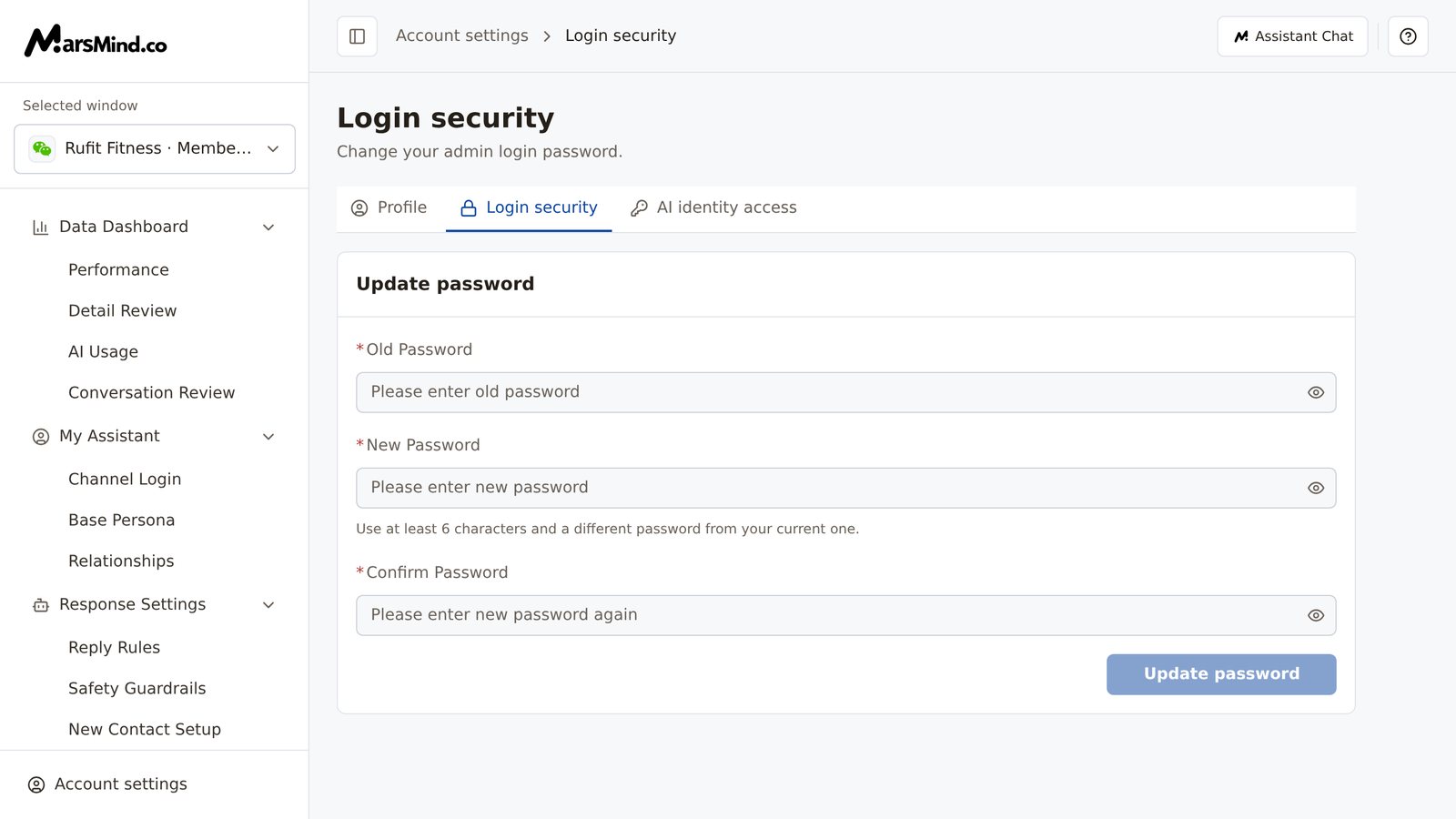
Steps
1
Enter your current password
In the “Old Password” field of the “Update password” card (placeholder “Please enter old password”), enter the password you currently use to sign in.How to tell it worked: what you type shows as dots; click the eye icon on the right of the field to toggle between hidden and visible text and check what you entered.Note: whether the old password is correct cannot be checked before you submit. If the update fails, first check that you typed the old password correctly.
2
Set a new password
Enter the new password in the “New Password” field (placeholder “Please enter new password”). The rule shown under the field reads: “Use at least 6 characters and a different password from your current one.”How to tell it worked: once the new password is at least 6 characters and different from the old one, this field no longer blocks submission; until then, the “Update password” button stays disabled.Note: the new-password rule only shows in the button state — if the password does not meet it, the button cannot be clicked and no error appears under the field.
3
Enter the new password again
In the “Confirm Password” field (placeholder “Please enter new password again”), type the new password once more, exactly as entered.How to tell it worked: when both entries match, no message appears below; as soon as Confirm Password is non-empty and does not match New Password, red text appears under the field right away — “The new passwords do not match.” — and disappears once they match. When the two entries match and the other conditions are met, the “Update password” button becomes clickable.Note: letter case and spaces count as differences. If the mismatch message appears, use the eye icon to reveal both fields and compare them character by character.
4
Click "Update password" to submit
Once all three fields are correct, click “Update password” at the bottom right of the card.How to tell it worked: while submitting, the button reads “Submitting…” and the three fields cannot be edited; on success, a “Password updated successfully!” message appears and the three fields are cleared (back to their placeholders). The password is now changed, and you do not need to sign in again.Note: there is no second confirmation — clicking the button starts the change immediately. If a “Password update failed, please try again” message appears, the change did not go through; check the old password and try again. If you switch menus or tabs or click the browser back button while editing, a “Discard unsaved changes?” confirmation appears first (description: “This page has unsaved changes. Leaving will discard them.”): choose “Keep editing” to stay on this page and keep your input, or “Discard changes” to drop what you entered. You cannot leave while the update is in progress — the page shows “Wait for the current save or upload to finish before leaving.”; refreshing or closing the page brings up the browser’s own leave confirmation (without the “Keep editing” and “Discard changes” buttons), and leaving that way also discards what you entered.
Checkpoints
- The “Password updated successfully!” message appeared and the three fields have been cleared.
- Your current session was not interrupted: the page does not ask you to sign in again, and you can keep using the admin console.
- The next time you sign in to the admin console, use the new password you just set.
Important notes
The password rule is the hint under the “New Password” field: “Use at least 6 characters and a different password from your current one.” If the password is shorter than 6 characters or the same as the current one, the “Update password” button stays disabled and nothing is submitted.
This page changes the admin login password (the page description reads “Change your admin login password.”). Once any of the three fields has content, switching menus or tabs or clicking the browser back button triggers the “Discard unsaved changes?” confirmation first; refreshing or closing the page brings up the browser’s own leave confirmation (without the “Keep editing” and “Discard changes” buttons), and leaving that way also loses what you entered.