

When you’ll need this
- Introducing yourself to an AI for the first time: send your code to the AI account. If you clicked “Do this later” during Channel Login, come back to this page afterward and send it.
- Checking or copying your current codes: you have forgotten them and need to look them up.
- Replacing a code: you suspect the old one has leaked, or your team requires a new one.
- Changing your identity: resend the other code to the same AI account to overwrite your previous identity.
How to get there
Account settings in the lower-left → AI identity access. (You can also open Profile or Login security first and switch over using the tabs at the top.) The top shows three tabs — Profile / Login security / AI identity access — and the page opens on “AI identity access”. The page description reads “Generate supervisor or colleague codes to send to AI accounts.”. The codes on this page belong to your admin account itself and do not change when you switch the “Selected window” on the left.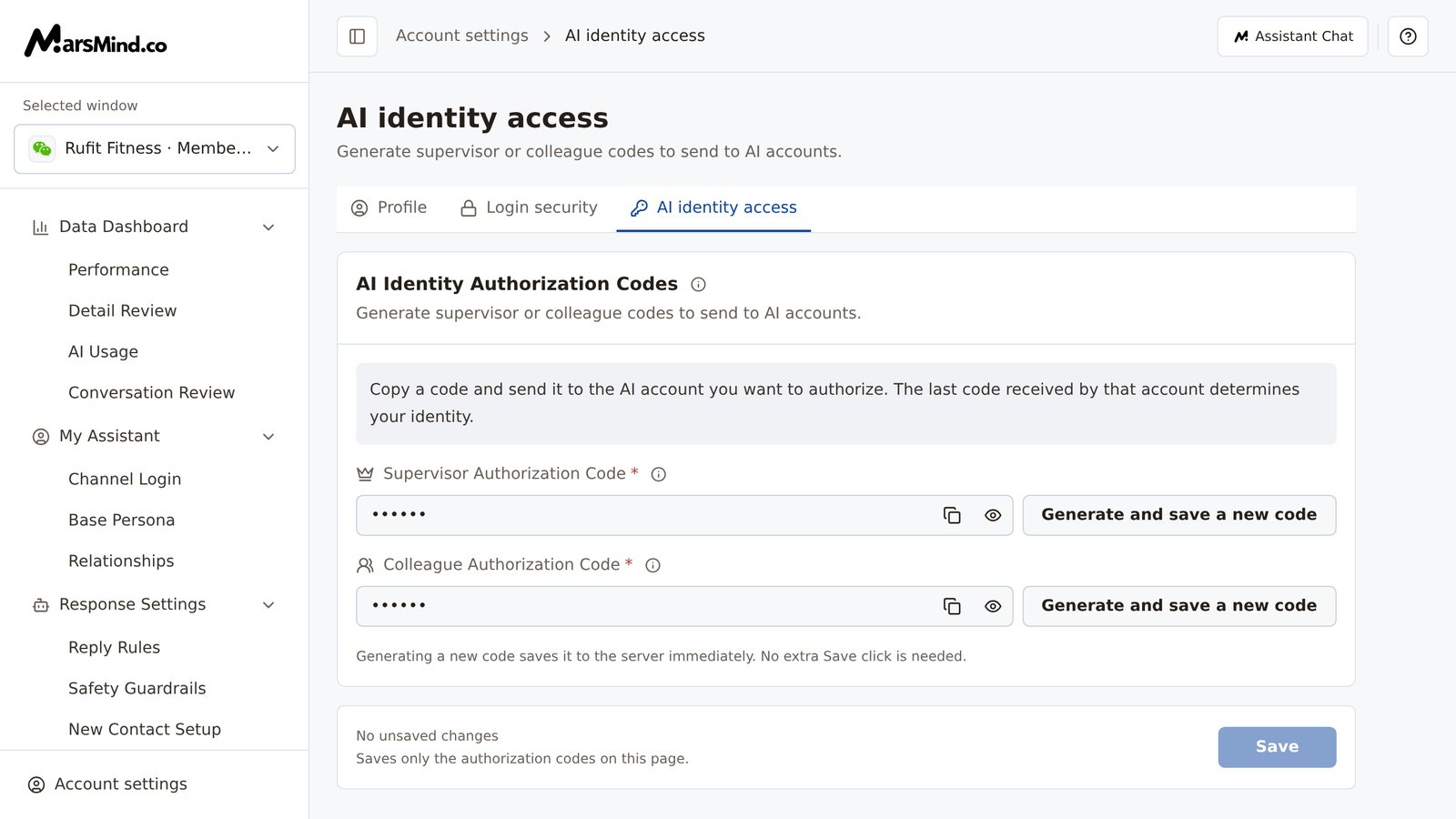
Steps
1
Find the code to send
The “AI Identity Authorization Codes” card has two fields: “Supervisor Authorization Code” and “Colleague Authorization Code”. Both are hidden by default (shown as dots). Click the eye icon to the right of a field (“Show Supervisor Authorization Code” / “Show Colleague Authorization Code”) to reveal it; click again to hide it.The ⓘ next to the card title explains the rule (“Rule details”): “For the same AI account, the last code received decides your identity. Supervisor and colleague identities overwrite each other.” The ⓘ next to each field explains that code’s copy format and the identity it produces.How to tell it worked: you can see a 6-character code made up of uppercase and lowercase letters and numbers. If the page shows “Could not load your profile” and “Reload your profile before editing details or authorization codes.”, click “Retry” first.Note: a new account may not have codes yet (the fields are empty). If the colleague code is empty as well, enter a valid 6-character code first, then generate as described in step 3, and come back here to copy and send it.
2
Copy the code and send it to the AI account
Click the copy icon to the right of a field to copy that code:
- Supervisor code: the copied text automatically includes the
#prefix, for example#A1b2C3— send it exactly in this format. - Colleague code: the 6-character code itself is copied.
# in front of the code shown on the page.Note: for the same AI account, the last code received wins — if you send the colleague code after the supervisor code, you are recognized as a colleague; to switch back to supervisor, just resend the supervisor code.3
Generate and save a new code when you need one
Click “Generate and save a new code” next to the field. One click generates a new code and saves it to the server immediately, replacing the old one. Each field has its own button, and only the field you click is replaced.Note: generating and saving require both code fields to already contain valid 6-character codes. If the other field is empty, validation blocks the action and shows red text; fill in that field first.How to tell it worked: a “Supervisor authorization code generated and saved” or “Colleague authorization code generated and saved” message appears, the field now holds a new code (click the eye icon to see the new 6-character code), and the bottom of the page shows “No unsaved changes”.Note: generation has no confirmation step and cannot be undone; the old code stops working. If the old code was already sent to an AI account, copy and resend the new code so the AI recognizes it.Note: while there are unsaved changes, the button is unavailable and the card shows “Save your changes before generating a new code. Generated codes save immediately.” — click “Save” first.
4
You can also edit a code manually and save it
Edit a code directly in its input field (for example, to switch to a code your team agreed on): it must be exactly 6 characters and contain only uppercase and lowercase letters and numbers. If it does not meet the rules and you click “Save”, red text appears below the field:
- Empty: “Enter a supervisor authorization code.” / “Enter a colleague authorization code.”
- Not 6 characters: “The supervisor authorization code must be 6 characters long.” / “The colleague authorization code must be 6 characters long.”
- Other characters: “The supervisor authorization code can contain only letters and numbers.” / “The colleague authorization code can contain only letters and numbers.”
Checkpoints
- Both codes display normally (instead of “Could not load your profile”), each 6 characters and containing only uppercase and lowercase letters and numbers.
- Copying shows a ”… copied” message; the supervisor code starts with
#, and the colleague code is the 6-character code itself. - After you send a code to an AI account, the AI identifies you with that identity; send the other code to the same account and the identity is overwritten.
- After a manual edit, you clicked “Save” and saw “Changes saved.”, and the bottom status reads “No unsaved changes”.
- After generating a new code, a ”… generated and saved” message appears, and you need to resend the new code to the corresponding AI account.
Important notes
The two identities differ as follows: once recognized as the supervisor (Leader), you become the recipient of the AI’s proactive reports; once recognized as a colleague, the AI communicates with you the way it does with a colleague rather than treating you as a customer. How the AI reports and who receives it also depends on “Key Event Active Reporting” in Reply Rules and the “Supervisor” setting in Relationships.
Frequently asked questions
Why is the “Generate and save a new code” button unavailable?
Three common reasons: (1) the page is still loading (“Loading…”) or failed to load (“Could not load your profile”) — click “Retry” first; (2) there are unsaved changes — the card shows “Save your changes before generating a new code. Generated codes save immediately.”, so click “Save” first; (3) a save is in progress (the button reads “Saving…”) — wait for it to finish.Why is the copy button unavailable?
The code in this field was edited manually and has not been saved: the field shows “Save this code before copying it for use.”. Click “Save” and wait for “Changes saved.” before copying. The copy button is also unavailable when the page fails to load — click “Retry” first — and when the field has no code yet or the page is still loading.What is the difference between the supervisor and colleague codes?
Whichever code you send decides which identity the AI assigns to you: supervisor code → supervisor (Leader), colleague code → colleague. Sending a different code to the same AI account overwrites the previous identity — to change back to supervisor, just resend the supervisor code. Both codes belong only to your admin account, and each is 6 characters containing only uppercase and lowercase letters and numbers.Where do I send a code, and how?
Open your chat with the AI account in your own WeChat or WeCom and send the copied content directly. The supervisor code is copied with its# prefix already included (for example #A1b2C3) — send it as is, without deleting or changing any characters. Send it to whichever AI account you want to recognize you.
I sent a code, but the AI doesn’t seem to treat me as that identity?
Check three things first: (1) whether the code you sent is the current one — generating a new code invalidates the old one, so copy and send the new code; (2) whether you sent it to the AI account you want to authorize (send it in that channel’s chat); (3) whether the pasted content is correct — the colleague code should match what the page shows, and the supervisor code automatically has one extra# in front of the code shown on the page. Once confirmed, copy and send it again — the same AI account goes by the last authorization code it receives.