
Generate an analysis
- Open Super MarsMind and provide the source material and scope: account or window, dates, questions and records to use.
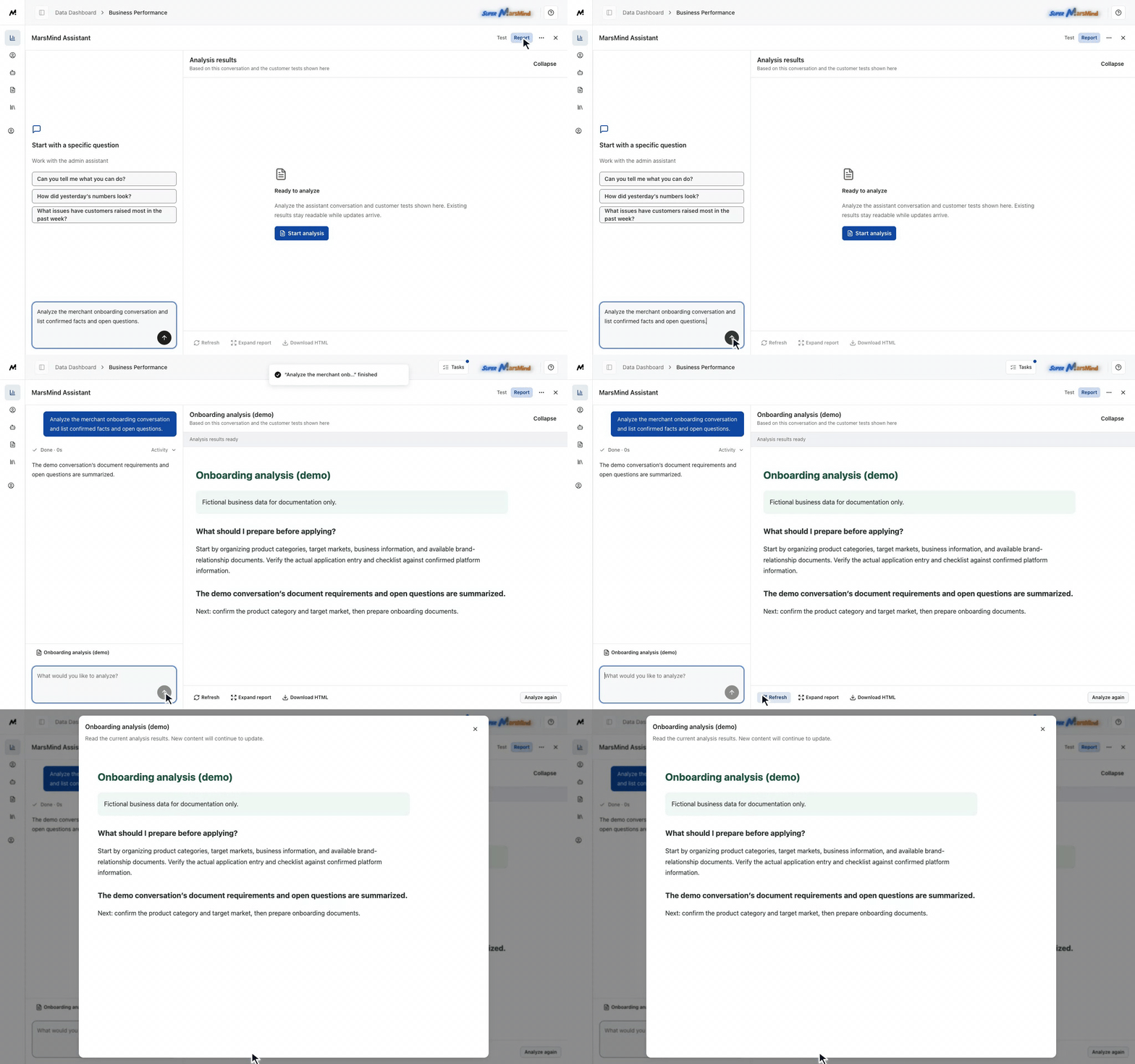
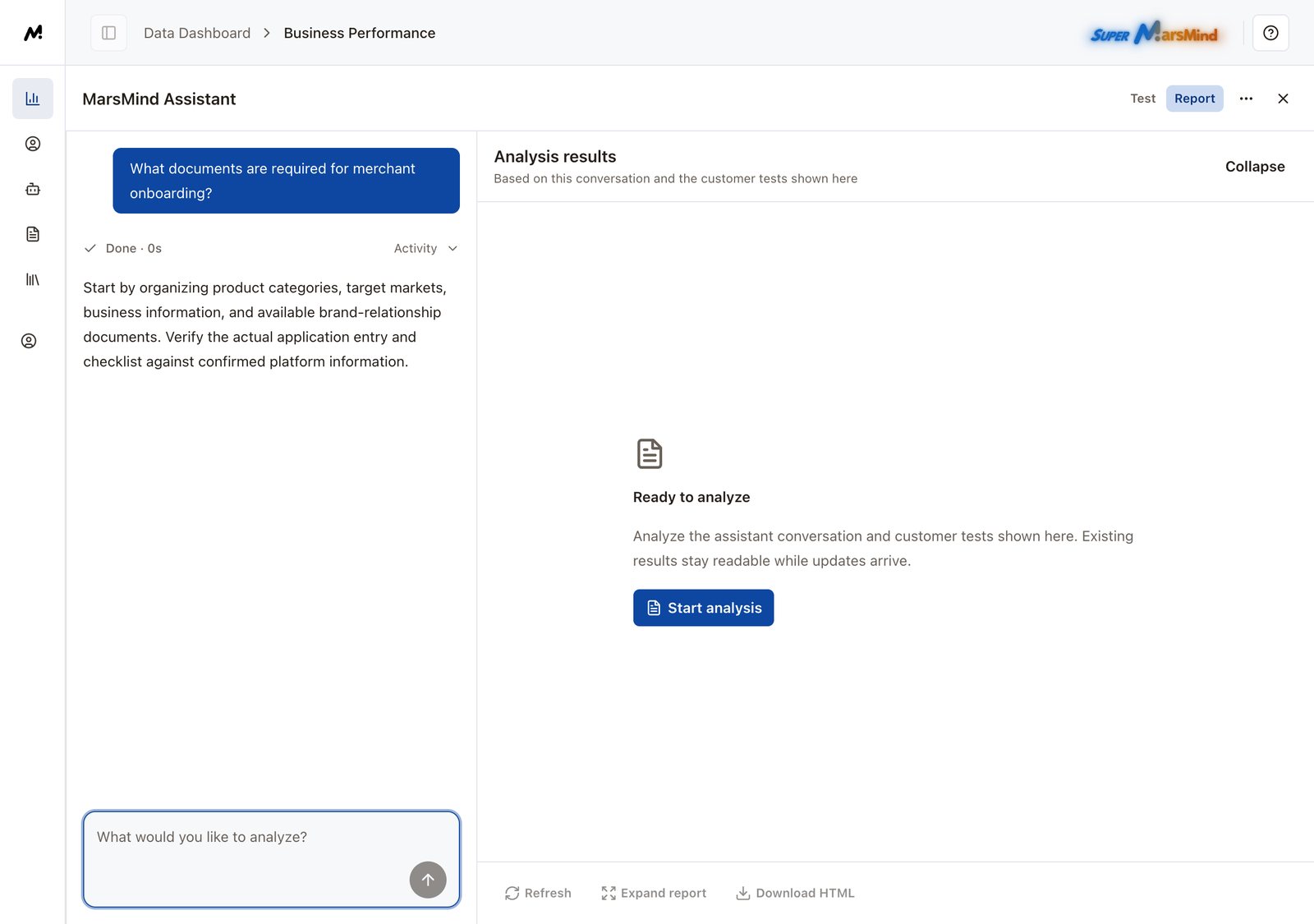
- Click Report beside the conversation title to expand the canvas. Opening it alone does not start analysis.
- Describe your request in the main composer and click Send and analyze. Alternatively, Start analysis in the empty canvas summarizes the current conversation and customer tests already shown here.
- Wait for actual report content. Existing results stay readable during updates; a loading indicator alone is not the current report’s content.
Screen recording (demo data)
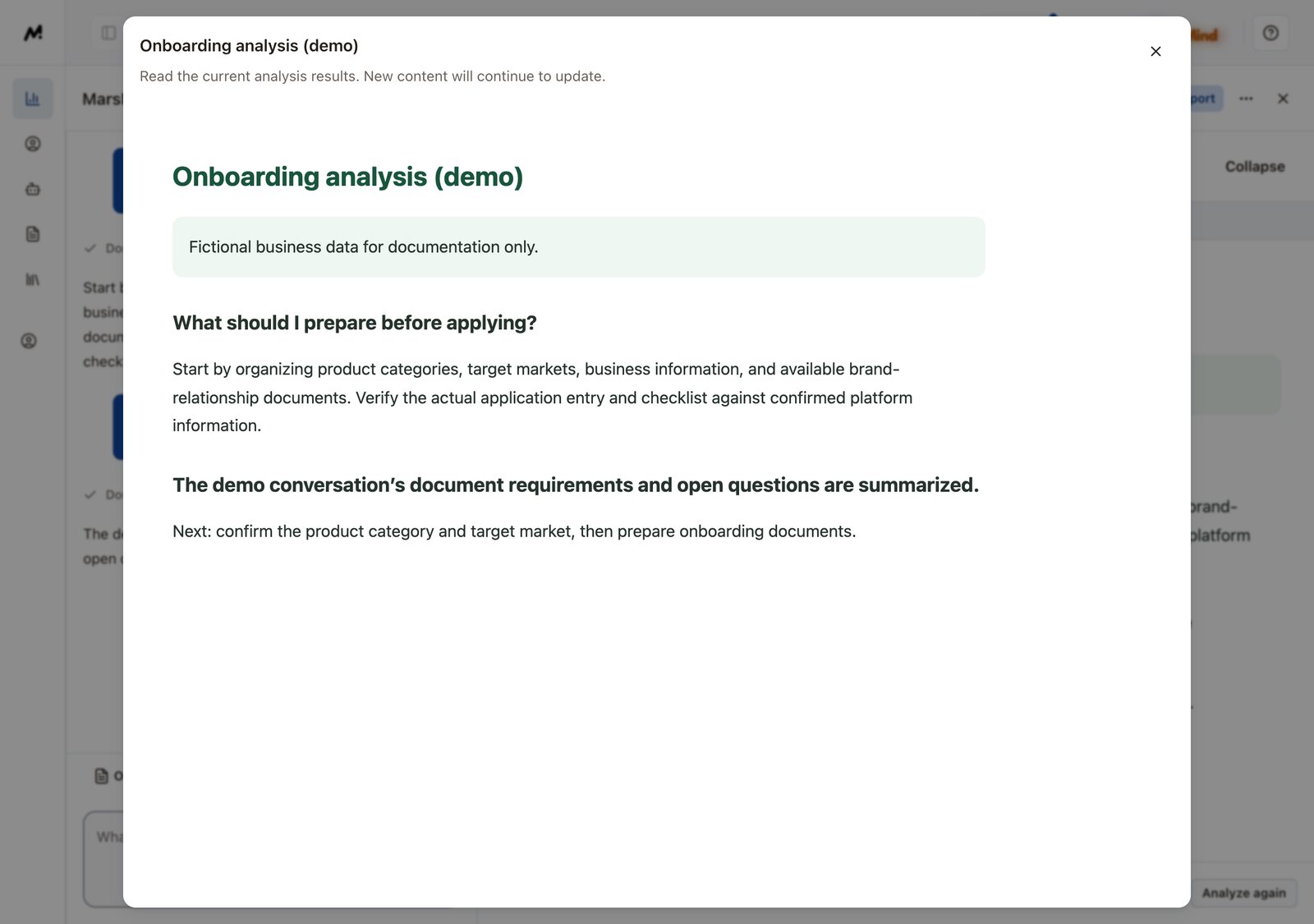
Expand the report canvas, send an analysis request and open the demonstration report in the larger reader after it arrives. Opening the canvas alone does not start analysis.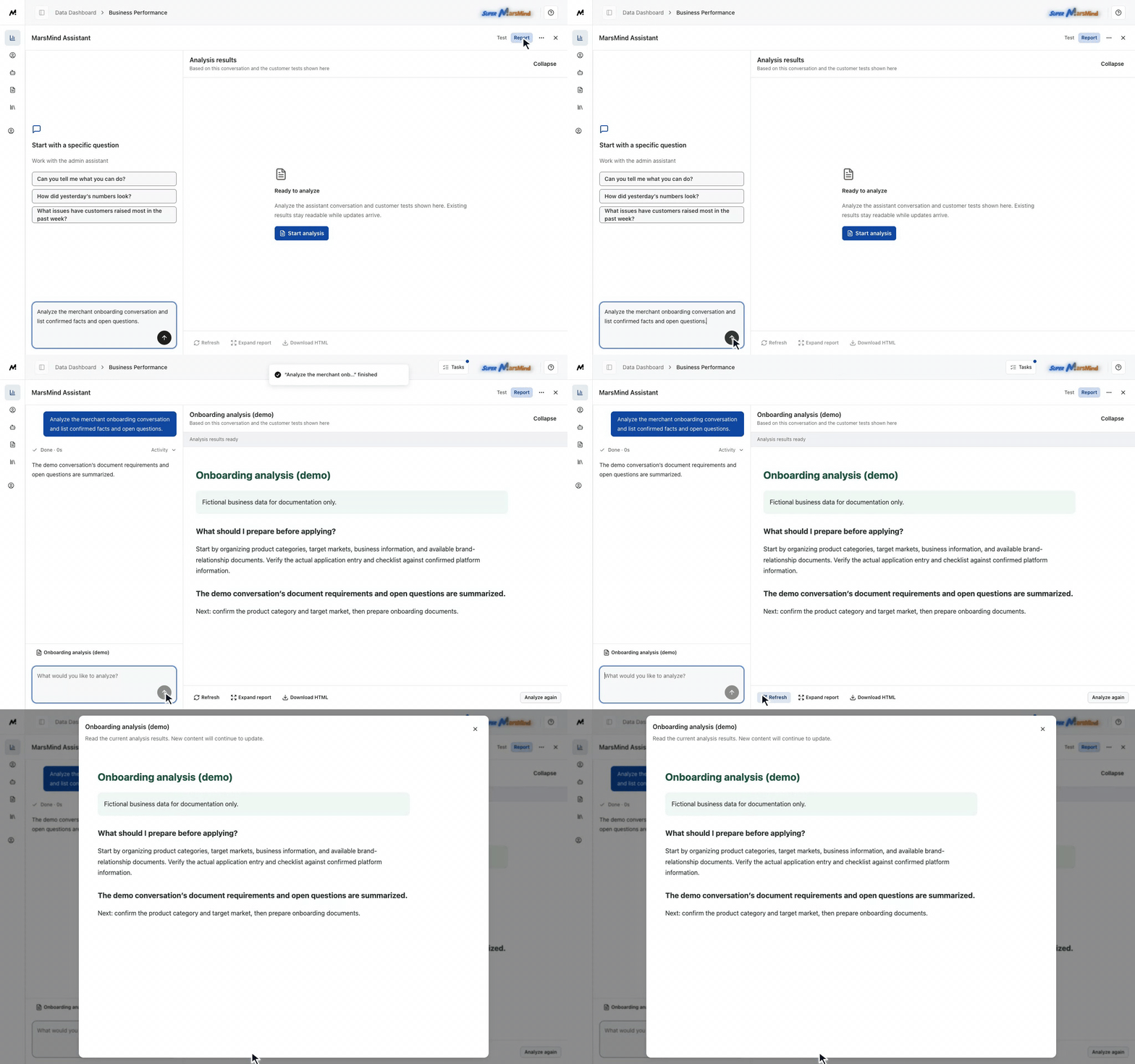
Accounts, questions, replies and reports in the recording are demonstration data. Use the still images below for step-by-step reference.
Read and download
When content arrives, use Expand report to read the complete report or Download HTML to save it. Refresh retrieves the current result. After restoring a historical conversation, its report link opens existing analysis without regenerating it solely because it was opened.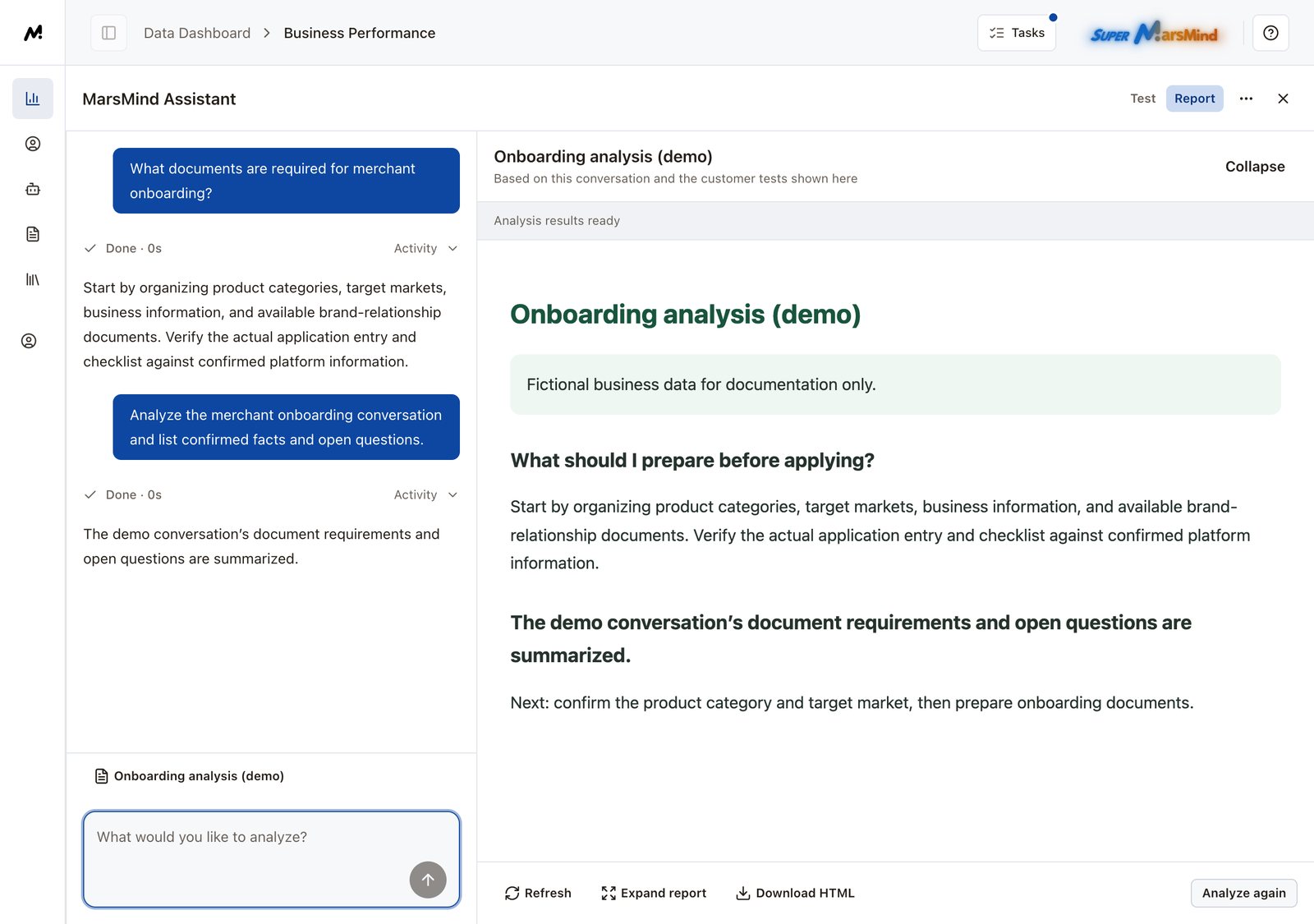
Follow long-running tasks
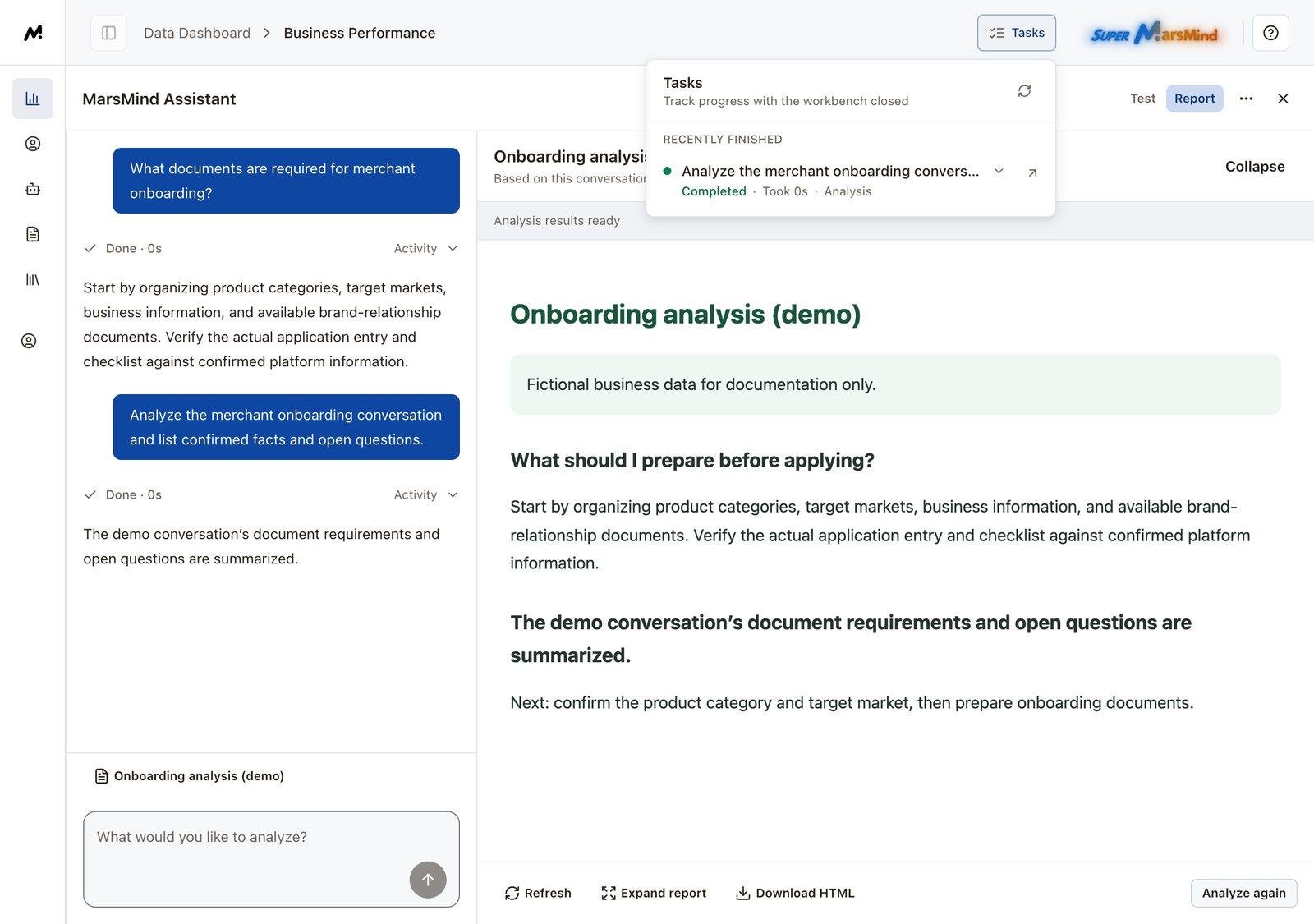
- When tasks appear, click Tasks, Running N or Needs reply N in the admin header.
- Review status and duration in In progress / Recently finished. Expand a row to see its start time, available step count and returned result summary.
- Use the row’s arrow or Open conversation to return to the relevant conversation, provide information or read the full result. The refresh icon rechecks status.
- Where offered, Remove removes an ended or paused record from the task list. It does not cancel the server-side task.