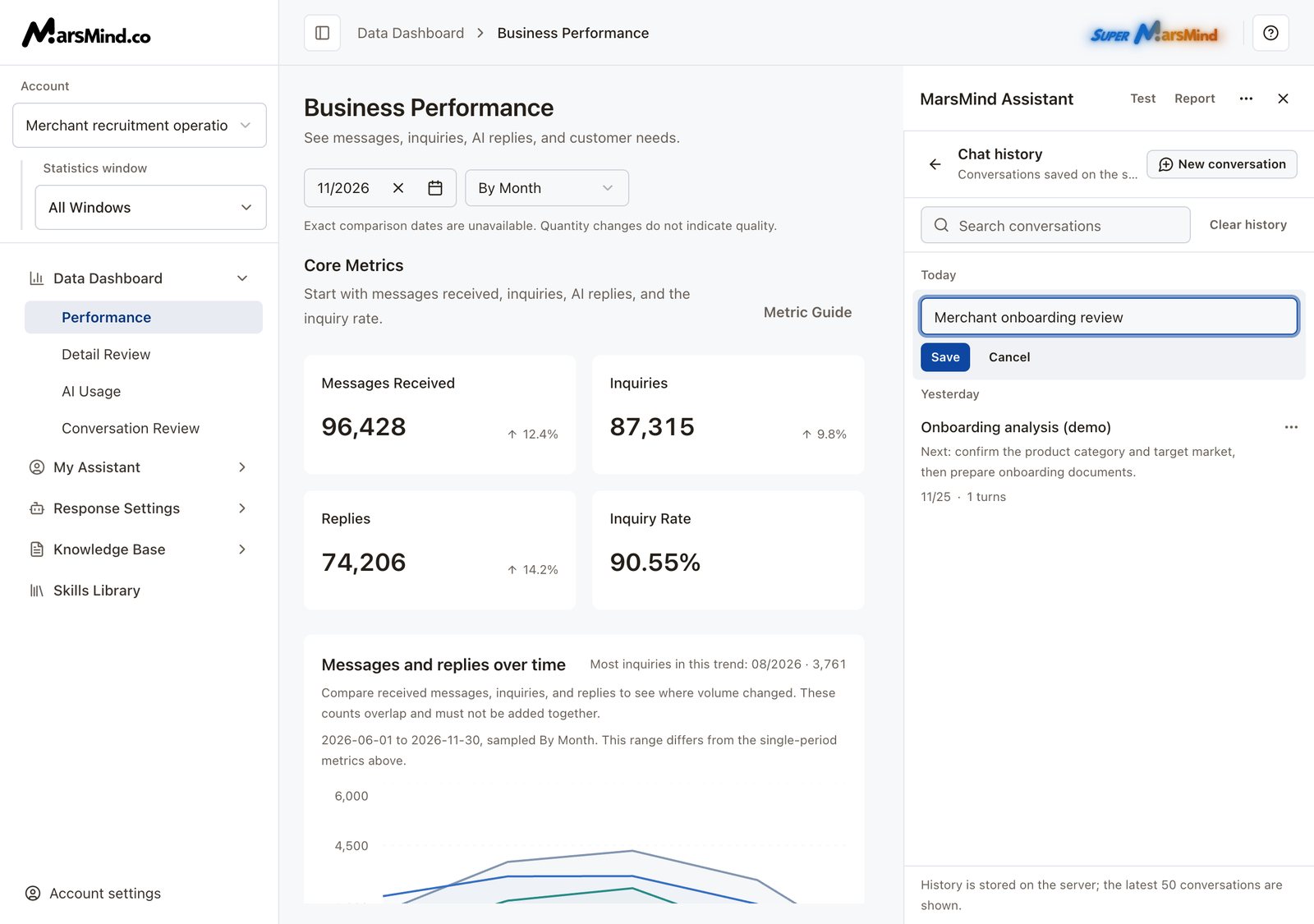

Start a conversation
- Click Super MarsMind in the admin header and describe the request. For example: “Using only the merchant inquiry examples below, list missing documents and human follow-up actions.”
- Click the send arrow. On desktop, Enter sends and Shift+Enter inserts a line break. On mobile, Enter inserts a line break; tap the arrow to send.
- Read the reply and the current turn’s status. When a question or confirmation card appears, read it and choose a response, or answer in the composer.
- Use Copy reply to reuse an answer. After reading earlier messages, use Jump to latest to return to the bottom.
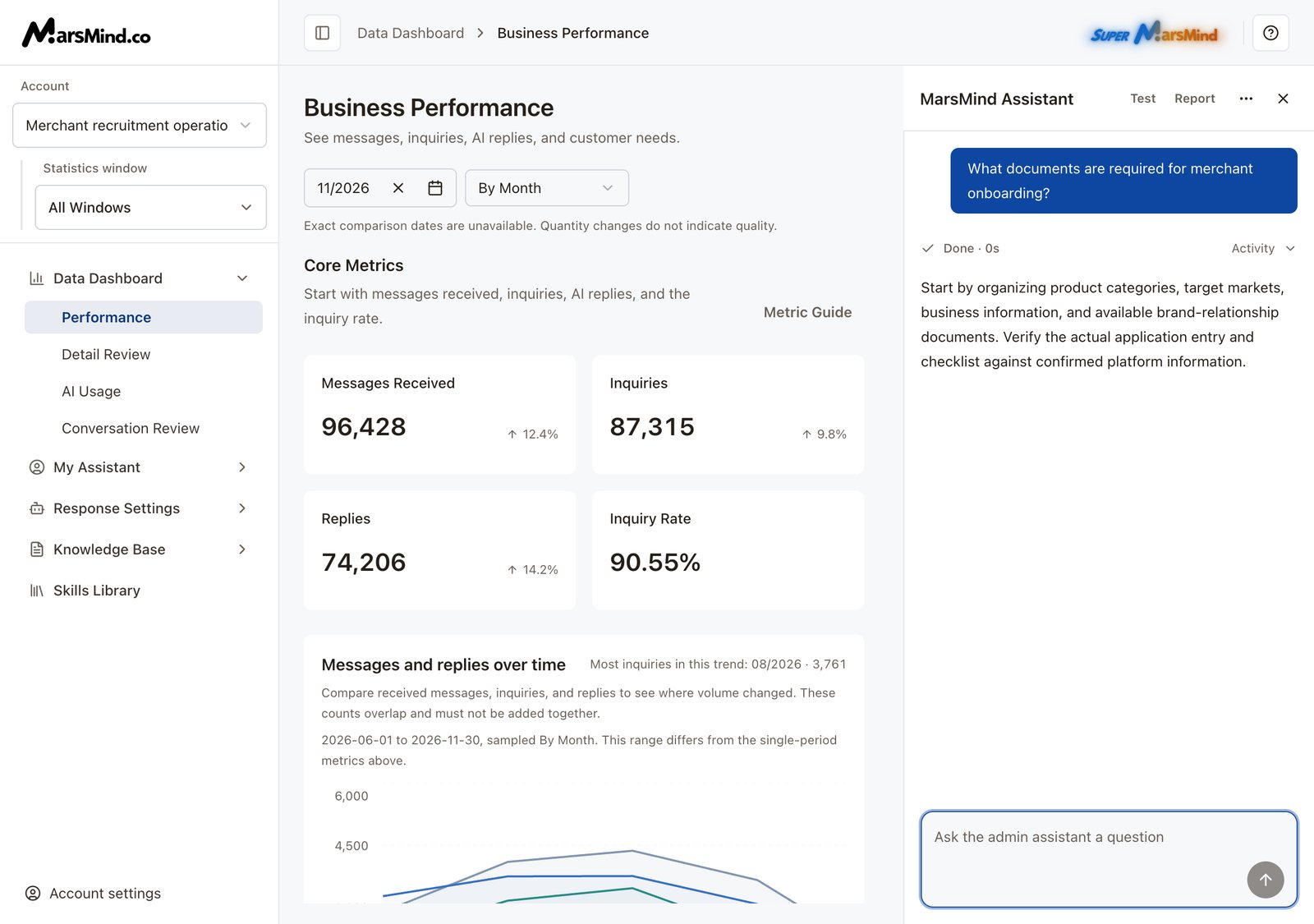
Restore earlier work
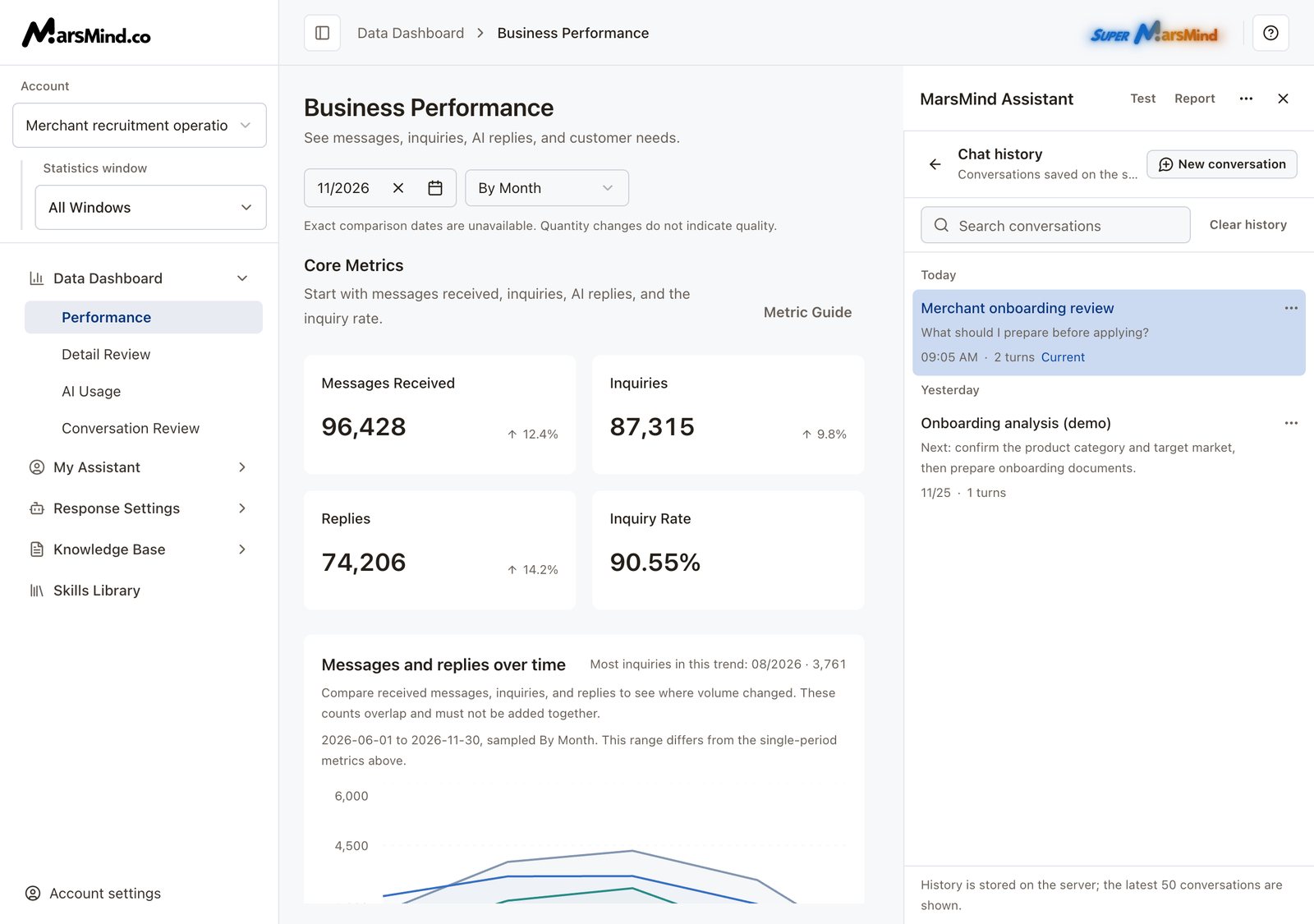
- Open conversation ⋯ → Chat history. Collapse Test or Report first if an extension is open.
- Use Search conversations or browse Today, Yesterday, Previous 7 days and Earlier. The latest 50 server-side conversations are shown.
- Select a conversation and wait for its messages, processing information and existing report to restore. Continue asking questions. If it contains a report, open the result link in the conversation to read it.
- If the current turn is running, switching requires Stop and switch. Generated replies remain, and server tasks may continue.
Screen recording (demo data)
Open the conversation’s top-right more menu, go to chat history and select a demonstration conversation. Wait for its content to restore before continuing.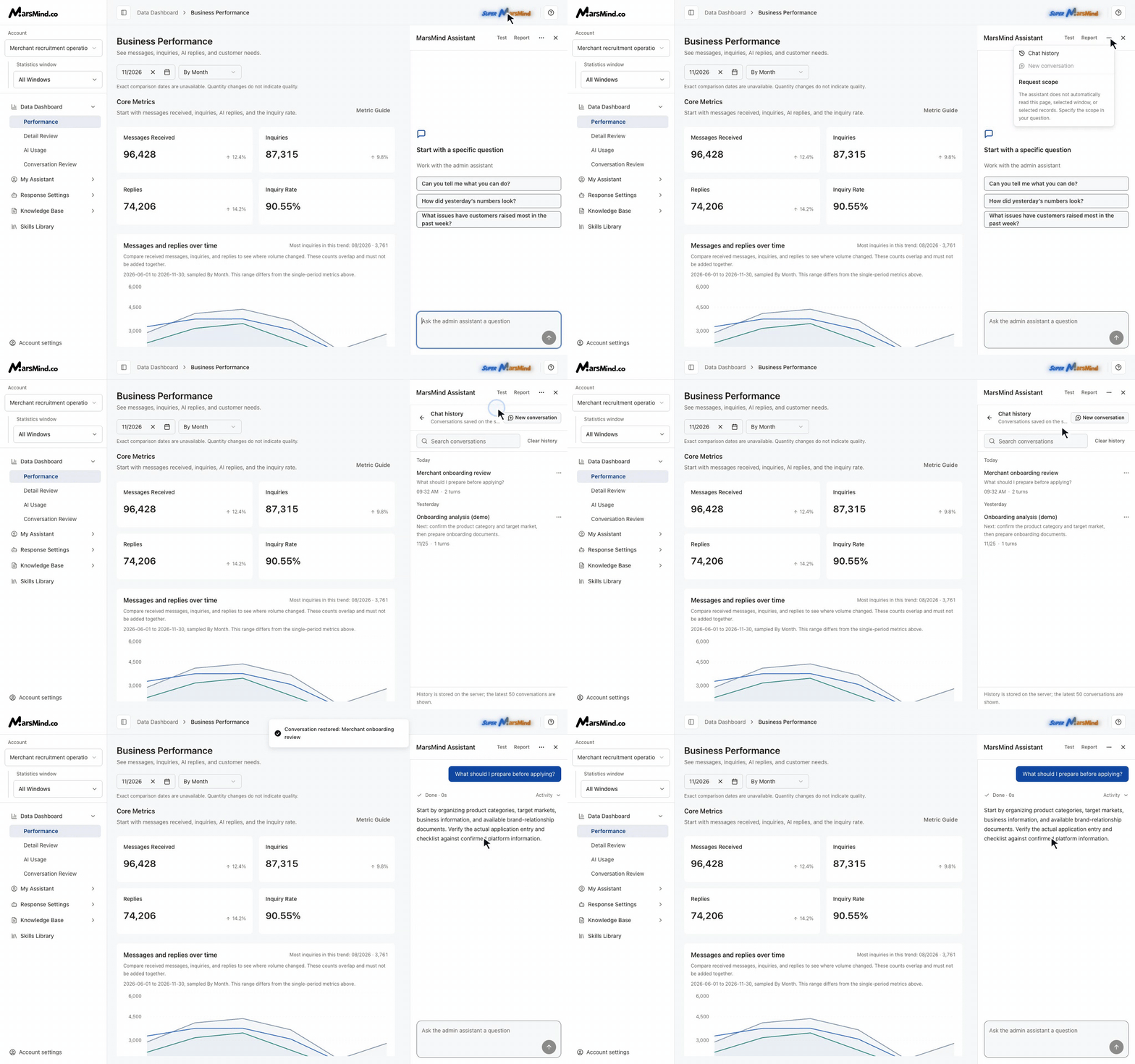
Accounts, questions, replies and reports in the recording are demonstration data. Use the still images below for step-by-step reference.
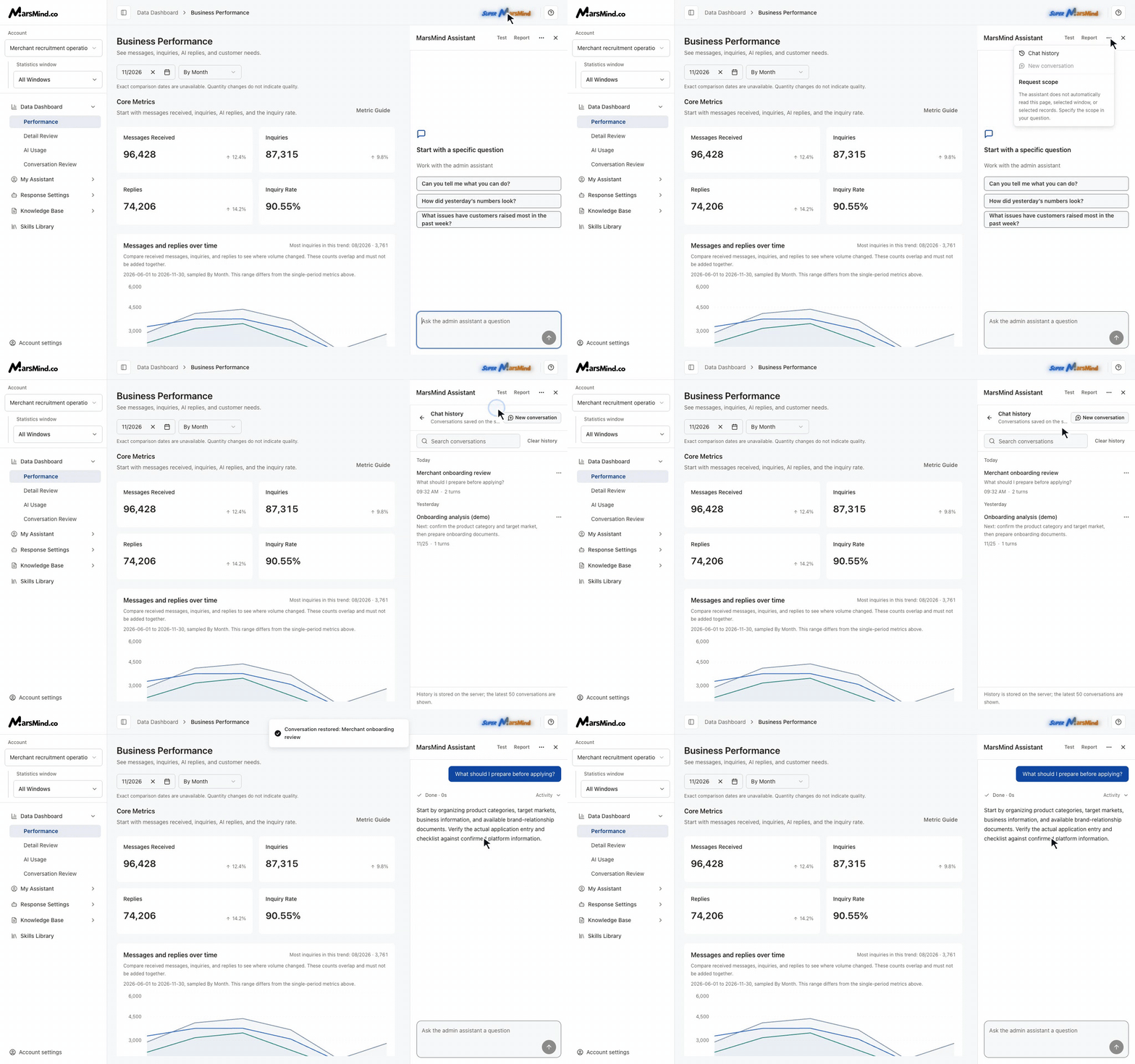
Rename, start fresh and remove history
- History row ⋯ → Rename: edit the title and Save.
- Conversation ⋯ → New conversation, or the history’s New conversation action: confirm to clear this page’s main conversation, customer tests, report and drafts. Existing server-side history is retained.
- Delete on a history row or Clear history: after confirmation, the records leave your history list only. Server-side conversations, messages and existing tasks are unaffected.