

Find knowledge
- Enter a keyword at the top and click Search. By default, results cover Personal and Enterprise knowledge. To browse a group, click its name or right arrow instead.
- Open More Filters to choose content type, Knowledge Scope, Knowledge Category, and Source.
- Check content, source, group, and scope in the results. Back to groups returns to the group location you were browsing.
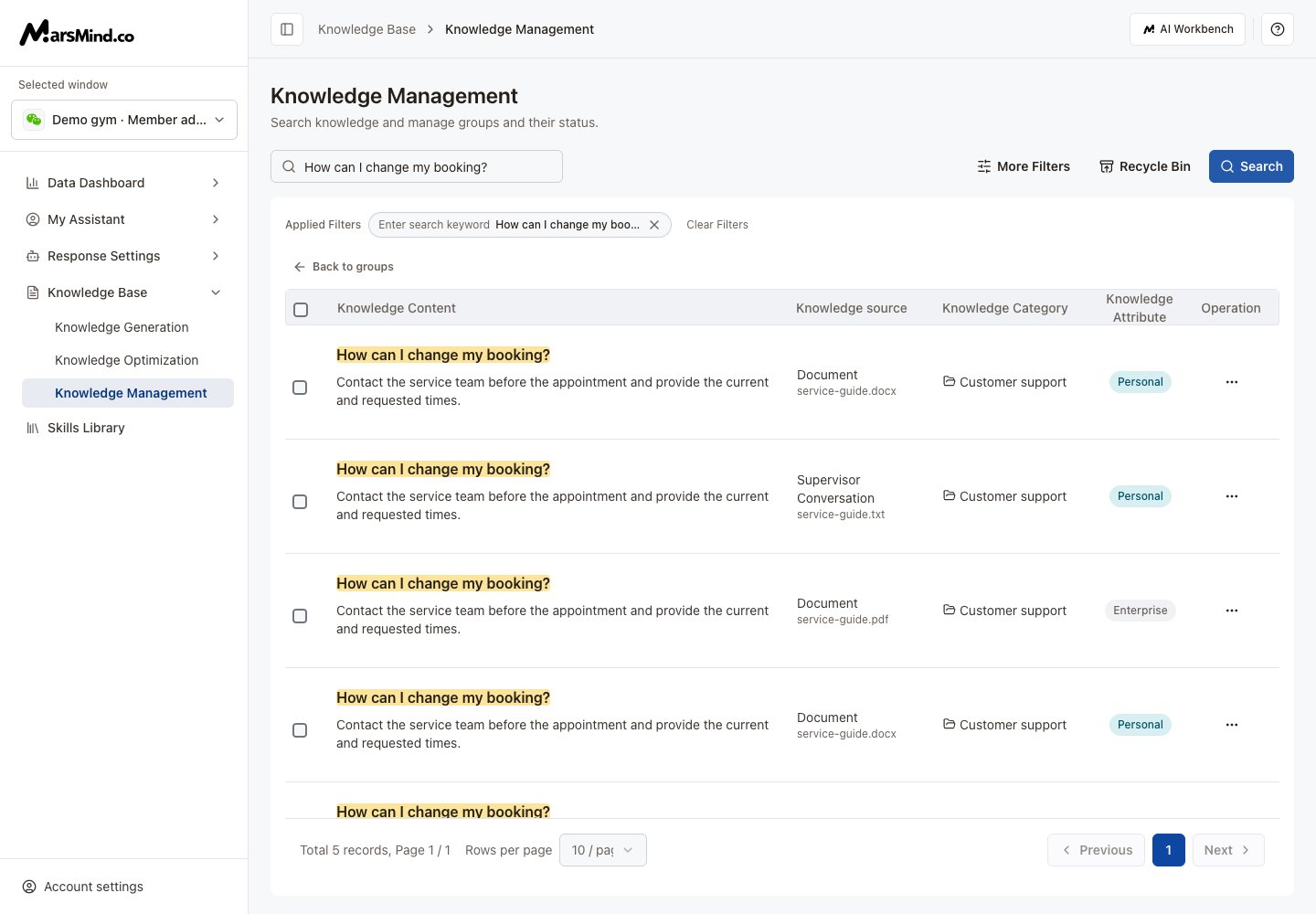
Demonstration records show stored-knowledge search and maintenance controls.
Edit one item
- Open … → Edit on the right of the item.
- Update its title or content. Use Insert File for attachments.
- Click Save changes and wait for success. Matching scores are recalculated after saving.
Move knowledge to a group
- In More Filters → Knowledge Scope, choose Enterprise or Personal.
- For one item, click its group name. For several, select the items and click Change Category.
- Choose the target group in the dialog, then click Confirm.
Delete, restore, or permanently delete
- For one item, use … → Delete and confirm. For several, select them, click Batch Delete, and confirm.
- Open Recycle Bin in the toolbar to see deleted knowledge.
- Use an item’s restore button, or select items and click Batch Recover, then confirm.
- To remove knowledge permanently, use the individual permanent-delete button or select items and click Delete Permanently. Check the confirmation before continuing.
- Click Back to Knowledge List to leave the recycle bin.
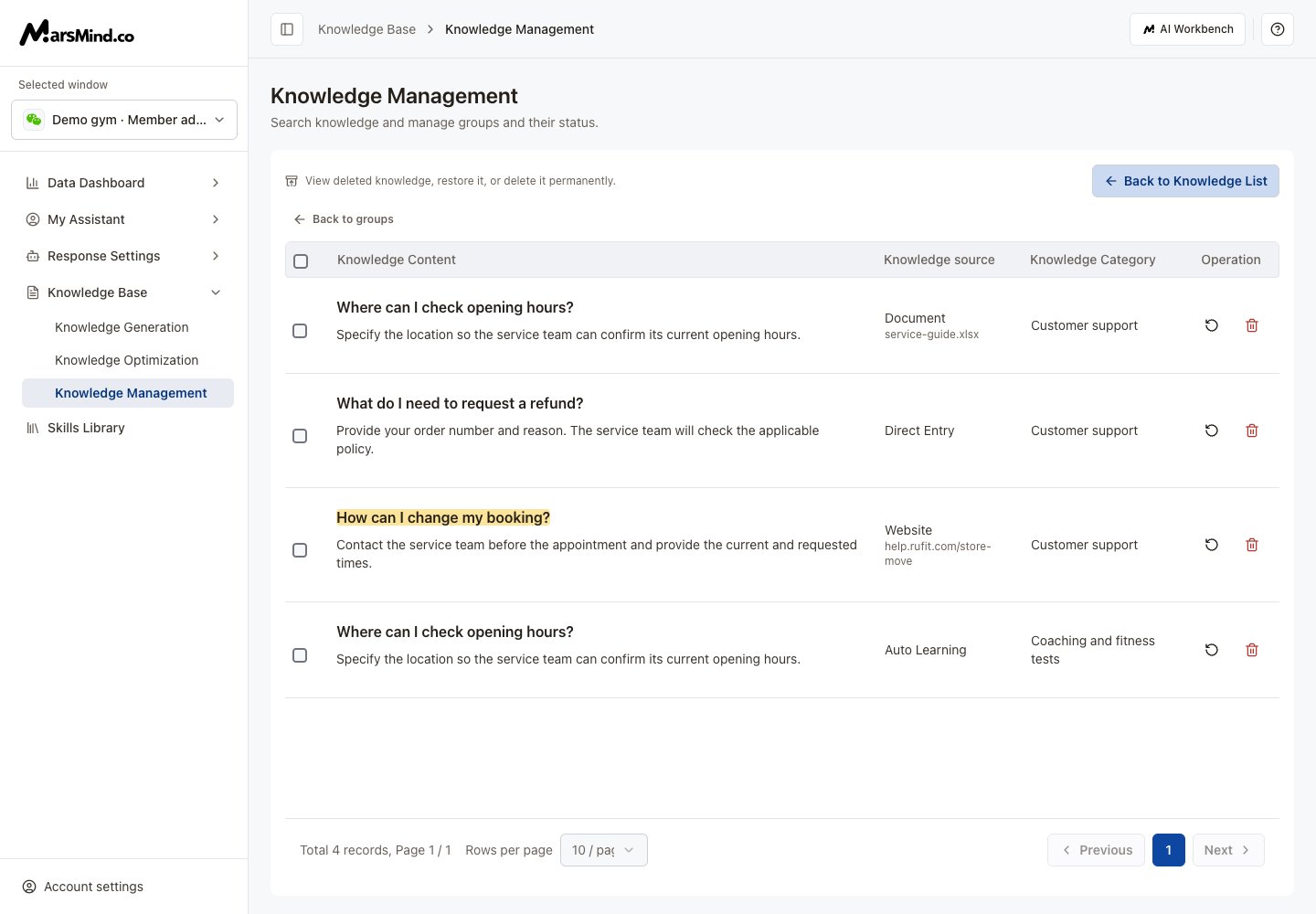
Demonstration deleted records show restore and permanent-delete actions.