

Generate from a document
- Select Generate from Document.
- Click the upload area or drop files into it. Supported types:
.pdf,.docx,.doc,.xls,.xlsx,.md,.txt. Each file must be 100 MB or smaller. - Wait for every file to upload successfully. Retry failed files, or remove them and upload again.
- Under Choose a destination, choose a Knowledge Scope: Personal or Enterprise.
- Open Knowledge Category, select an enabled group, then click Confirm. To add a group, use the management icon beside the field and follow the group guide.
- Click Submit generation task. Review the document count and credits in Confirm Credits Consumption, then confirm. The current rate is 100 credits per document.
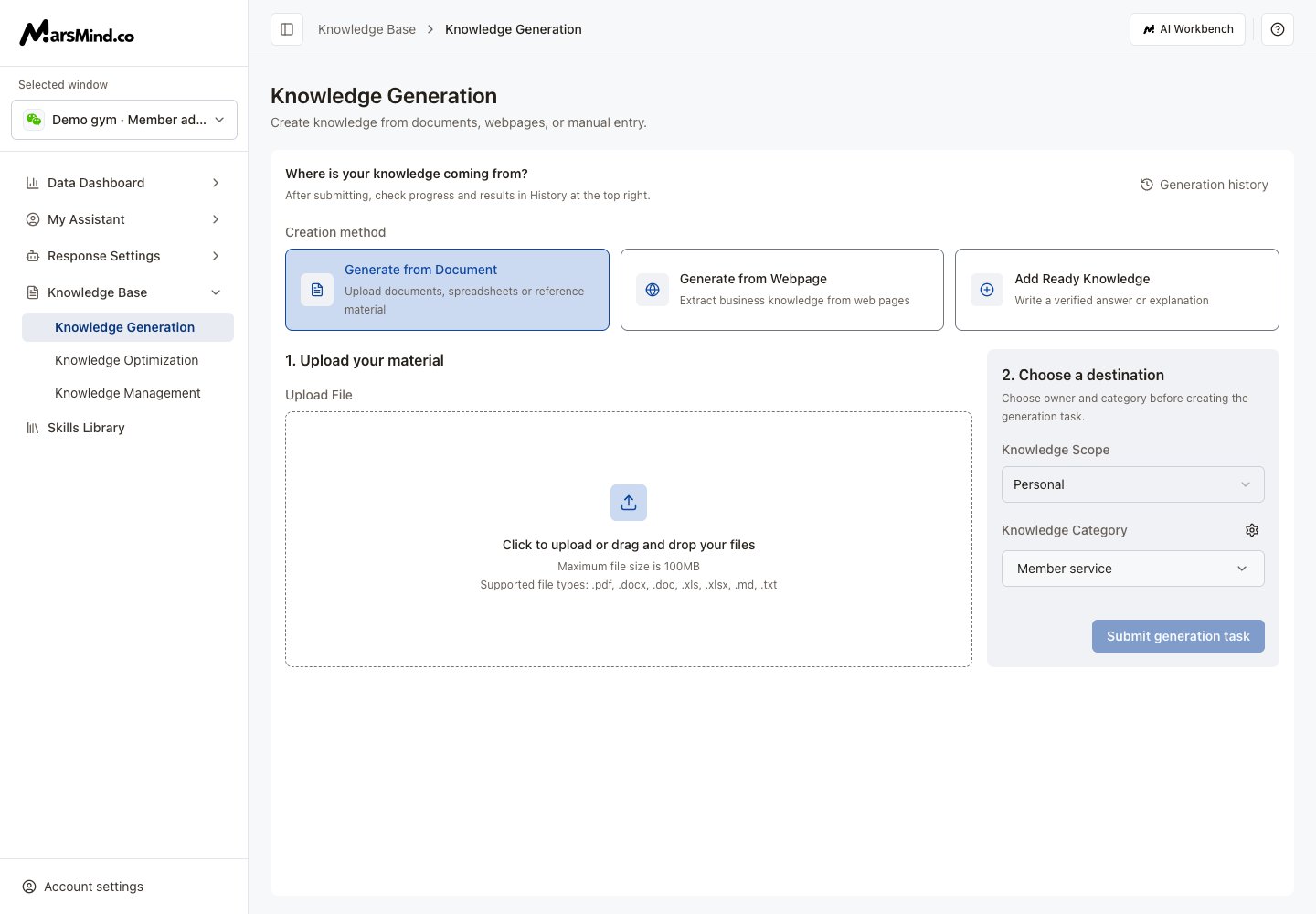
Current interface with demonstration data, showing upload and destination controls.
Generate from a website
- Select Generate from Webpage on the same page.
- Enter URLs, separated by commas or new lines. Only
http://andhttps://are supported. A bare domain is completed withhttps://. - Open Advanced Parameters if needed. Set Crawl Limit, Crawl Depth, Keywords, and whether to translate to Chinese. Limit and depth both default to 1 and must be at least 1.
- Choose the knowledge scope and an enabled group, then confirm the group selection.
- Click Submit generation task.
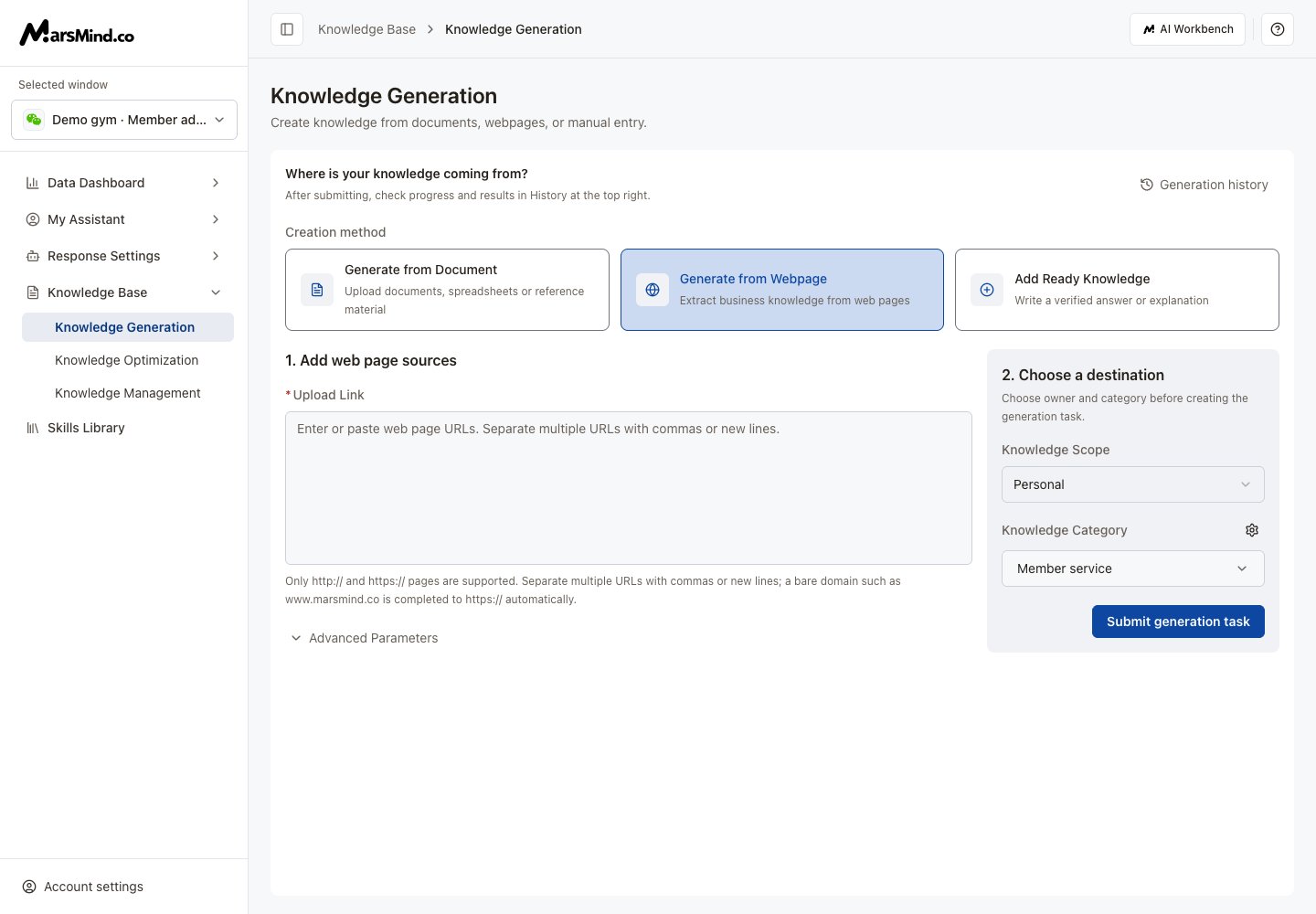
Current website-generation interface with demonstration URLs and parameters.
Check the result
- Open Generation history at the top right. Search by task name or use pagination.
- When a task shows Processing complete, click View result beside its name.
- If knowledge still needs review, the task opens Pending Review. Otherwise, it opens stored knowledge.
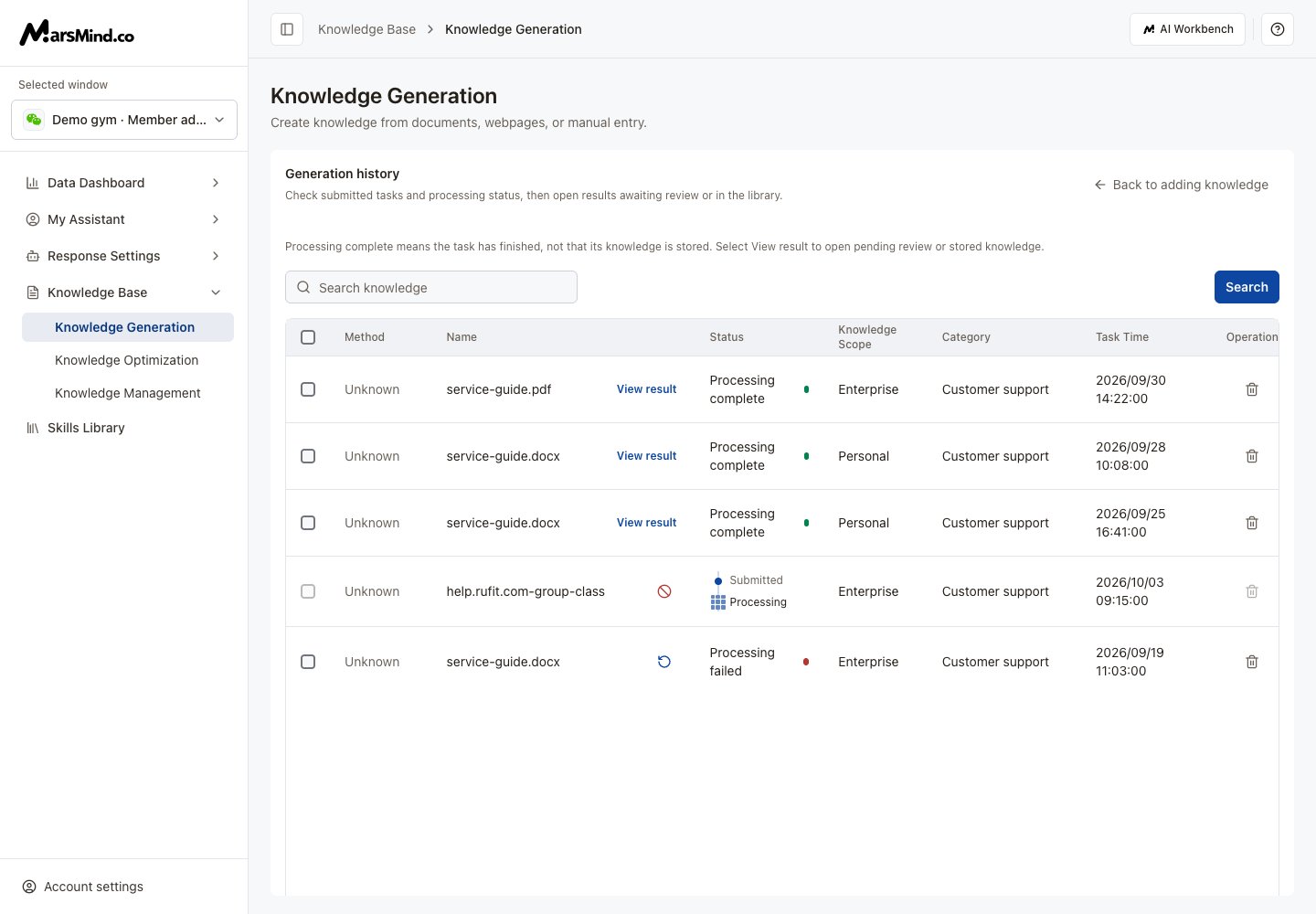
Demonstration tasks show where to check status and results.
- Processing: Use the stop icon to stop a task. Processing tasks cannot be deleted.
- Failed or stopped: Use the retry icon to restart the task.
- Delete a task: Click its delete icon and confirm. This removes only the task record by default. Select Also delete the knowledge generated from this document to remove the corresponding knowledge as well.
- Review status unavailable: Try View result again later before uploading the same material again.