

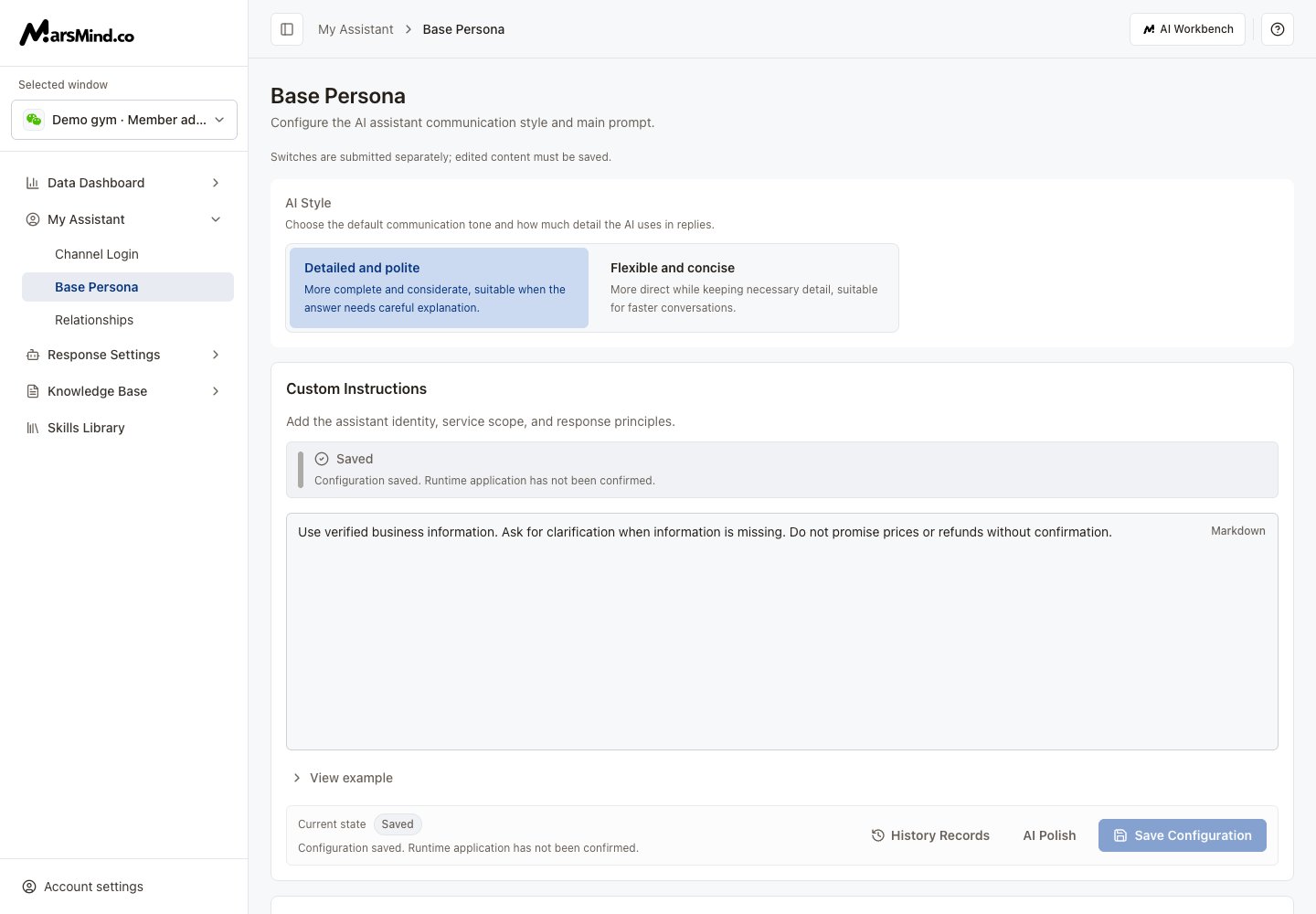
Set style and custom instructions
1
Select a channel
Select the channel to configure under Selected window in the sidebar.
2
AI Style
Choose Detailed and polite or Flexible and concise. This choice saves separately and does not save your instruction draft.
3
Custom Instructions
Enter the assistant identity, service scope, and response principles. For example: act as an after-sales adviser, confirm the order and issue, follow the knowledge base, and ask for missing information.
4
Generate a candidate if needed
With text entered, select AI Polish. Review the comparison and select Apply candidate to replace the editor text, or Keep current draft to retain it.
5
Save Configuration
Select Save Configuration and wait for confirmation. To restore older text, open History Records, choose a version, apply it, then select Save Configuration again.
A successful save confirms the configuration was stored. Runtime application remains unconfirmed. Applying AI or history candidates only changes the draft.
Context Settings
1
Expand and select
Expand Context Settings and the relevant category. Check the conversation context or user information to include.
2
AI Suggest
Select AI Suggest for suggested selections. Review the checked items and reasons, then adjust them.
3
Save Configuration
Select this section’s Save Configuration. Unknown or disabled items can only be unchecked; remove them before saving.
Saving the main instructions can automatically analyze and save context settings. Review this section afterward. Manual AI suggestions still require saving.
Derived Prompts
1
Re-derive
With main instructions entered, expand Derived Prompts and select Re-derive.
2
Review each candidate
Expand items marked New and review or edit their text. Adopt saves that item; Discard removes the candidate and keeps the stored configuration.
3
Edit an individual prompt
You can also edit an individual item and select Save. Clear clears that item so it uses the system default.
Candidates are generated only when you select Re-derive. Generation does not save them. Manually locked items cannot be unlocked here. If lock status fails to load, select Reload config; writes remain blocked until it succeeds.