

Add one question and answer
- Choose Q&A Knowledge under Entry Type.
- Fill in What might a customer ask? and How should AI answer? For an invoice question, include the application location, required information, and processing time.
- To attach a file, click Insert File in the answer area and wait for the upload to finish.
- Choose a Knowledge Scope and Knowledge Category on the right. Select a group and click Confirm.
- Click Submit entry task.
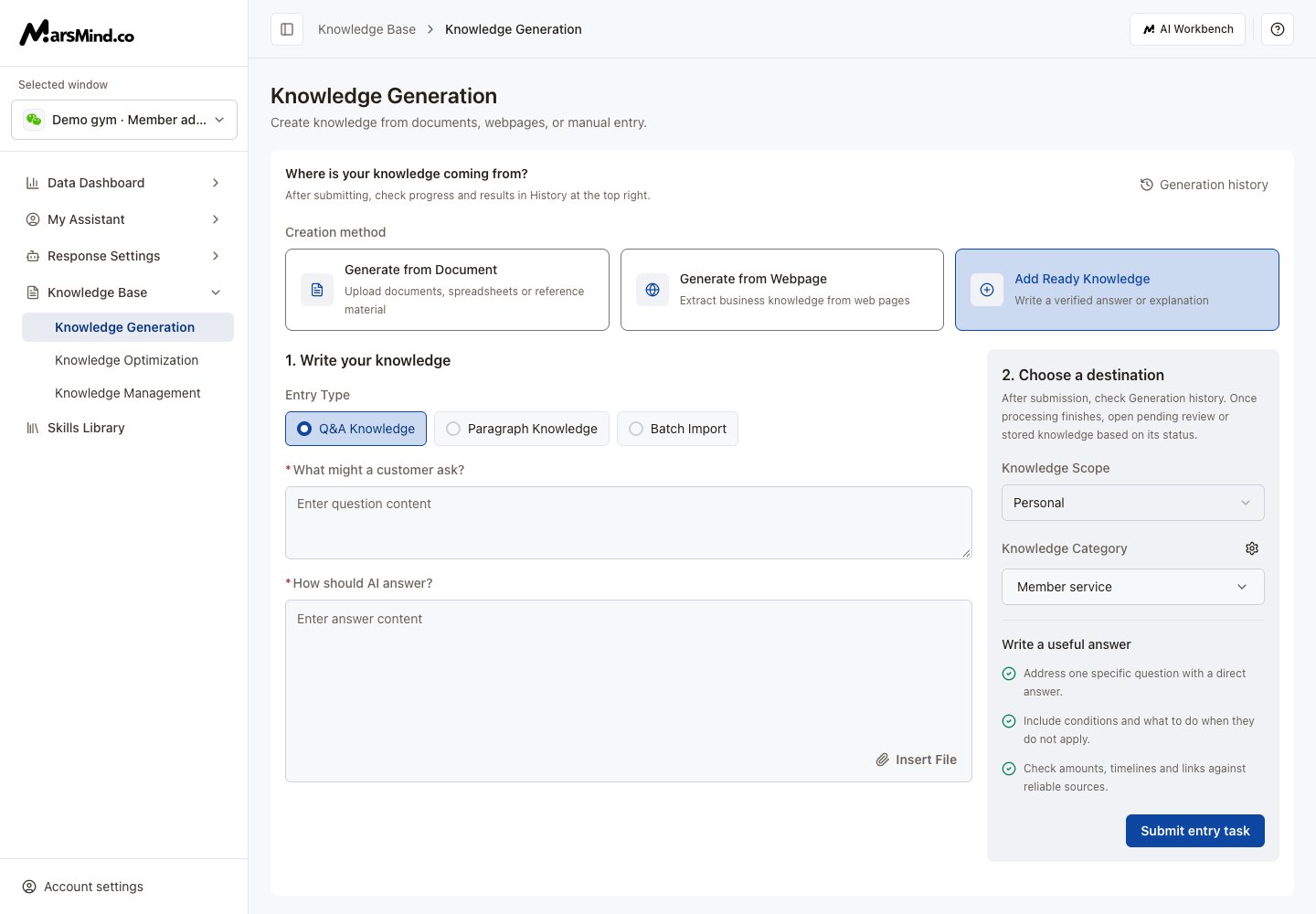
Demonstration question and answer in the current entry interface.
Add a paragraph
- Select Paragraph Knowledge.
- Fill in Text Description. Use Insert File for attachments.
- Choose the scope and group, then confirm the group selection.
- Click Submit entry task and check the result in Generation history.
Import a batch
- Select Batch Import.
- Click Download Template, then choose the QA or paragraph template.
- Fill in its columns, preserve the template structure, and save as
.xlsx. - Upload the completed file and wait for success. Only
.xlsxis accepted here, up to 100 MB per file. - Choose the scope and group, then click Submit generation task.
- Find the task in Generation history and click View result after processing completes.
Add Ready Knowledge is a creation method. Check View result to find out whether review is still needed; items requiring confirmation appear in Pending Review.