> ## Documentation Index
> Fetch the complete documentation index at: https://docs.marsmind.co/llms.txt
> Use this file to discover all available pages before exploring further.
# Knowledge Optimization
> Review what the AI has newly learned: check, edit, approve, or discard items in Pending review, and turn questions the AI could not answer into knowledge in Needs answer.
"Knowledge Optimization" is the confirmation step before knowledge is stored: knowledge the AI has newly learned or generated arrives here first, and only after you click "Approve" (knowledge from sources other than Auto Learning is approved automatically if you do not process it within 24 hours) does it become stored knowledge the AI can use. Questions the AI could not answer — ones already handed over to a supervisor — also queue up here, waiting for you to add the answer.
## When you'll need this
* A [Knowledge Generation](/en/guide/knowledge/generation) task finishes and you click "View result": if the task still has items pending review, you are taken to this page under Pending review to confirm what the AI just learned, item by item; if everything is already stored, Knowledge Management opens instead.
* An item in the list is tagged "Manual review" (source: "Auto Learning") — this kind is never approved automatically; you decide whether to keep it or let it go.
* Customer questions that the AI could not answer have built up under Needs answer, and you want to add an answer you can send to the customer directly.
## How to get there
Left menu → Knowledge Base → Knowledge Optimization.
The page opens on Pending review by default; Needs answer is another view on the same page (its tab reads "Needs answer (Test)"), where you add answers to questions the AI could not handle. This view is not enabled in every environment — if you do not see it, skip the matching step.
 ## Steps
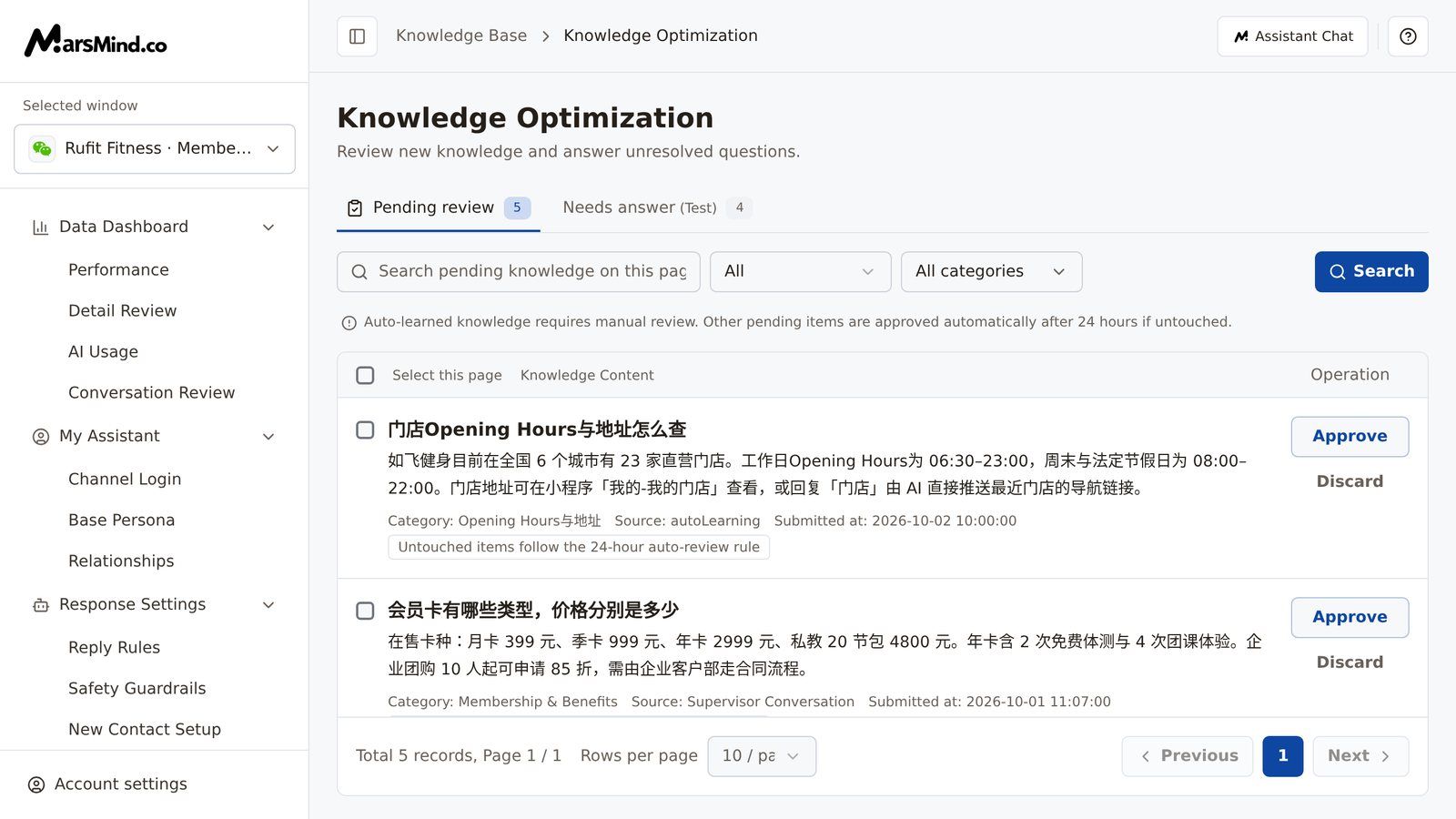
The page opens on Pending review. Each row is one item waiting for confirmation: title and body, then the Category, Source, and Submitted at details below them, with a tag at the end of the row:
* "Untouched items follow the 24-hour auto-review rule": if you leave it alone, it is approved automatically within 24 hours;
* "Manual review": this item comes from "Auto Learning", is never approved automatically, and must be handled by hand.
The toolbar holds the search box (placeholder "Search pending knowledge on this page"), the "All" source filter, the "All categories" filter, and the Search button. Enter a keyword and click Search (or press Enter). Search only filters the results already loaded on the current page; switching Source or Category re-queries the whole queue — when you cannot find a target in the list, change a filter rather than only paging through. Clicking Source inside a knowledge row also filters by that source.
To learn which conversation a piece of knowledge came from, click "View context" (this entry is only enabled in some environments — skip it if you do not see it): the "Conversation context · in time order" popover lists the original conversation chronologically, with the current question marked "This question"; when there is no traceable conversation, it shows "No traceable conversation context is available for this item.".
How to tell it worked: the footer shows "Total N records, Page X / Y"; after you change a filter, the record count and content refresh with it.
Click the body area (except links and buttons) to enter edit mode: the title becomes an input (placeholder "Enter title") and the body becomes a rich-text editor (placeholder "Enter content"); a row being edited no longer shows Approve and Discard — they come back after you save or discard your changes.
Once you change something, the status at the bottom switches from "No unsaved changes" to "Unsaved changes · Not saved to knowledge", and the "Save changes" button becomes clickable only then. To attach supporting material to the knowledge, click "Insert File"; a single file must not exceed 100MB ("File size cannot exceed 100MB" appears if it does). When you are done, click "Save changes" — "Changes saved" appears, and the list shows the updated content.
## Steps
The page opens on Pending review. Each row is one item waiting for confirmation: title and body, then the Category, Source, and Submitted at details below them, with a tag at the end of the row:
* "Untouched items follow the 24-hour auto-review rule": if you leave it alone, it is approved automatically within 24 hours;
* "Manual review": this item comes from "Auto Learning", is never approved automatically, and must be handled by hand.
The toolbar holds the search box (placeholder "Search pending knowledge on this page"), the "All" source filter, the "All categories" filter, and the Search button. Enter a keyword and click Search (or press Enter). Search only filters the results already loaded on the current page; switching Source or Category re-queries the whole queue — when you cannot find a target in the list, change a filter rather than only paging through. Clicking Source inside a knowledge row also filters by that source.
To learn which conversation a piece of knowledge came from, click "View context" (this entry is only enabled in some environments — skip it if you do not see it): the "Conversation context · in time order" popover lists the original conversation chronologically, with the current question marked "This question"; when there is no traceable conversation, it shows "No traceable conversation context is available for this item.".
How to tell it worked: the footer shows "Total N records, Page X / Y"; after you change a filter, the record count and content refresh with it.
Click the body area (except links and buttons) to enter edit mode: the title becomes an input (placeholder "Enter title") and the body becomes a rich-text editor (placeholder "Enter content"); a row being edited no longer shows Approve and Discard — they come back after you save or discard your changes.
Once you change something, the status at the bottom switches from "No unsaved changes" to "Unsaved changes · Not saved to knowledge", and the "Save changes" button becomes clickable only then. To attach supporting material to the knowledge, click "Insert File"; a single file must not exceed 100MB ("File size cannot exceed 100MB" appears if it does). When you are done, click "Save changes" — "Changes saved" appears, and the list shows the updated content.
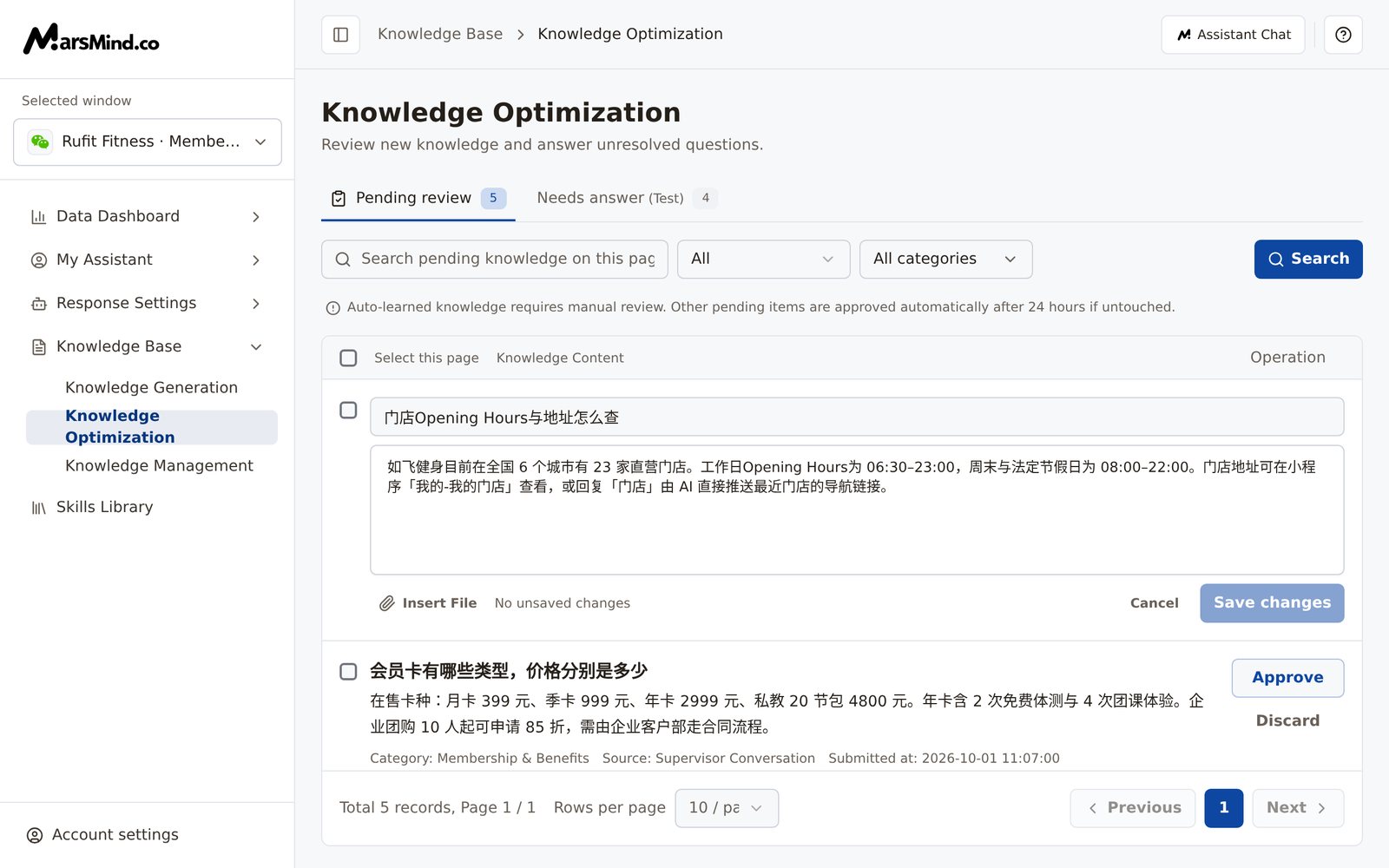 How to tell it worked: after saving, the row shows the title and body you edited; when you open the editor again, the status reads "No unsaved changes".
Note (draft protection): if you switch views, click elsewhere, or leave the page before saving, "Discard unsaved changes?" appears — "Keep editing" retains your input, while "Discard changes…" drops this edit and runs the action you just tried. Unsaved edits are temporarily kept in the current browser tab; when you come back and open the same item again, "Draft restored from this browser tab. It is not saved to knowledge." appears. If the page shows "This tab cannot back up your draft. Save before refreshing or using browser Back/Forward to avoid losing input.", the draft could not be backed up this time — save before you leave. Drafts exist only in the current tab, so you cannot see them in another tab or on another device.
To handle a single item, click the buttons on the right of the row:
* "Approve": "Approved" appears, the item leaves the list and becomes stored knowledge;
* "Discard": "Discarded" appears, the item is removed from the list, is not stored, and cannot be undone.
Single-item actions have no second confirmation — they take effect the moment you click. To handle several at once, select them first (the header checkbox is "Select this page"), then use the "N selected" action bar and click "Approve selected" or "Discard selected"; in the dialog "Process N selected pending knowledge items?", click Confirm to proceed (Cancel does nothing). When it finishes, "Selected items approved" or "Selected items discarded" appears and the list reloads automatically.
How to tell it worked: processed items disappear from the list and the total count drops; approved knowledge can be searched and checked in Knowledge Management.
Note: batch actions process only the rows you selected; the dialog is your last chance to confirm — read the count before clicking Confirm.
Switch to the Needs answer view (the tab shows how many items are waiting). Each question here comes from a customer message that the AI could not answer and that was handed over to a supervisor, who has not replied yet.
On each row, the question and a Category selector sit on the left, and the answer box (placeholder "Enter an answer ready to send to customers") on the right. Fill in the answer and click Confirm — "Confirmed and removed from needs answer" appears and the Q\&A enters the knowledge base. An empty answer cannot be confirmed; "Enter an answer before confirming." appears. If you would rather not handle it, click Ignore — "Ignored and removed from needs answer" appears, and ignoring creates no knowledge.
How to tell it worked: processed rows disappear from the list and the count on the tab drops; when the list is empty, "No questions need answers" shows.
Note: this view is not enabled in every environment; if it is not in the interface, skip this step.
## Checkpoints
* Approved knowledge no longer appears in the Pending review list, and a keyword search finds it in Knowledge Management.
* After you edit and save, the title and body in the list are the updated ones, and the editor status is "No unsaved changes".
* When a batch action finishes, "Selected items approved" or "Selected items discarded" appears and the list reloads.
* In Needs answer, confirming or ignoring shows the matching message and the count drops.
## Important notes
Single "Approve" and "Discard" actions take effect immediately, with no second confirmation (only batch actions show a confirmation dialog). "Discard" deserves extra care: it removes the item from the pending review list, does not add it to stored knowledge, and has no undo. If you are not sure, do not discard yet — click the body, fix the content, and then approve it; items tagged "Untouched items follow the 24-hour auto-review rule" can also be left to be approved automatically.
Auto-approval rule: a fixed note at the top of the page reads "Auto-learned knowledge requires manual review. Other pending items are approved automatically after 24 hours if untouched." Items tagged "Untouched items follow the 24-hour auto-review rule" become stored knowledge on their own if left alone; items tagged "Manual review" come from the Auto Learning source, are not approved automatically, and need you to click "Approve" or "Discard" by hand.
The Pending review list only pulls high-quality knowledge — not every generation result appears here.
Before processing, filter the source by "Auto Learning" first: this kind of knowledge is not approved automatically and stays in the list until you handle it; items from other sources are approved automatically within 24 hours even if you do not get to them.
## Frequently asked questions
### If I don't touch it, will knowledge in Pending review disappear on its own?
Yes. Except for Auto Learning, which always needs manual review, other knowledge is approved automatically if it is not processed within 24 hours, and the list gets shorter over time on its own (the tag at the end of the row reads "Untouched items follow the 24-hour auto-review rule"). Auto-learning knowledge tagged "Manual review" is not approved automatically and stays here until you handle it. To control which knowledge the AI uses, approve or discard it by hand before the auto-approval kicks in.
### What is the difference between Discard and Approve? Can I undo it?
Approve accepts the knowledge: the item becomes stored knowledge, and you can later search it, edit it, and change its category in [Knowledge Management](/en/guide/knowledge/management). Discard removes it from the pending review list: the content is not stored, and there is no undo. Single-item actions have no second confirmation; batch actions show a confirmation dialog first.
### If I leave the page mid-edit, will my changes be lost?
Not right away. Unsaved edits are kept in the current browser tab, and when you reopen the same item, "Draft restored from this browser tab. It is not saved to knowledge." appears — review the draft and click "Save changes". Drafts exist only in the current tab: you cannot see them in another tab or on another device. If the page shows "This tab cannot back up your draft. Save before refreshing or using browser Back/Forward to avoid losing input.", it cannot be backed up this time — save before you leave.
### Why can't the search box find knowledge from other pages?
Search in Pending review only filters the results already loaded on the current page; it does not cross pages. To find an item, change the source or category filter instead (they re-query the whole queue), or click Source inside the knowledge row to filter by source; you can also change the keyword and page through the list.
### Where do the questions in Needs answer come from, and where do they go after I handle them?
They are customer questions that the AI could not answer and that were handed over to a supervisor, with no supervisor reply yet. Add an answer and click Confirm: the question leaves Needs answer, and the answer enters the knowledge base as knowledge. If you would rather not handle it, click Ignore: the question leaves as well, but no knowledge is created. This view is not enabled in every environment; if you do not see it, it has not been opened for your environment.
This documentation is built and hosted on [Mintlify](https://mintlify.com), a developer documentation platform.
How to tell it worked: after saving, the row shows the title and body you edited; when you open the editor again, the status reads "No unsaved changes".
Note (draft protection): if you switch views, click elsewhere, or leave the page before saving, "Discard unsaved changes?" appears — "Keep editing" retains your input, while "Discard changes…" drops this edit and runs the action you just tried. Unsaved edits are temporarily kept in the current browser tab; when you come back and open the same item again, "Draft restored from this browser tab. It is not saved to knowledge." appears. If the page shows "This tab cannot back up your draft. Save before refreshing or using browser Back/Forward to avoid losing input.", the draft could not be backed up this time — save before you leave. Drafts exist only in the current tab, so you cannot see them in another tab or on another device.
To handle a single item, click the buttons on the right of the row:
* "Approve": "Approved" appears, the item leaves the list and becomes stored knowledge;
* "Discard": "Discarded" appears, the item is removed from the list, is not stored, and cannot be undone.
Single-item actions have no second confirmation — they take effect the moment you click. To handle several at once, select them first (the header checkbox is "Select this page"), then use the "N selected" action bar and click "Approve selected" or "Discard selected"; in the dialog "Process N selected pending knowledge items?", click Confirm to proceed (Cancel does nothing). When it finishes, "Selected items approved" or "Selected items discarded" appears and the list reloads automatically.
How to tell it worked: processed items disappear from the list and the total count drops; approved knowledge can be searched and checked in Knowledge Management.
Note: batch actions process only the rows you selected; the dialog is your last chance to confirm — read the count before clicking Confirm.
Switch to the Needs answer view (the tab shows how many items are waiting). Each question here comes from a customer message that the AI could not answer and that was handed over to a supervisor, who has not replied yet.
On each row, the question and a Category selector sit on the left, and the answer box (placeholder "Enter an answer ready to send to customers") on the right. Fill in the answer and click Confirm — "Confirmed and removed from needs answer" appears and the Q\&A enters the knowledge base. An empty answer cannot be confirmed; "Enter an answer before confirming." appears. If you would rather not handle it, click Ignore — "Ignored and removed from needs answer" appears, and ignoring creates no knowledge.
How to tell it worked: processed rows disappear from the list and the count on the tab drops; when the list is empty, "No questions need answers" shows.
Note: this view is not enabled in every environment; if it is not in the interface, skip this step.
## Checkpoints
* Approved knowledge no longer appears in the Pending review list, and a keyword search finds it in Knowledge Management.
* After you edit and save, the title and body in the list are the updated ones, and the editor status is "No unsaved changes".
* When a batch action finishes, "Selected items approved" or "Selected items discarded" appears and the list reloads.
* In Needs answer, confirming or ignoring shows the matching message and the count drops.
## Important notes
Single "Approve" and "Discard" actions take effect immediately, with no second confirmation (only batch actions show a confirmation dialog). "Discard" deserves extra care: it removes the item from the pending review list, does not add it to stored knowledge, and has no undo. If you are not sure, do not discard yet — click the body, fix the content, and then approve it; items tagged "Untouched items follow the 24-hour auto-review rule" can also be left to be approved automatically.
Auto-approval rule: a fixed note at the top of the page reads "Auto-learned knowledge requires manual review. Other pending items are approved automatically after 24 hours if untouched." Items tagged "Untouched items follow the 24-hour auto-review rule" become stored knowledge on their own if left alone; items tagged "Manual review" come from the Auto Learning source, are not approved automatically, and need you to click "Approve" or "Discard" by hand.
The Pending review list only pulls high-quality knowledge — not every generation result appears here.
Before processing, filter the source by "Auto Learning" first: this kind of knowledge is not approved automatically and stays in the list until you handle it; items from other sources are approved automatically within 24 hours even if you do not get to them.
## Frequently asked questions
### If I don't touch it, will knowledge in Pending review disappear on its own?
Yes. Except for Auto Learning, which always needs manual review, other knowledge is approved automatically if it is not processed within 24 hours, and the list gets shorter over time on its own (the tag at the end of the row reads "Untouched items follow the 24-hour auto-review rule"). Auto-learning knowledge tagged "Manual review" is not approved automatically and stays here until you handle it. To control which knowledge the AI uses, approve or discard it by hand before the auto-approval kicks in.
### What is the difference between Discard and Approve? Can I undo it?
Approve accepts the knowledge: the item becomes stored knowledge, and you can later search it, edit it, and change its category in [Knowledge Management](/en/guide/knowledge/management). Discard removes it from the pending review list: the content is not stored, and there is no undo. Single-item actions have no second confirmation; batch actions show a confirmation dialog first.
### If I leave the page mid-edit, will my changes be lost?
Not right away. Unsaved edits are kept in the current browser tab, and when you reopen the same item, "Draft restored from this browser tab. It is not saved to knowledge." appears — review the draft and click "Save changes". Drafts exist only in the current tab: you cannot see them in another tab or on another device. If the page shows "This tab cannot back up your draft. Save before refreshing or using browser Back/Forward to avoid losing input.", it cannot be backed up this time — save before you leave.
### Why can't the search box find knowledge from other pages?
Search in Pending review only filters the results already loaded on the current page; it does not cross pages. To find an item, change the source or category filter instead (they re-query the whole queue), or click Source inside the knowledge row to filter by source; you can also change the keyword and page through the list.
### Where do the questions in Needs answer come from, and where do they go after I handle them?
They are customer questions that the AI could not answer and that were handed over to a supervisor, with no supervisor reply yet. Add an answer and click Confirm: the question leaves Needs answer, and the answer enters the knowledge base as knowledge. If you would rather not handle it, click Ignore: the question leaves as well, but no knowledge is created. This view is not enabled in every environment; if you do not see it, it has not been opened for your environment.
This documentation is built and hosted on [Mintlify](https://mintlify.com), a developer documentation platform.