> ## Documentation Index
> Fetch the complete documentation index at: https://docs.marsmind.co/llms.txt
> Use this file to discover all available pages before exploring further.
# Find and maintain stored knowledge
> Search, edit, move, restore, or permanently delete knowledge.
Open **Knowledge Base → Knowledge Management**.
## Find knowledge
1. Enter a keyword at the top and click **Search**. By default, results cover Personal and Enterprise knowledge. To browse a group, click its name or right arrow instead.
2. Open **More Filters** to choose content type, Knowledge Scope, Knowledge Category, and Source.
3. Check content, source, group, and scope in the results. **Back to groups** returns to the group location you were browsing.
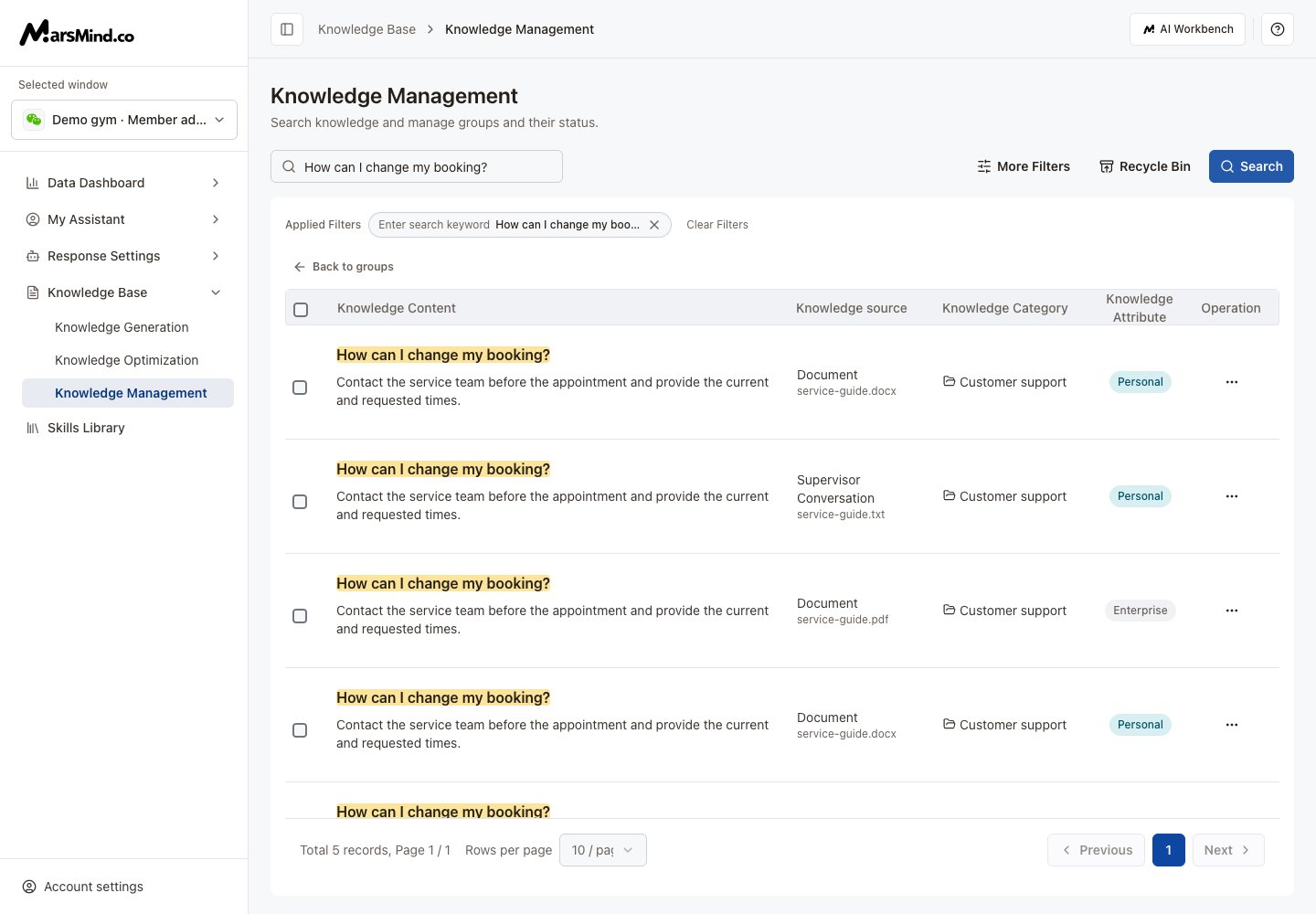 **Result:** Matching stored knowledge appears. With no keyword or selected scope, the page asks you to enter a keyword or choose filters first.
## Edit one item
1. Open **… → Edit** on the right of the item.
2. Update its title or content. Use **Insert File** for attachments.
3. Click **Save changes** and wait for success. Matching scores are recalculated after saving.
## Move knowledge to a group
1. In **More Filters → Knowledge Scope**, choose **Enterprise** or **Personal**.
2. For one item, click its group name. For several, select the items and click **Change Category**.
3. Choose the target group in the dialog, then click **Confirm**.
**Result:** A success message confirms the move. Moving requires one selected knowledge scope; choose a scope first if All Knowledge Bases is selected.
## Delete, restore, or permanently delete
1. For one item, use **… → Delete** and confirm. For several, select them, click **Batch Delete**, and confirm.
2. Open **Recycle Bin** in the toolbar to see deleted knowledge.
3. Use an item's restore button, or select items and click **Batch Recover**, then confirm.
4. To remove knowledge permanently, use the individual permanent-delete button or select items and click **Delete Permanently**. Check the confirmation before continuing.
5. Click **Back to Knowledge List** to leave the recycle bin.
**Result:** Matching stored knowledge appears. With no keyword or selected scope, the page asks you to enter a keyword or choose filters first.
## Edit one item
1. Open **… → Edit** on the right of the item.
2. Update its title or content. Use **Insert File** for attachments.
3. Click **Save changes** and wait for success. Matching scores are recalculated after saving.
## Move knowledge to a group
1. In **More Filters → Knowledge Scope**, choose **Enterprise** or **Personal**.
2. For one item, click its group name. For several, select the items and click **Change Category**.
3. Choose the target group in the dialog, then click **Confirm**.
**Result:** A success message confirms the move. Moving requires one selected knowledge scope; choose a scope first if All Knowledge Bases is selected.
## Delete, restore, or permanently delete
1. For one item, use **… → Delete** and confirm. For several, select them, click **Batch Delete**, and confirm.
2. Open **Recycle Bin** in the toolbar to see deleted knowledge.
3. Use an item's restore button, or select items and click **Batch Recover**, then confirm.
4. To remove knowledge permanently, use the individual permanent-delete button or select items and click **Delete Permanently**. Check the confirmation before continuing.
5. Click **Back to Knowledge List** to leave the recycle bin.
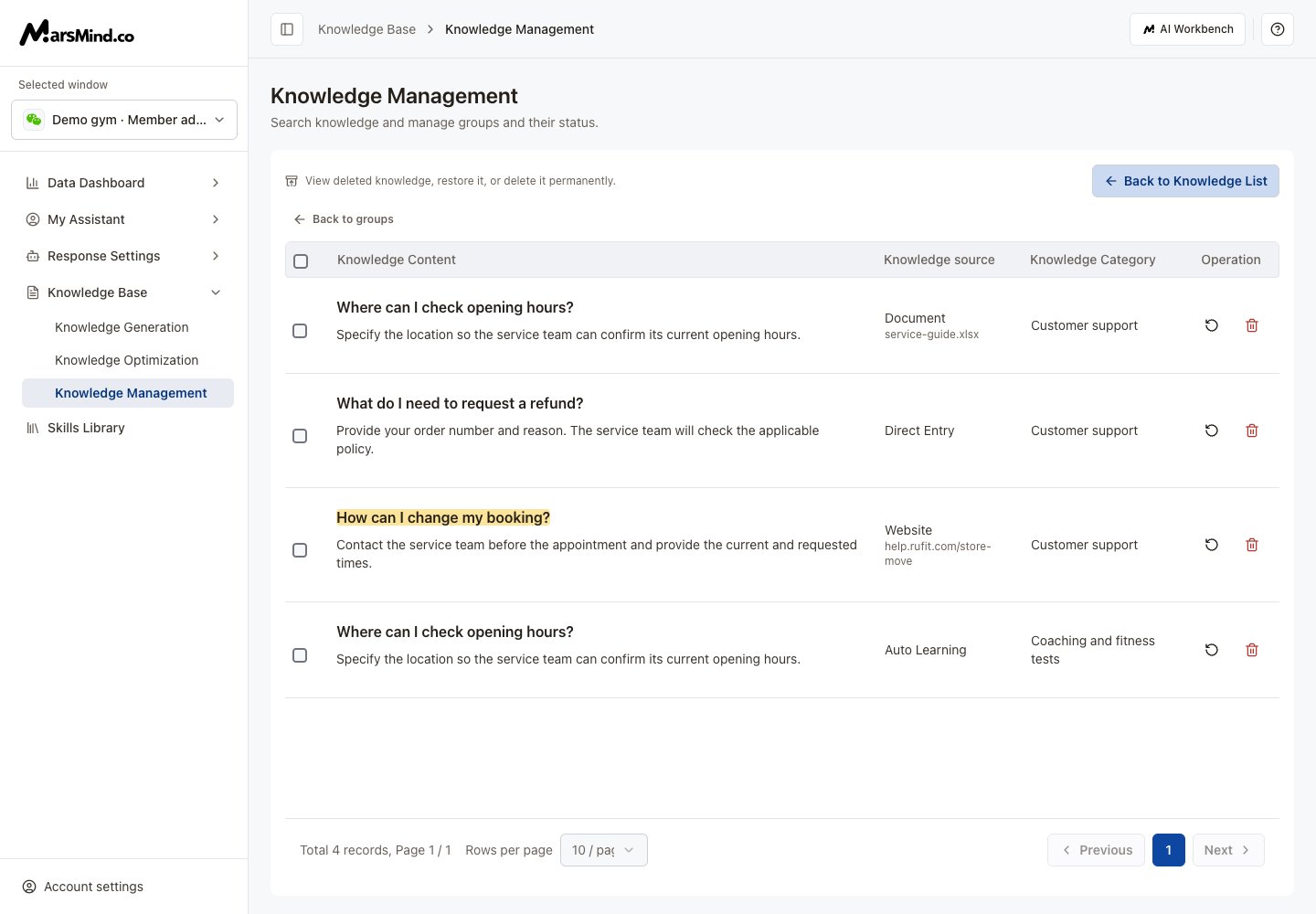 **Result:** Deleted knowledge can be restored from the recycle bin. Permanent deletion cannot be undone.
If knowledge is missing, change the keyword, content type, or filters. When entering from Generation history, also try clearing the task scope or **View pending review**. Retry loading errors; retain unsaved content before retrying a failed save.
This documentation is built and hosted on [Mintlify](https://mintlify.com), a developer documentation platform.
**Result:** Deleted knowledge can be restored from the recycle bin. Permanent deletion cannot be undone.
If knowledge is missing, change the keyword, content type, or filters. When entering from Generation history, also try clearing the task scope or **View pending review**. Retry loading errors; retain unsaved content before retrying a failed save.
This documentation is built and hosted on [Mintlify](https://mintlify.com), a developer documentation platform.