> ## Documentation Index
> Fetch the complete documentation index at: https://docs.marsmind.co/llms.txt
> Use this file to discover all available pages before exploring further.
# Create and enable knowledge groups
> Add groups, rename them, and save their enabled status.
Open **Knowledge Base → Knowledge Management**. The default view shows the group structure. From search results, click **Back to groups**.
## Create a group
1. Open **… → Add Top-Level Group** beside **Group Structure**. An empty page also provides an add button.
2. Enter a name and press Enter or click outside the field to finish editing.
3. To add a child, open the group's **… → Add Child Group** and enter its name. Groups support up to **4 levels**.
4. Check the enabled switch, then click **Save group changes** at the bottom.
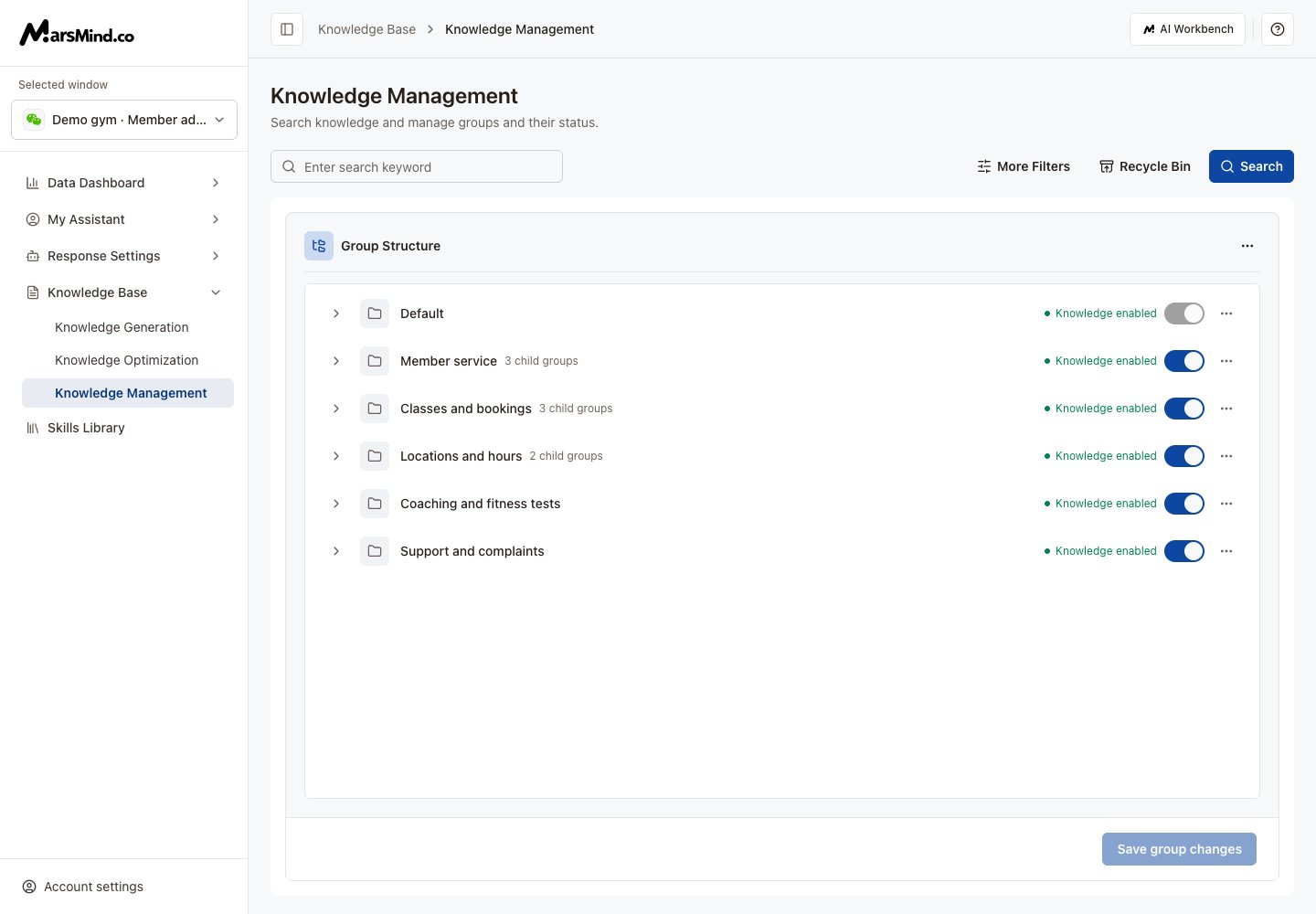 **Result:** Saved groups can organize knowledge. Generation destinations list only enabled groups.
## Rename or change status
1. Open a group's **… → Edit**, change the name, and press Enter or move focus away.
2. Use its switch to enable or disable the group. The page shows **Enable after saving** or **Disable after saving**.
3. Click **Save group changes** and wait for success.
**Result:** A disabled group's knowledge stops taking effect. Re-enabling also requires saving. The Default group stays enabled and cannot be renamed, disabled, or deleted.
## Browse a group's knowledge
1. Click a group name or its right arrow to enter the next level.
2. A group without children shows its stored knowledge. Switch between **Questions & answers** and **Paragraph Knowledge**.
3. Use Back or the breadcrumbs to move up. See [knowledge maintenance](/en/admin-backend/knowledge-base/maintenance) for editing and deletion.
## Delete a group
1. Open the group's **… → Delete**.
2. Check its name and confirm. A saved group is removed immediately; no additional save is needed.
Deleting a group and deleting its knowledge are different actions. Remove knowledge in the knowledge list; do not use group deletion to clear knowledge.
Retry if groups fail to load. If saving is unavailable, finish editing the name first. Save before leaving; unsaved renames and status changes do not take effect.
This documentation is built and hosted on [Mintlify](https://mintlify.com), a developer documentation platform.
**Result:** Saved groups can organize knowledge. Generation destinations list only enabled groups.
## Rename or change status
1. Open a group's **… → Edit**, change the name, and press Enter or move focus away.
2. Use its switch to enable or disable the group. The page shows **Enable after saving** or **Disable after saving**.
3. Click **Save group changes** and wait for success.
**Result:** A disabled group's knowledge stops taking effect. Re-enabling also requires saving. The Default group stays enabled and cannot be renamed, disabled, or deleted.
## Browse a group's knowledge
1. Click a group name or its right arrow to enter the next level.
2. A group without children shows its stored knowledge. Switch between **Questions & answers** and **Paragraph Knowledge**.
3. Use Back or the breadcrumbs to move up. See [knowledge maintenance](/en/admin-backend/knowledge-base/maintenance) for editing and deletion.
## Delete a group
1. Open the group's **… → Delete**.
2. Check its name and confirm. A saved group is removed immediately; no additional save is needed.
Deleting a group and deleting its knowledge are different actions. Remove knowledge in the knowledge list; do not use group deletion to clear knowledge.
Retry if groups fail to load. If saving is unavailable, finish editing the name first. Save before leaving; unsaved renames and status changes do not take effect.
This documentation is built and hosted on [Mintlify](https://mintlify.com), a developer documentation platform.