> ## Documentation Index
> Fetch the complete documentation index at: https://docs.marsmind.co/llms.txt
> Use this file to discover all available pages before exploring further.
# Add ready questions, answers, or paragraphs
> Enter one knowledge item or submit a completed batch template.
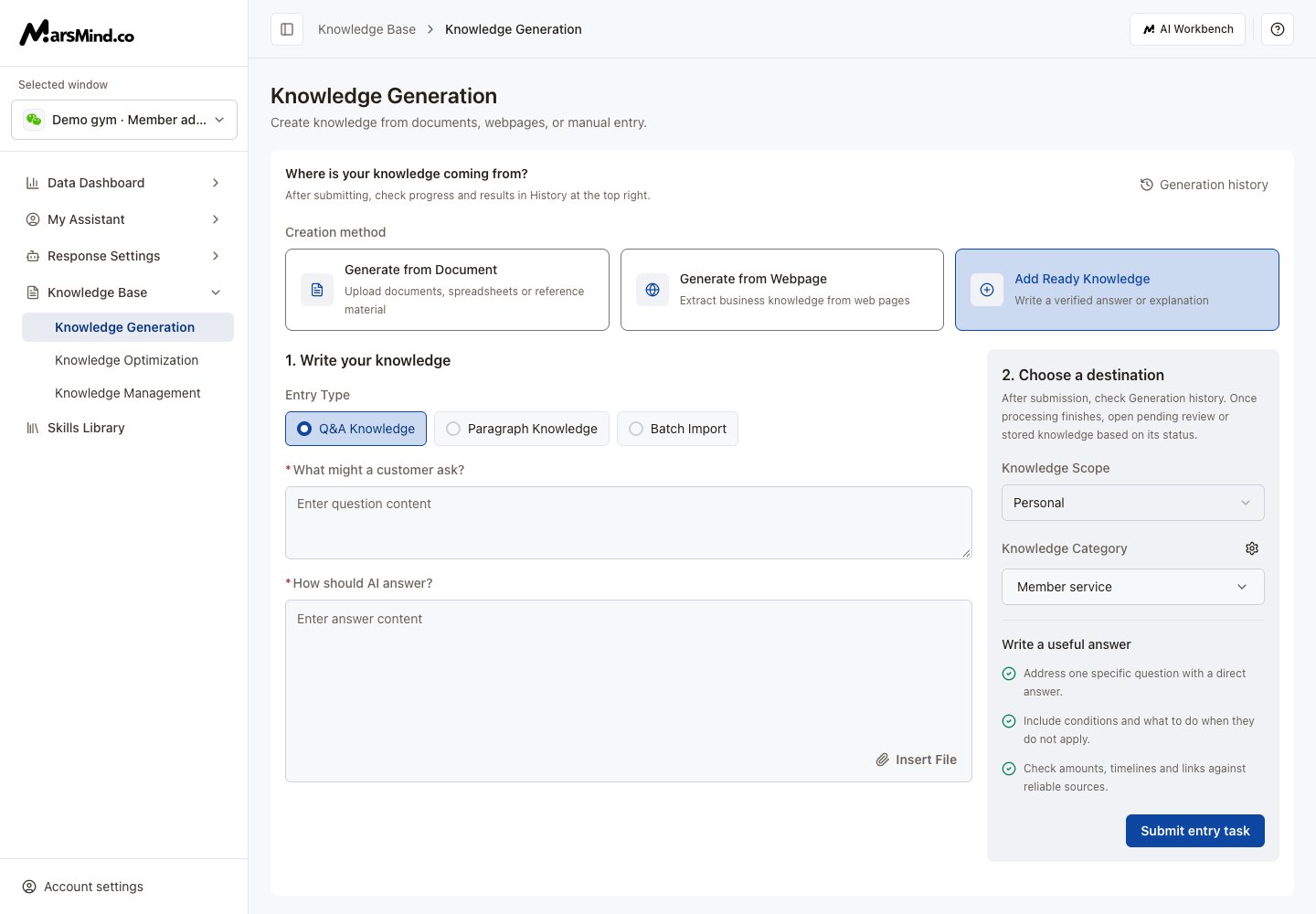
Open **Knowledge Base → Knowledge Generation → Add Ready Knowledge**.
## Add one question and answer
1. Choose **Q\&A Knowledge** under **Entry Type**.
2. Fill in **What might a customer ask?** and **How should AI answer?** For an invoice question, include the application location, required information, and processing time.
3. To attach a file, click **Insert File** in the answer area and wait for the upload to finish.
4. Choose a **Knowledge Scope** and **Knowledge Category** on the right. Select a group and click **Confirm**.
5. Click **Submit entry task**.
 **Result:** Generation history opens after submission. When processing finishes, click **View result** to open pending review or stored knowledge according to its actual status.
## Add a paragraph
1. Select **Paragraph Knowledge**.
2. Fill in **Text Description**. Use **Insert File** for attachments.
3. Choose the scope and group, then confirm the group selection.
4. Click **Submit entry task** and check the result in Generation history.
## Import a batch
1. Select **Batch Import**.
2. Click **Download Template**, then choose the QA or paragraph template.
3. Fill in its columns, preserve the template structure, and save as `.xlsx`.
4. Upload the completed file and wait for success. Only `.xlsx` is accepted here, up to **100 MB per file**.
5. Choose the scope and group, then click **Submit generation task**.
6. Find the task in Generation history and click **View result** after processing completes.
If submission fails, complete the required question, answer, paragraph, or file, and check that the group is enabled. Wait for uploads or submissions to finish before switching or retrying.
Add Ready Knowledge is a creation method. Check View result to find out whether review is still needed; items requiring confirmation appear in Pending Review.
This documentation is built and hosted on [Mintlify](https://mintlify.com), a developer documentation platform.
**Result:** Generation history opens after submission. When processing finishes, click **View result** to open pending review or stored knowledge according to its actual status.
## Add a paragraph
1. Select **Paragraph Knowledge**.
2. Fill in **Text Description**. Use **Insert File** for attachments.
3. Choose the scope and group, then confirm the group selection.
4. Click **Submit entry task** and check the result in Generation history.
## Import a batch
1. Select **Batch Import**.
2. Click **Download Template**, then choose the QA or paragraph template.
3. Fill in its columns, preserve the template structure, and save as `.xlsx`.
4. Upload the completed file and wait for success. Only `.xlsx` is accepted here, up to **100 MB per file**.
5. Choose the scope and group, then click **Submit generation task**.
6. Find the task in Generation history and click **View result** after processing completes.
If submission fails, complete the required question, answer, paragraph, or file, and check that the group is enabled. Wait for uploads or submissions to finish before switching or retrying.
Add Ready Knowledge is a creation method. Check View result to find out whether review is still needed; items requiring confirmation appear in Pending Review.
This documentation is built and hosted on [Mintlify](https://mintlify.com), a developer documentation platform.