> ## Documentation Index
> Fetch the complete documentation index at: https://docs.marsmind.co/llms.txt
> Use this file to discover all available pages before exploring further.
# Base Persona
> Set AI style, custom instructions, context, and derived prompts.
Set the assistant style, identity, and response principles.
Open: **My Assistant** → **Base Persona**.
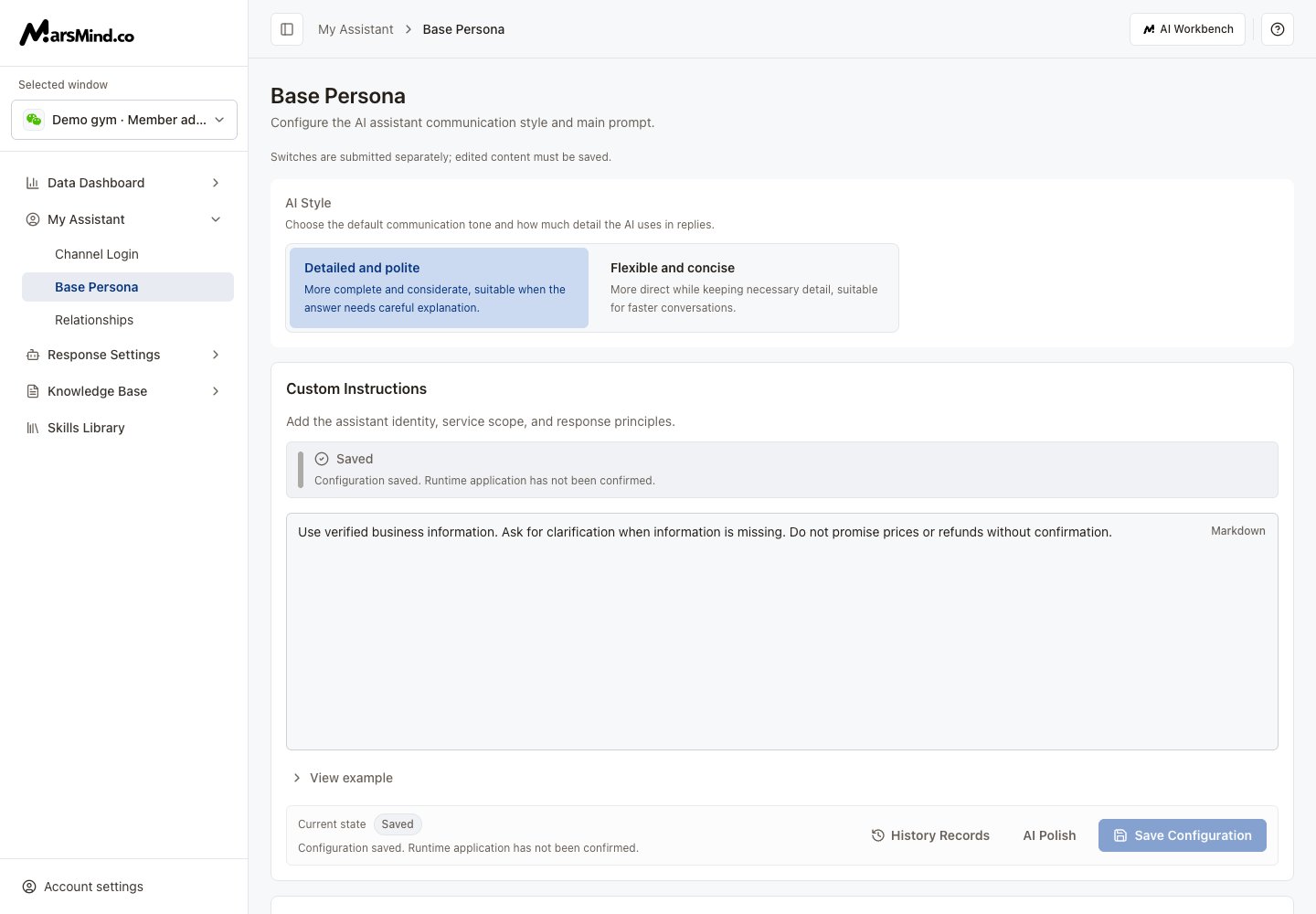 The screenshot uses demonstration data.
## Set style and custom instructions
Select the channel to configure under **Selected window** in the sidebar.
Choose **Detailed and polite** or **Flexible and concise**. This choice saves separately and does not save your instruction draft.
Enter the assistant identity, service scope, and response principles. For example: act as an after-sales adviser, confirm the order and issue, follow the knowledge base, and ask for missing information.
With text entered, select **AI Polish**. Review the comparison and select **Apply candidate** to replace the editor text, or **Keep current draft** to retain it.
Select **Save Configuration** and wait for confirmation. To restore older text, open **History Records**, choose a version, apply it, then select **Save Configuration** again.
A successful save confirms the configuration was stored. Runtime application remains unconfirmed. Applying AI or history candidates only changes the draft.
## Context Settings
Expand **Context Settings** and the relevant category. Check the conversation context or user information to include.
Select **AI Suggest** for suggested selections. Review the checked items and reasons, then adjust them.
Select this section's **Save Configuration**. Unknown or disabled items can only be unchecked; remove them before saving.
Saving the main instructions can automatically analyze and save context settings. Review this section afterward. Manual AI suggestions still require saving.
## Derived Prompts
With main instructions entered, expand **Derived Prompts** and select **Re-derive**.
Expand items marked **New** and review or edit their text. **Adopt** saves that item; **Discard** removes the candidate and keeps the stored configuration.
You can also edit an individual item and select **Save**. **Clear** clears that item so it uses the system default.
Manual saving or clearing marks this item as manually locked. This page cannot unlock it; check the content before continuing.
Candidates are generated only when you select **Re-derive**. Generation does not save them. Manually locked items cannot be unlocked here. If lock status fails to load, select **Reload config**; writes remain blocked until it succeeds.
## If settings fail to load
If settings fail to load, select **Retry**. Editing and saving remain unavailable until loading succeeds.
This documentation is built and hosted on [Mintlify](https://mintlify.com), a developer documentation platform.
The screenshot uses demonstration data.
## Set style and custom instructions
Select the channel to configure under **Selected window** in the sidebar.
Choose **Detailed and polite** or **Flexible and concise**. This choice saves separately and does not save your instruction draft.
Enter the assistant identity, service scope, and response principles. For example: act as an after-sales adviser, confirm the order and issue, follow the knowledge base, and ask for missing information.
With text entered, select **AI Polish**. Review the comparison and select **Apply candidate** to replace the editor text, or **Keep current draft** to retain it.
Select **Save Configuration** and wait for confirmation. To restore older text, open **History Records**, choose a version, apply it, then select **Save Configuration** again.
A successful save confirms the configuration was stored. Runtime application remains unconfirmed. Applying AI or history candidates only changes the draft.
## Context Settings
Expand **Context Settings** and the relevant category. Check the conversation context or user information to include.
Select **AI Suggest** for suggested selections. Review the checked items and reasons, then adjust them.
Select this section's **Save Configuration**. Unknown or disabled items can only be unchecked; remove them before saving.
Saving the main instructions can automatically analyze and save context settings. Review this section afterward. Manual AI suggestions still require saving.
## Derived Prompts
With main instructions entered, expand **Derived Prompts** and select **Re-derive**.
Expand items marked **New** and review or edit their text. **Adopt** saves that item; **Discard** removes the candidate and keeps the stored configuration.
You can also edit an individual item and select **Save**. **Clear** clears that item so it uses the system default.
Manual saving or clearing marks this item as manually locked. This page cannot unlock it; check the content before continuing.
Candidates are generated only when you select **Re-derive**. Generation does not save them. Manually locked items cannot be unlocked here. If lock status fails to load, select **Reload config**; writes remain blocked until it succeeds.
## If settings fail to load
If settings fail to load, select **Retry**. Editing and saving remain unavailable until loading succeeds.
This documentation is built and hosted on [Mintlify](https://mintlify.com), a developer documentation platform.